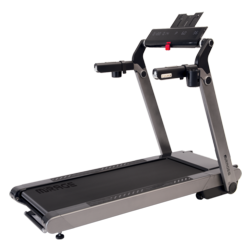
















































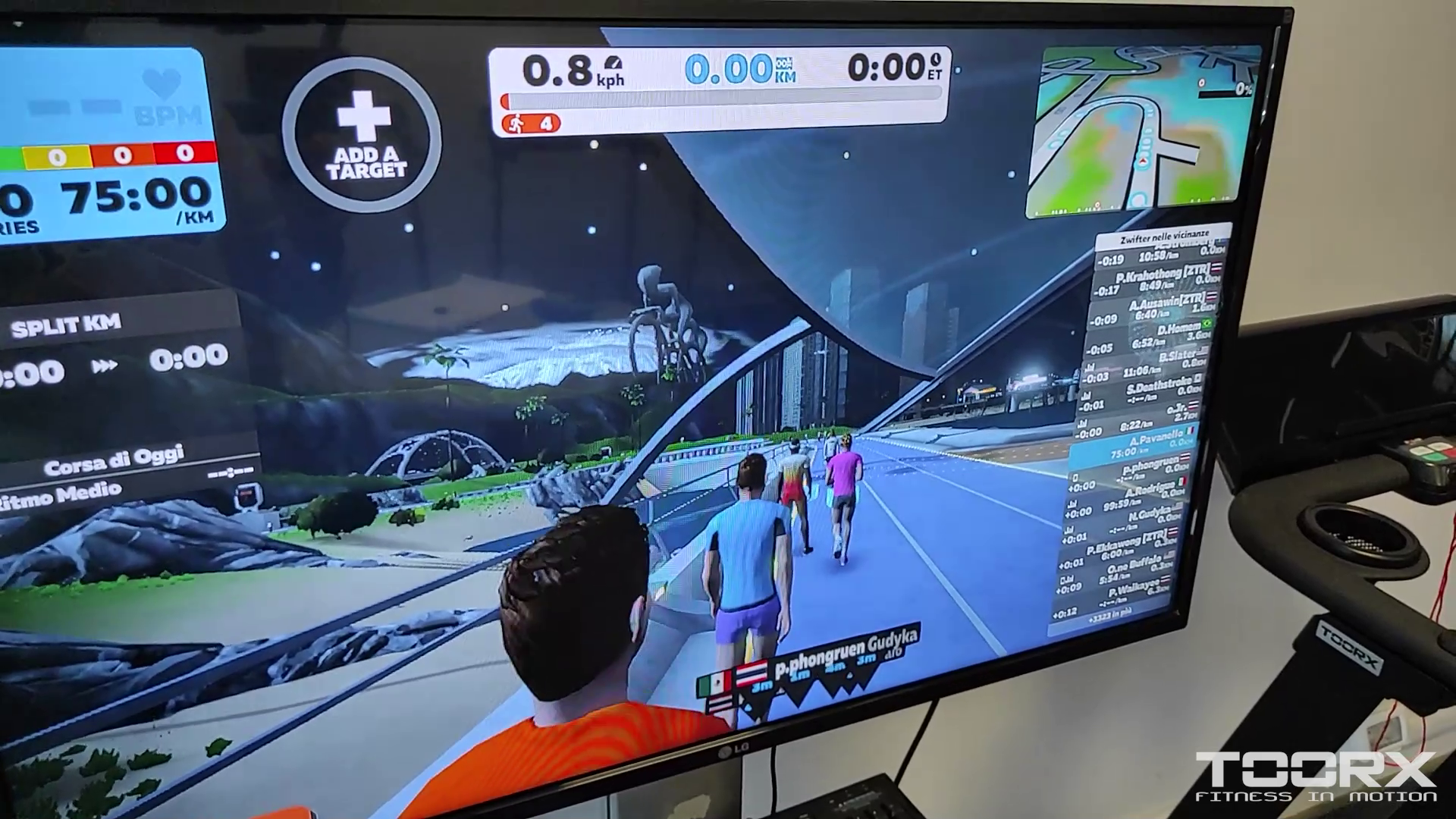
In this video, we explain how to connect your treadmill via the GATE 3.0 app to ZWIFT with a PC, Android Companion app, and native Zwift for Android.
Windows 10 PC with Bluetooth antenna built into the system
1. Download and install the ZWIFT application on your PC. https://www.zwift.com/download
2. Insert the GATE APP into the dedicated slot.
3. Launch Zwift—you will need to register on the website—log in with your username, select Running, then instruct the program to use the PC's built-in Bluetooth (gear icon in the top right corner) to search for the treadmill. Select the treadmill and start your training session.
Windows 10 PC without Bluetooth antenna on board the system and use of ZWIFT COMPANION APP
1. Download the Companion app and install it on your phone/tablet https://play.google.com/store/apps/de... 2. Download and install the ZWIFT application on your PC. (https://www.zwift.com/download)
3. Insert the GATE APP into the dedicated slot. The PC and mobile device MUST be connected to the same Wi-Fi or LAN network. The phone's GPS must be active.
4. Launch the Zwift companion app on your phone. -Of course, activate BT-
5. Launch Zwift (you need to register on the website), log in with your username, select Running, then tell the program to use Bluetooth via the companion app (gear icon in the top right corner) to search for the treadmill. Select the treadmill and start your training session. The treadmill, the program on your PC, and the companion app will work together.
Zwift native on Android
1. Download ZWIFT and install it on your phone/tablet https://play.google.com/store/apps/de...
2. Insert the GATE APP into the dedicated slot.
3. Activate the phone's GPS antenna and, of course, activate BT.
4. Launch Zwift—you will need to register on the website—log in with your username, and select Running. Find and select the treadmill and start your training session. You will obviously need an internet connection.
The full ZWIFT application is quite "heavy," so it may not be available on some older phones.
The ports to open on the firewall are: TCP/80, TCP/443, TCP/21587 (Zwift companion app), UDP/3022.
#toorx
Tag your photos and videos with #toorx #fitnessinmotion and join the TOORX community!!


NEWSLETTER
Subscribe to the newsletter to receive updates from Toorx


 MIRAGE TFT
 MIRAGE
 MIRAGE
 MIRAGE TFT
 MIRAGE
 MIRAGE
 MIRAGE
 MIRAGE
 MIRAGE
 TRX-100-3.0
 TRX MARATHON-3.0
 EXPERIENCE PLUS AC
 TOURING-3.0
 EXPERIENCE PLUS TFT
 TRX POWER COMPACT S
 EXPERIENCE PLUS
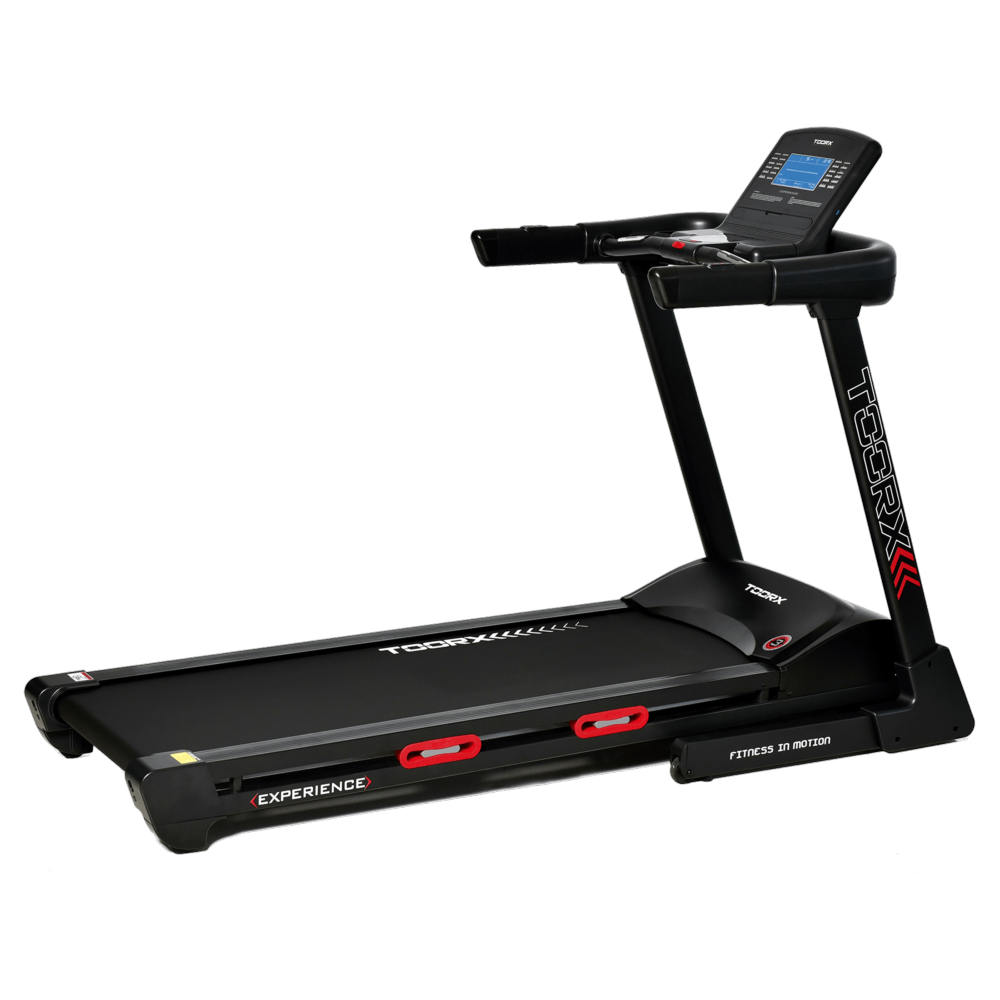 EXPERIENCE
 VOYAGER PLUS
 VOYAGER
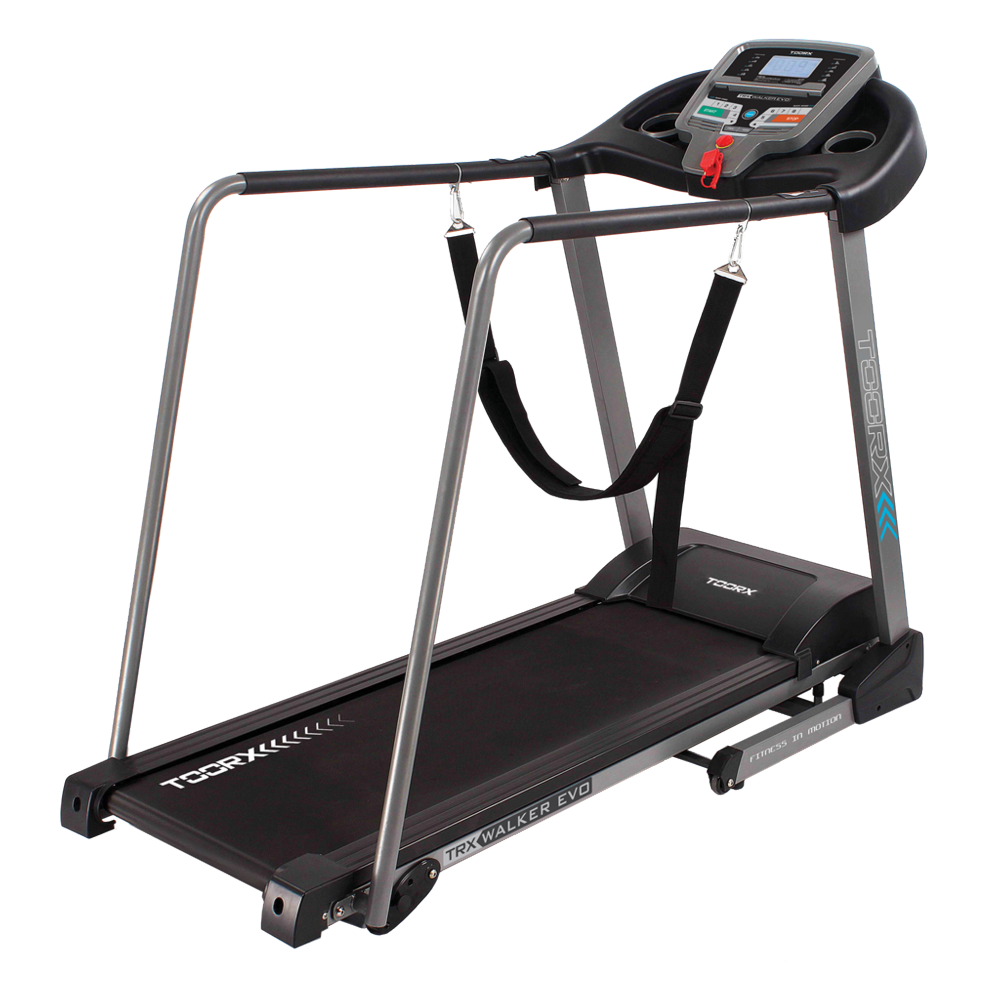 TRX WALKER EVO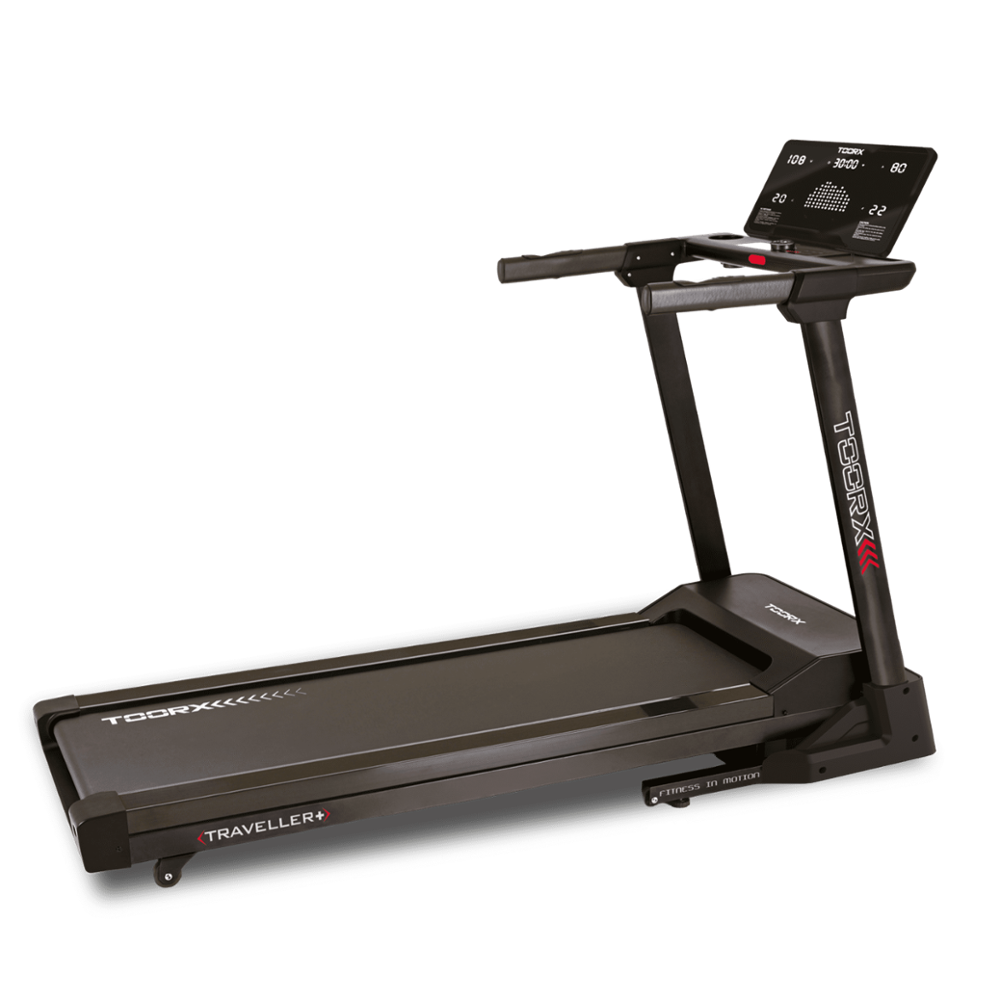
 TRAVELLER
 RAMBLER
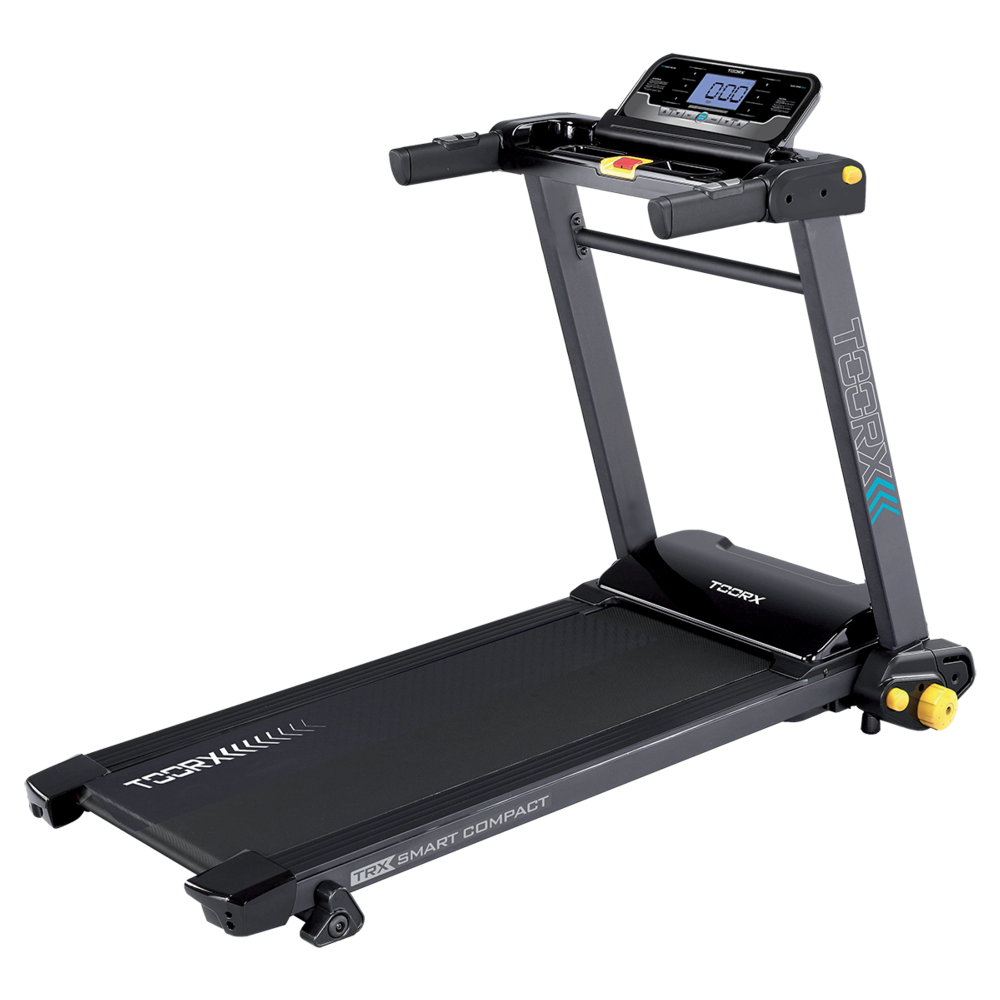 TRX SMART COMPACT
 MOTION
 CITY COMPACT
 STREET COMPACT
 SRX-500
 SRX-100
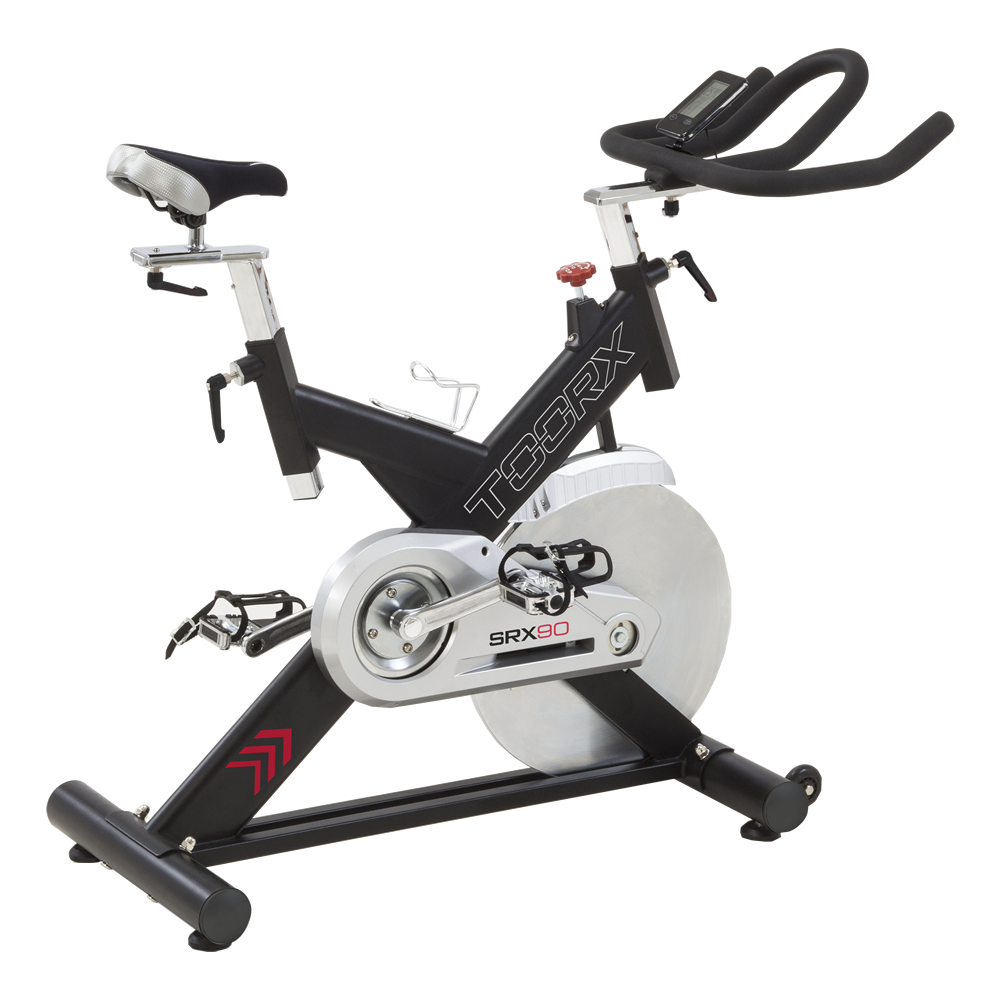 SRX-90
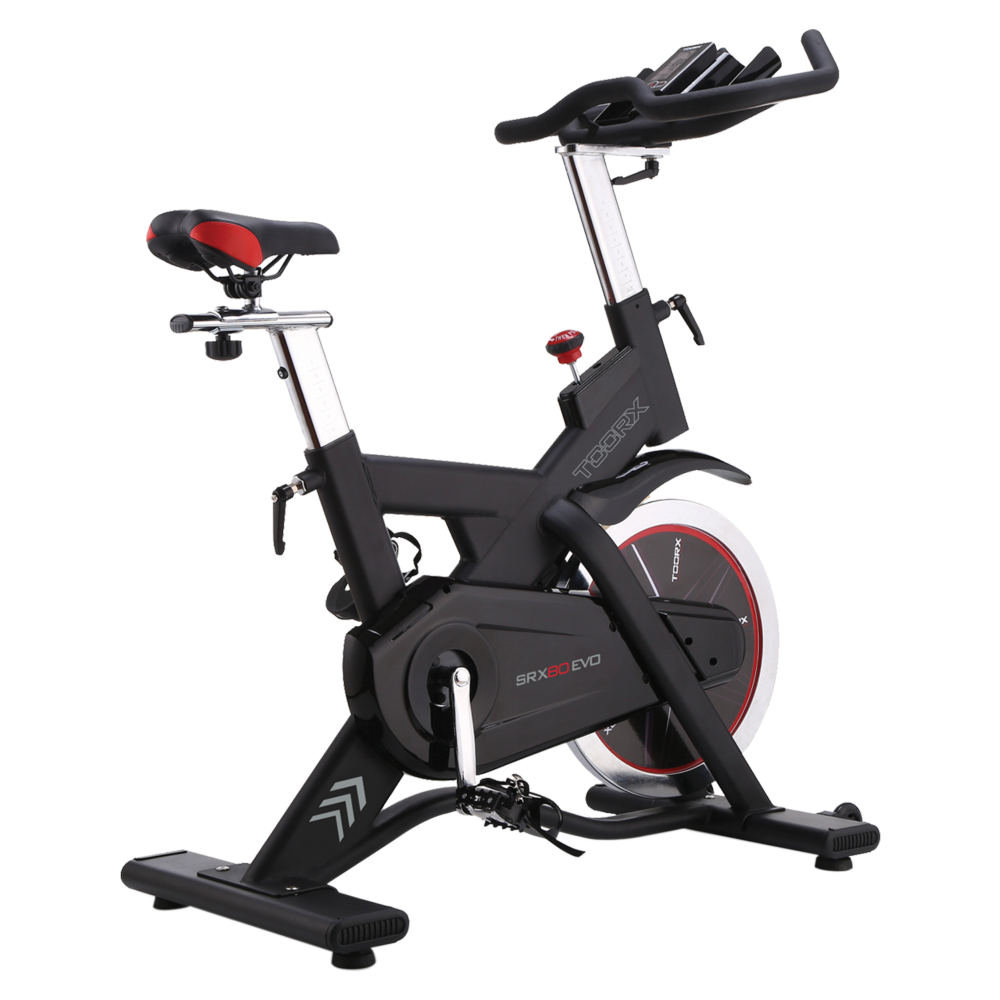 SRX-80 EVO
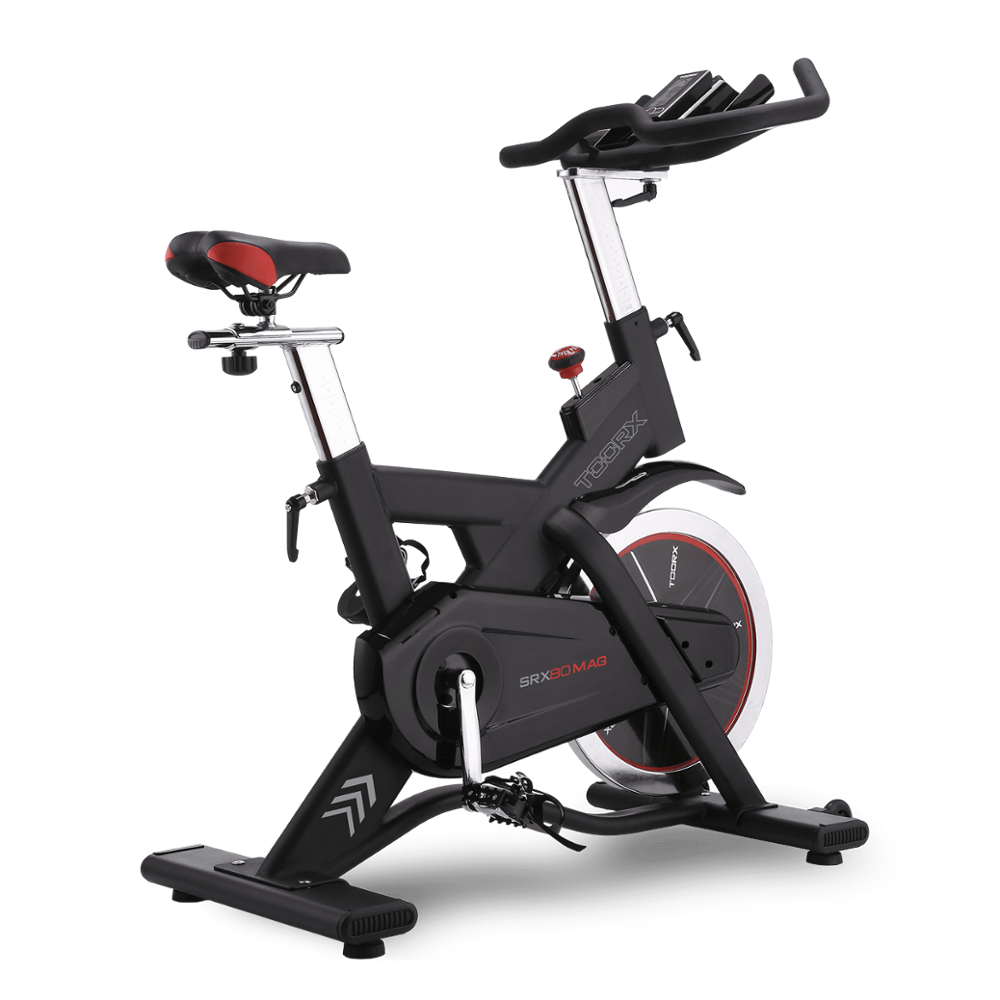 SRX 80 MAG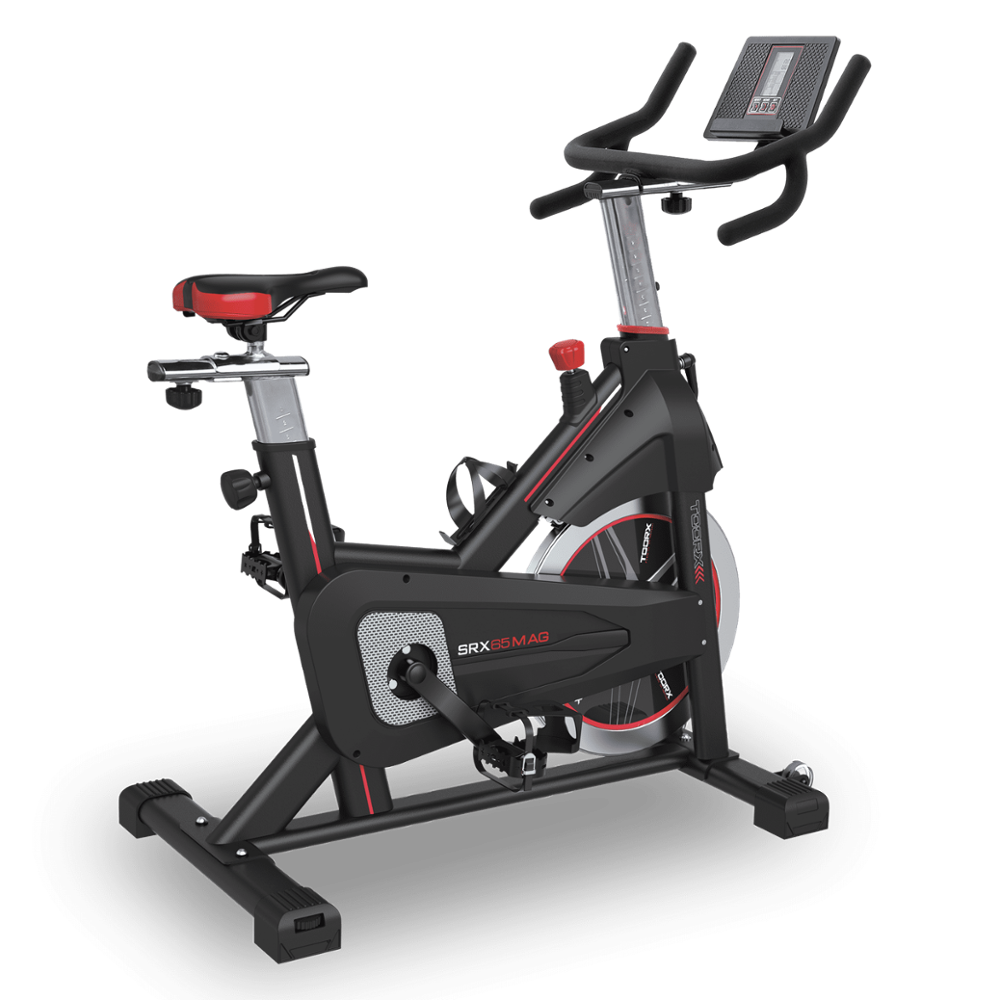
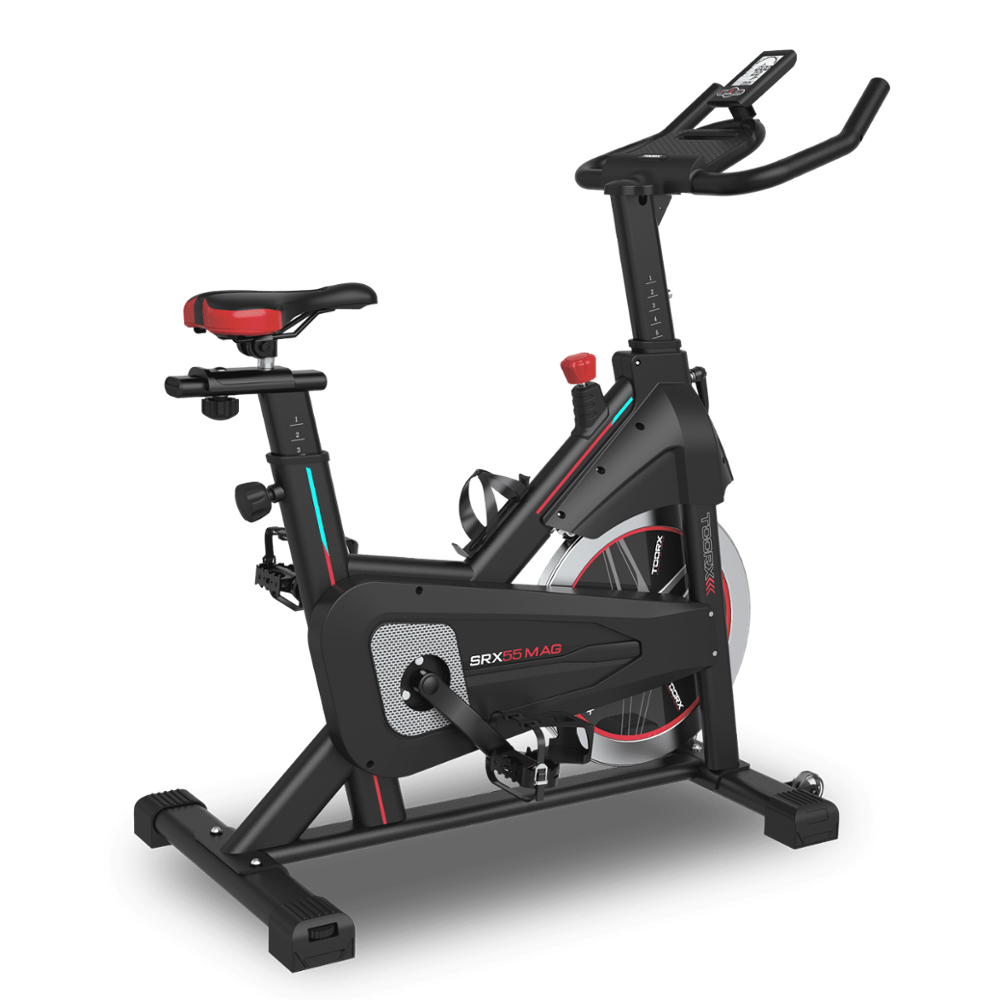
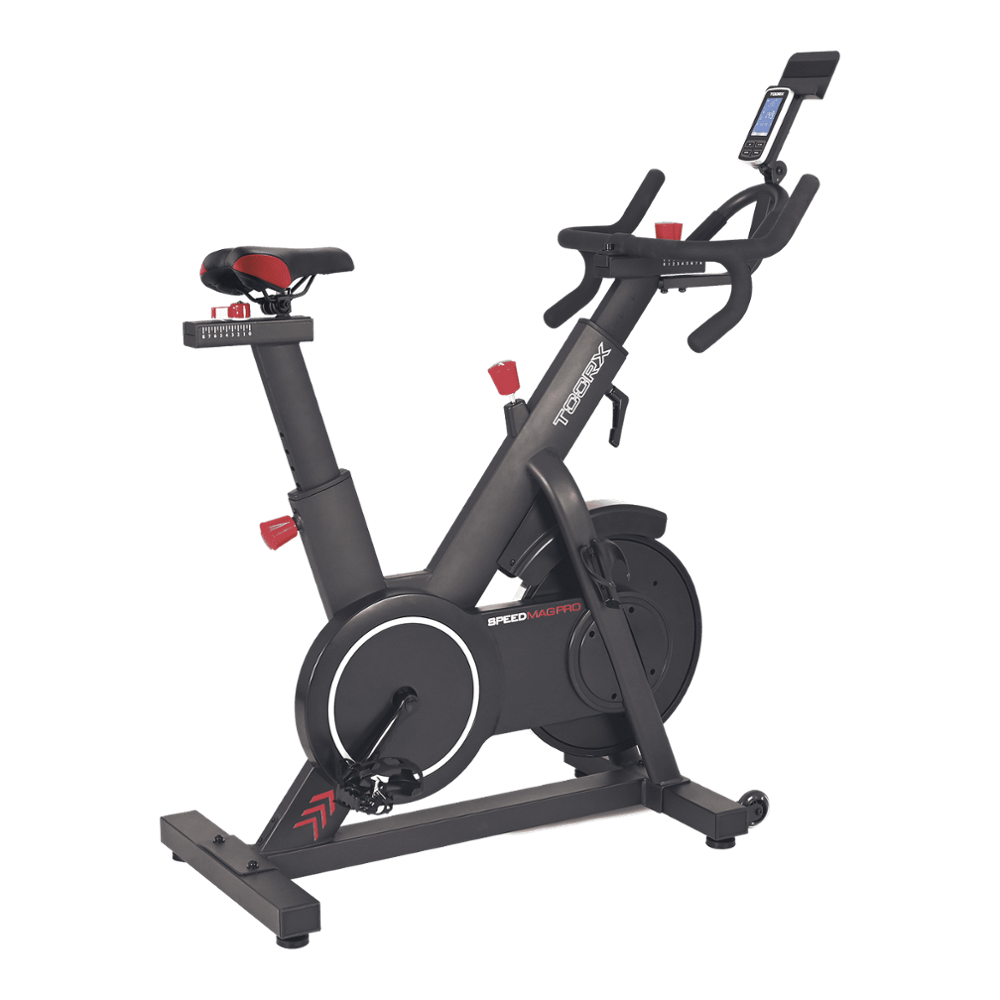 SRX SPEED MAG PRO
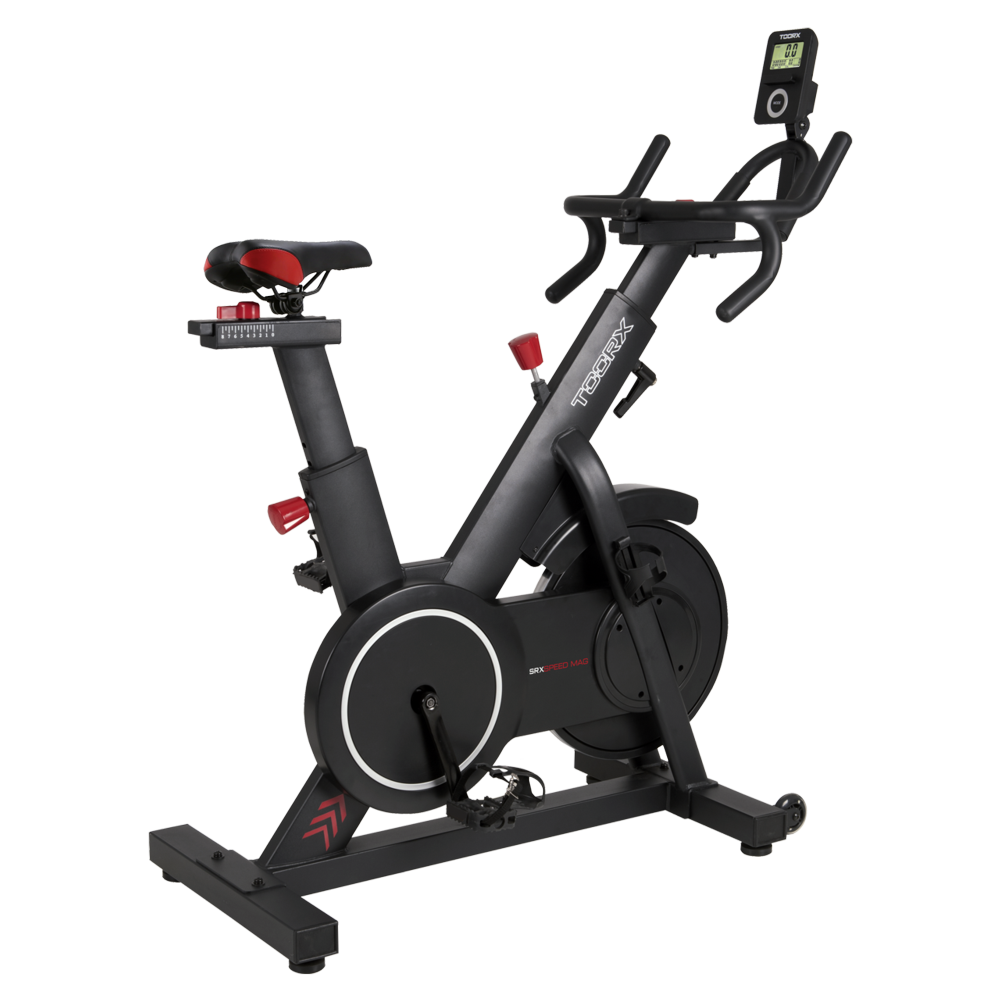 SRX SPEED MAG
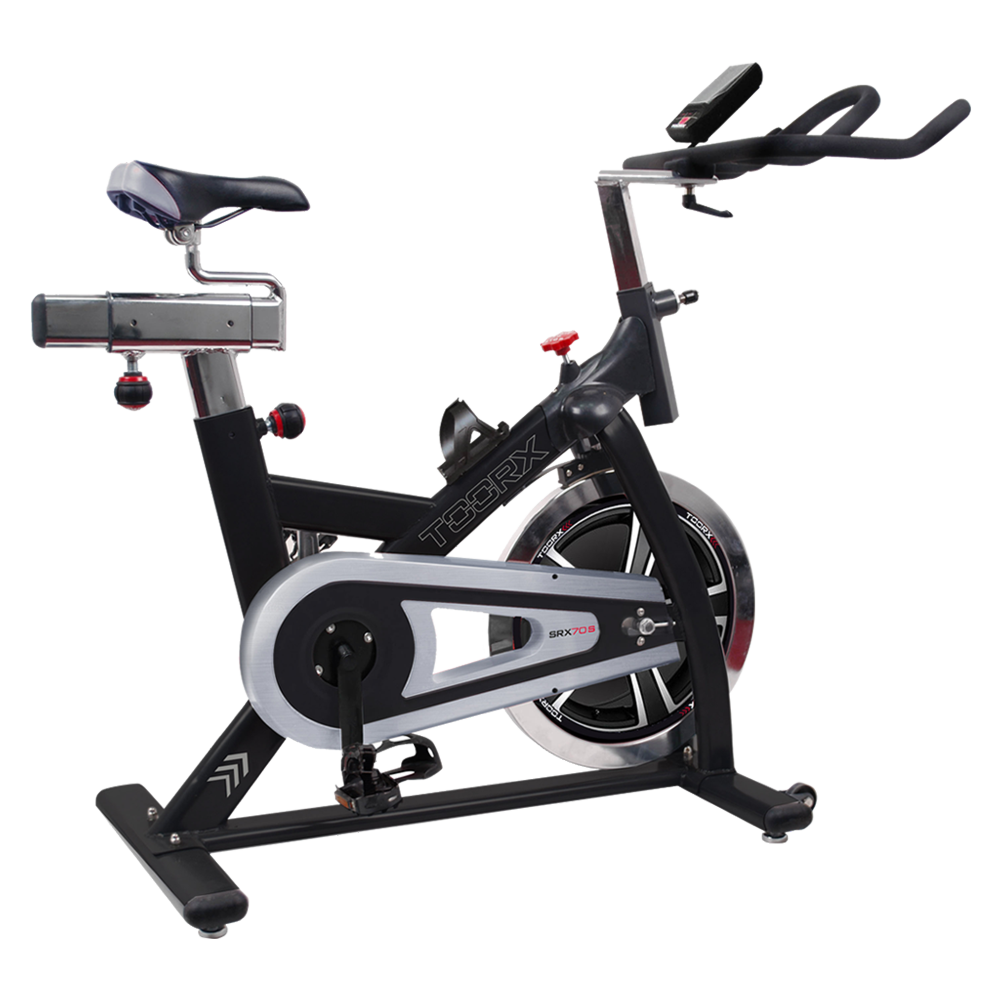 SRX-70 S
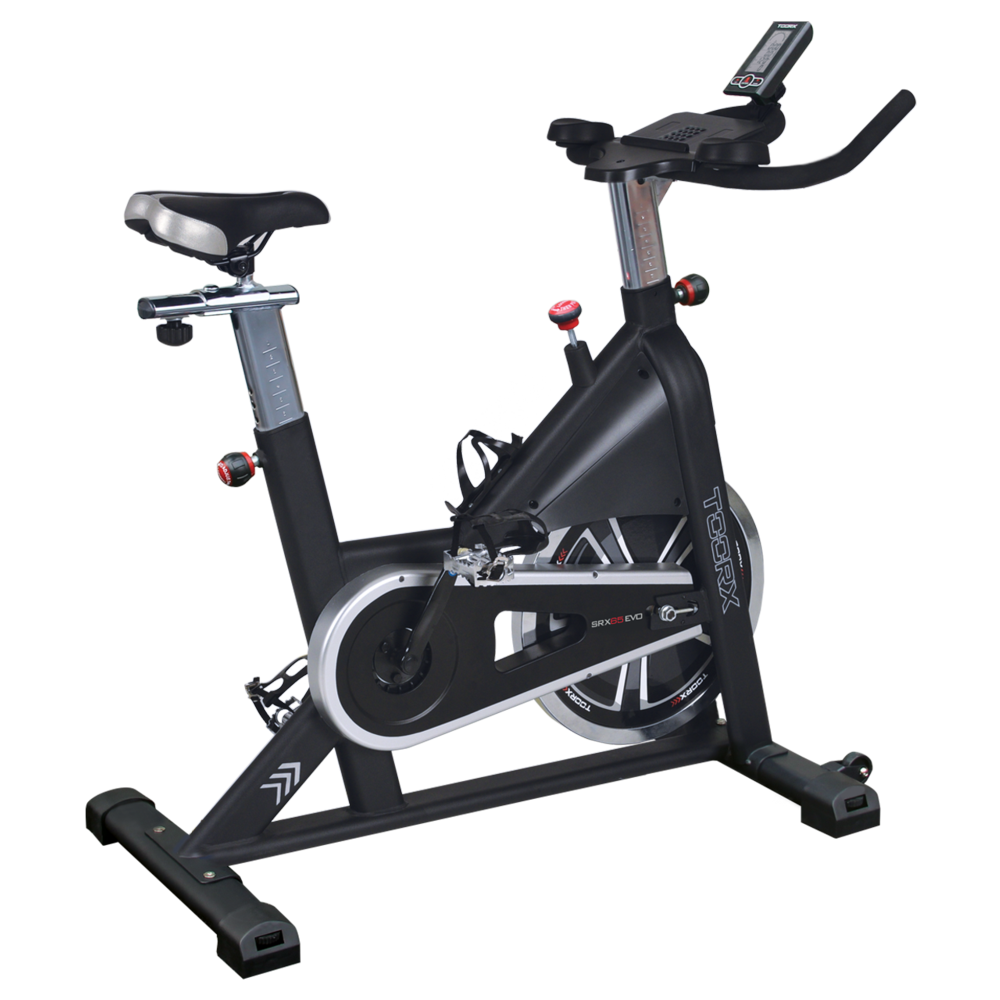 SRX-65 EVO
 SRX-60 EVO
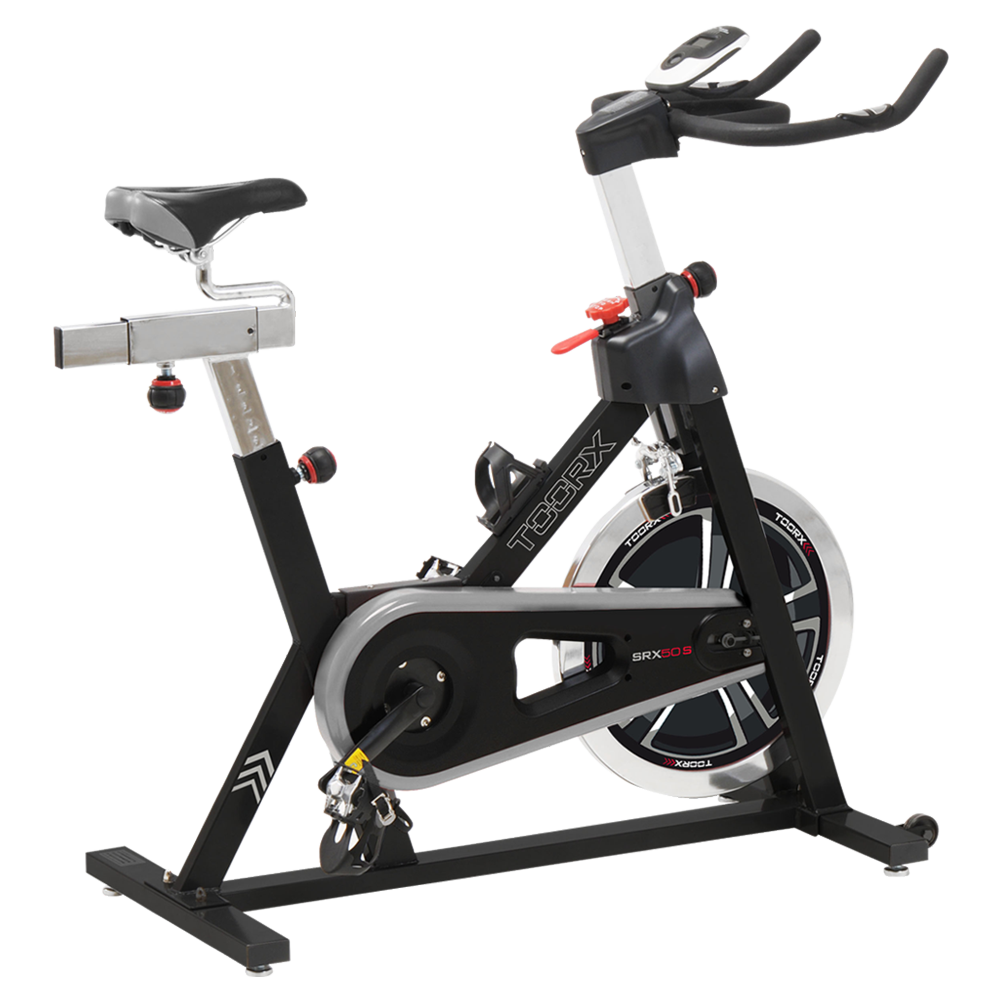 SRX-50 S
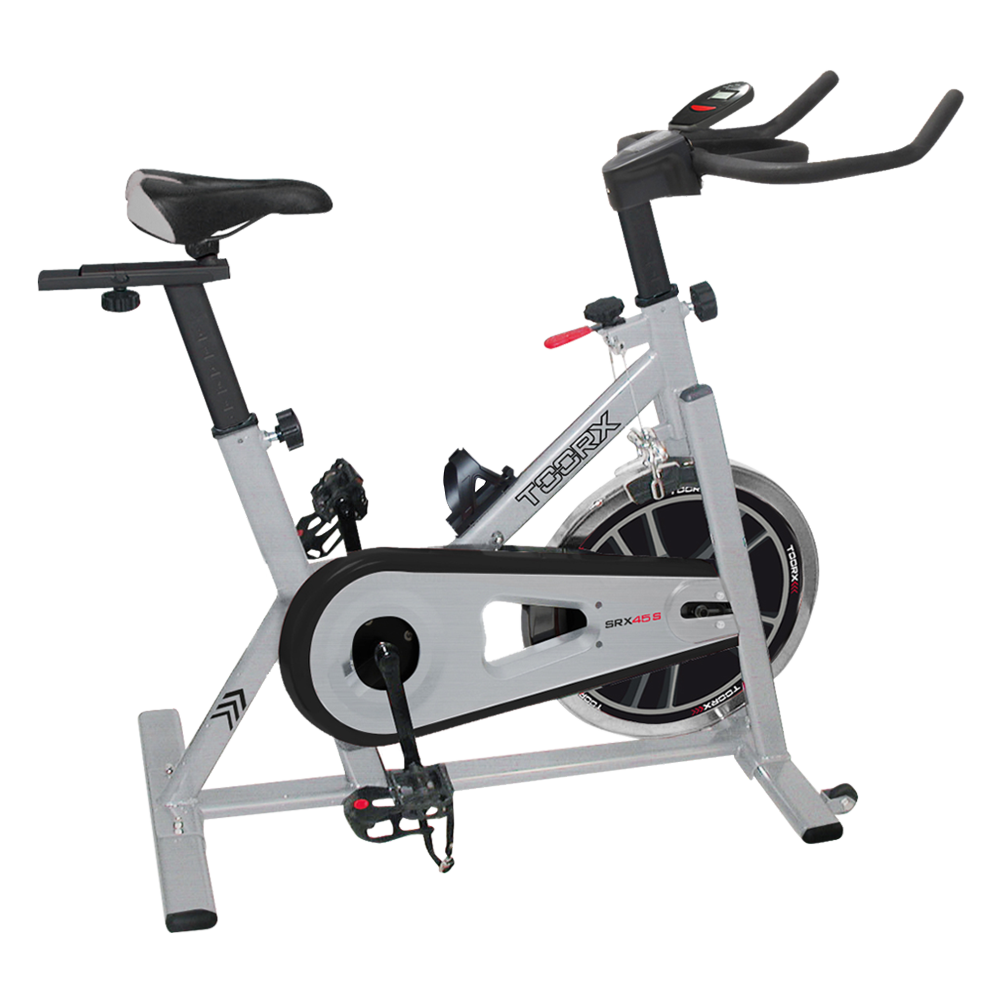 SRX-45 S
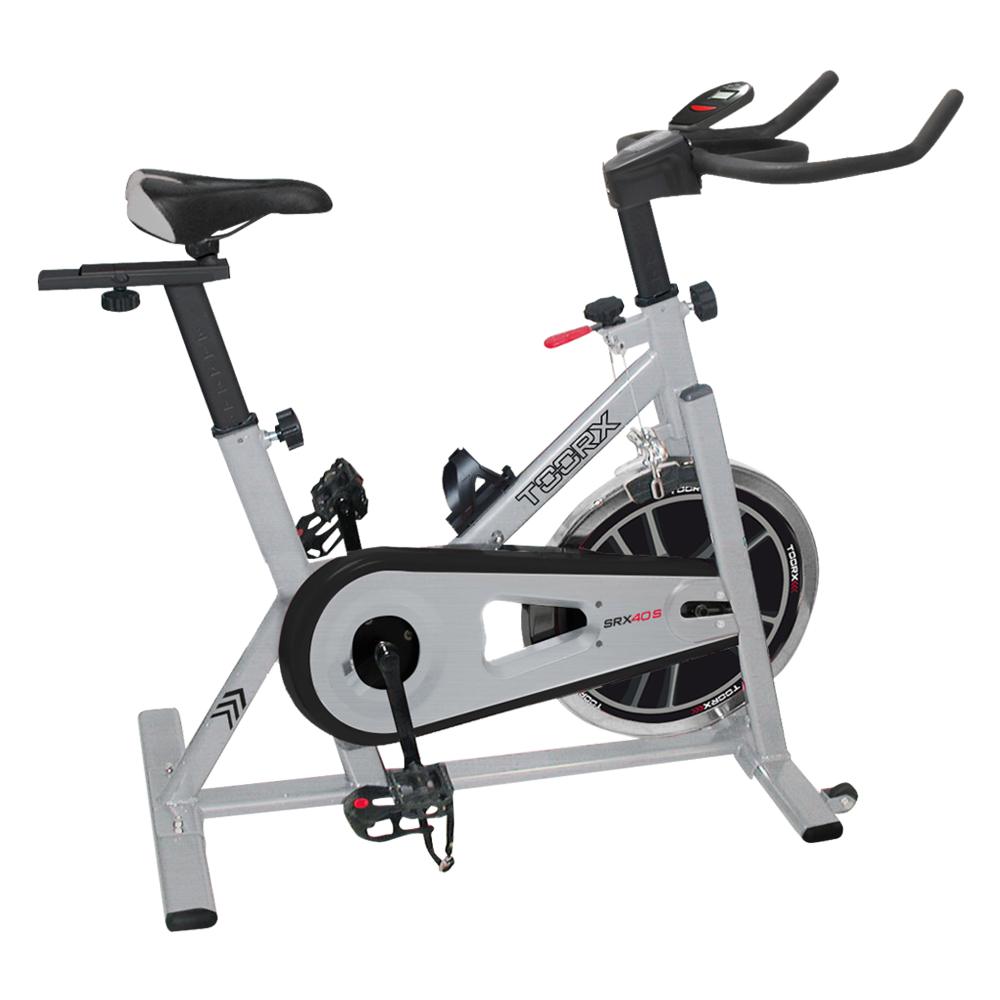 SRX-40 S

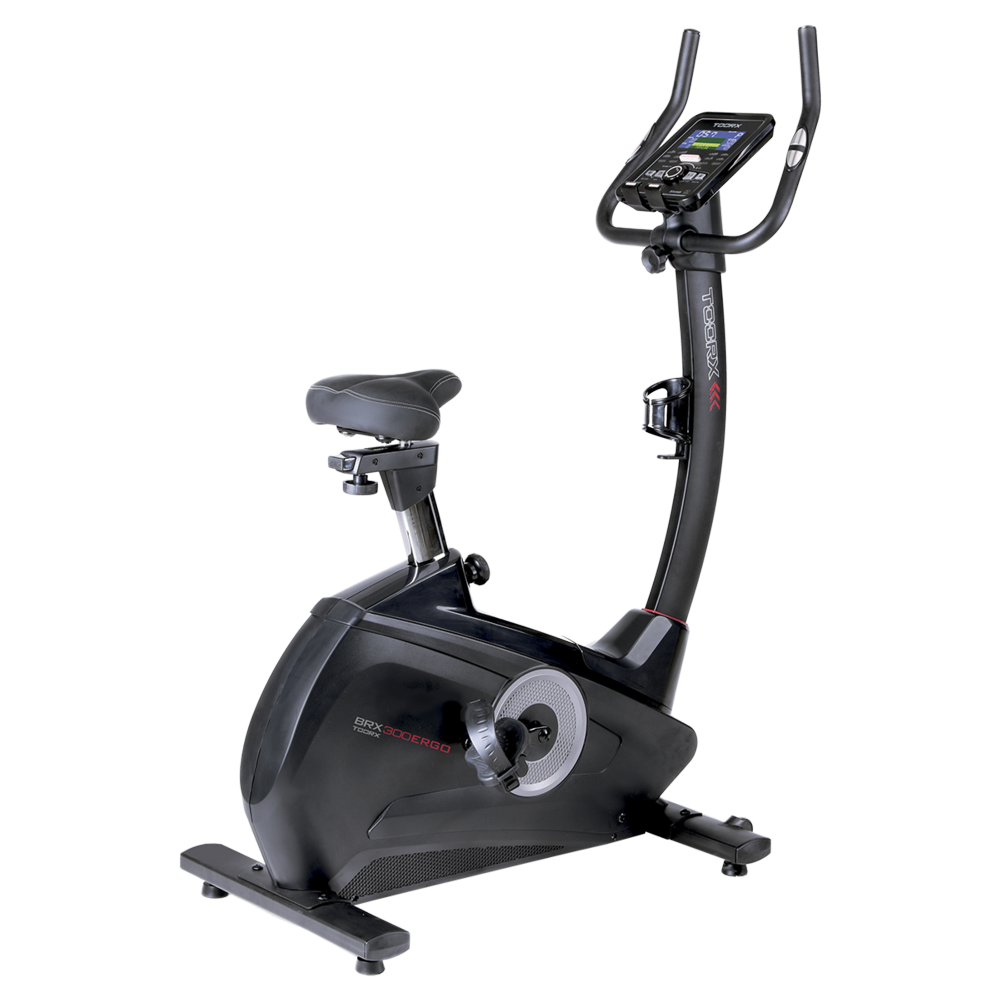 BRX-300 ERGO
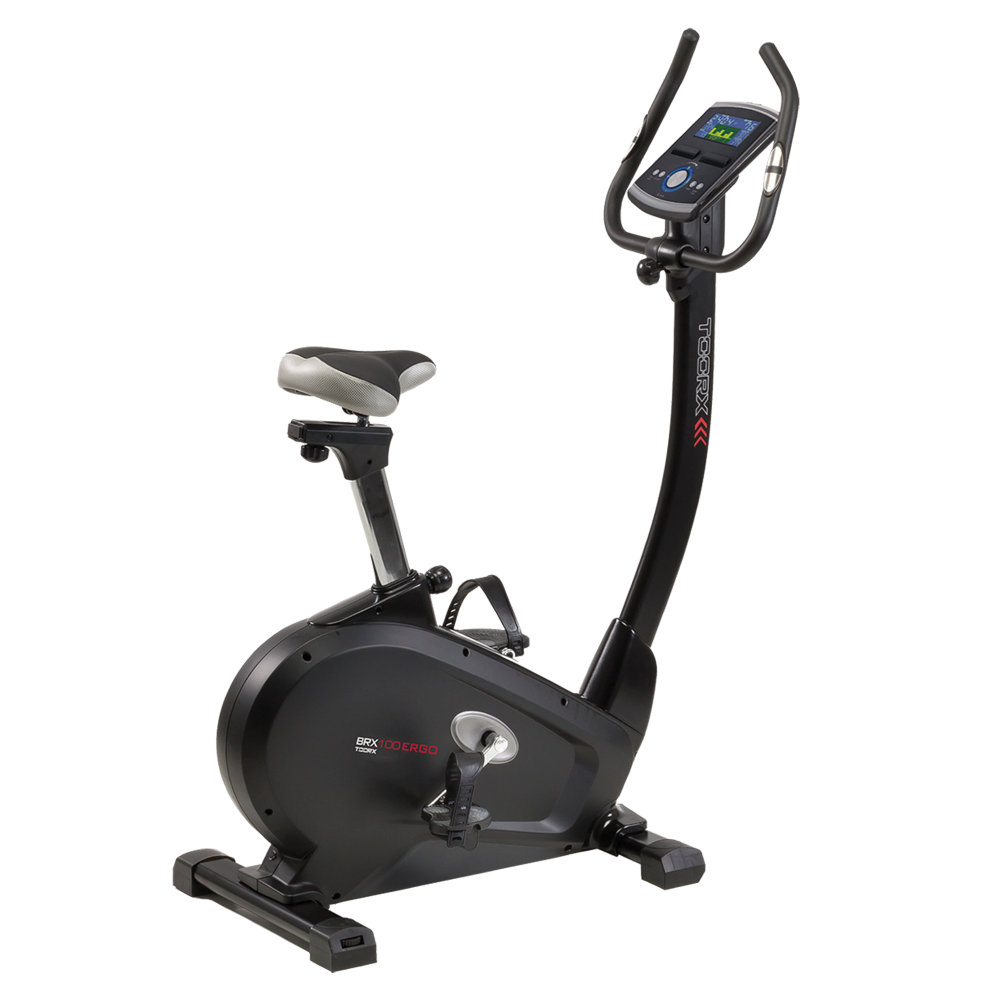 BRX-100 ERGO
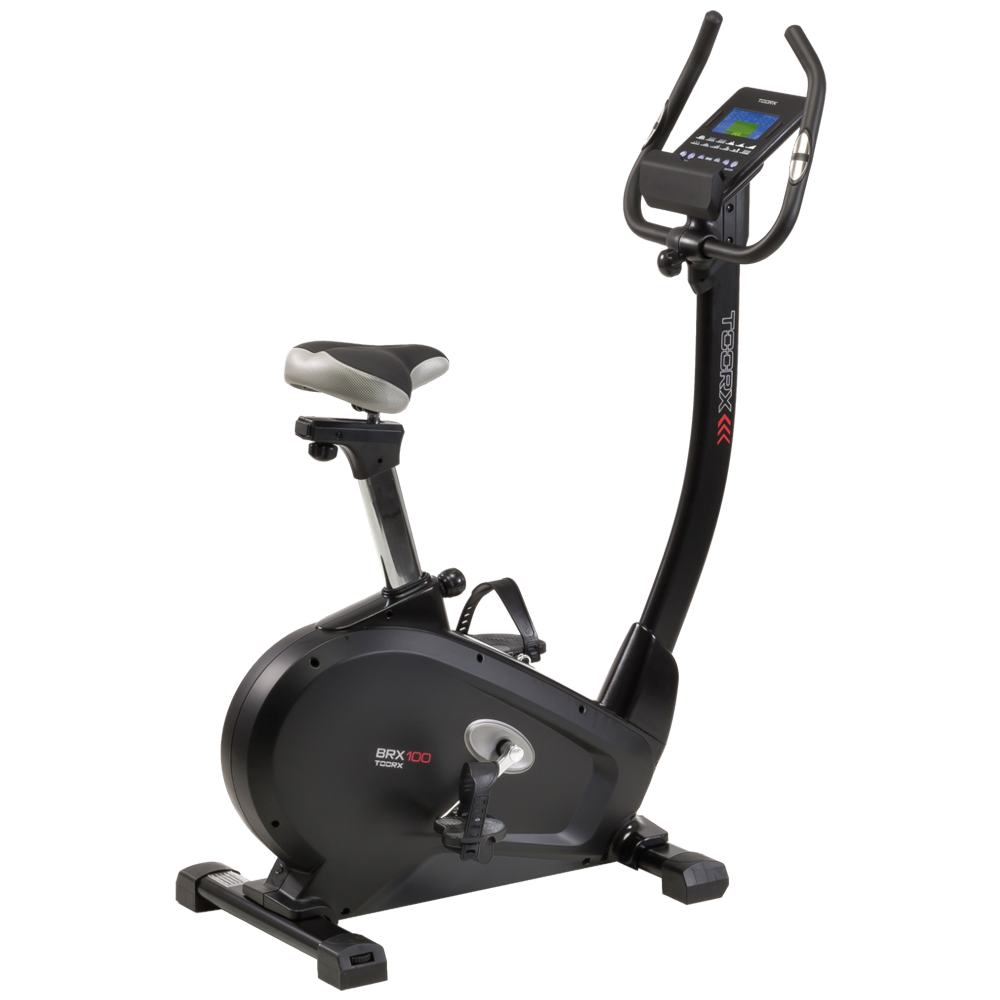 BRX-100
 BRX-90 EVO
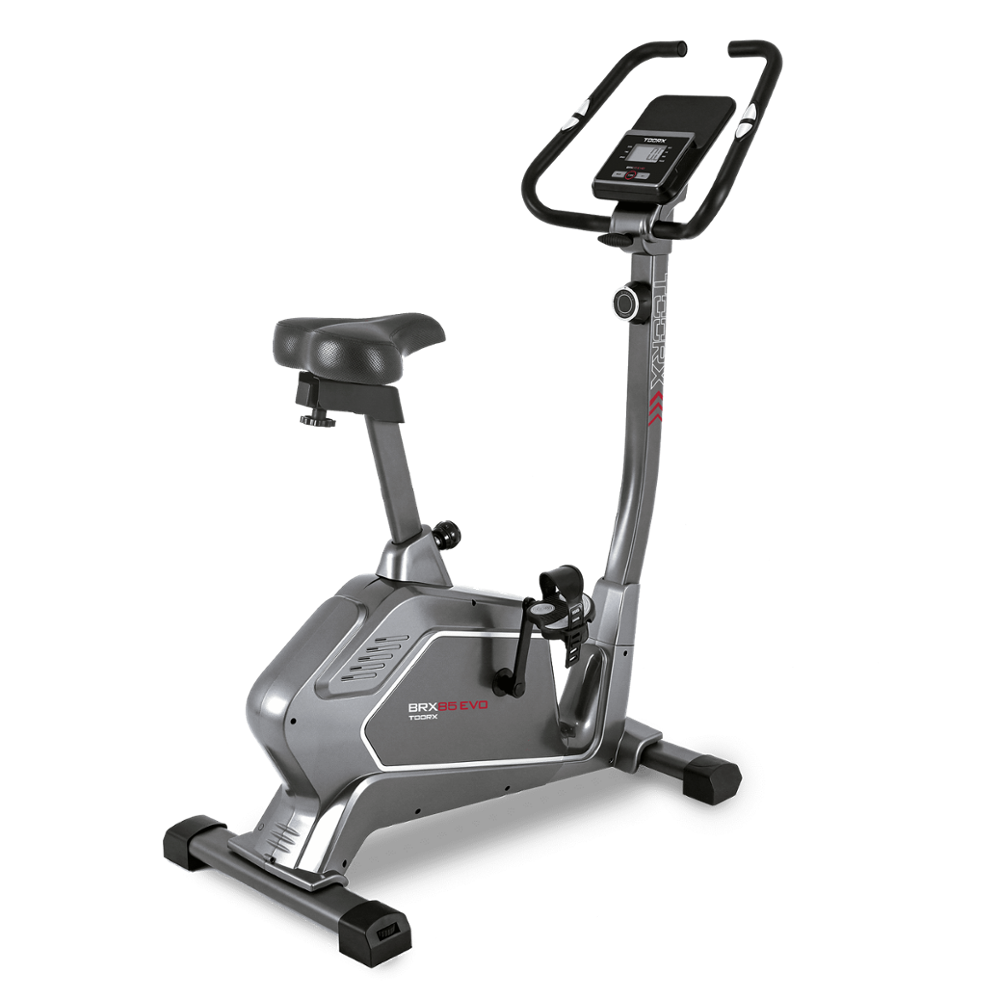 BRX-85 EVO
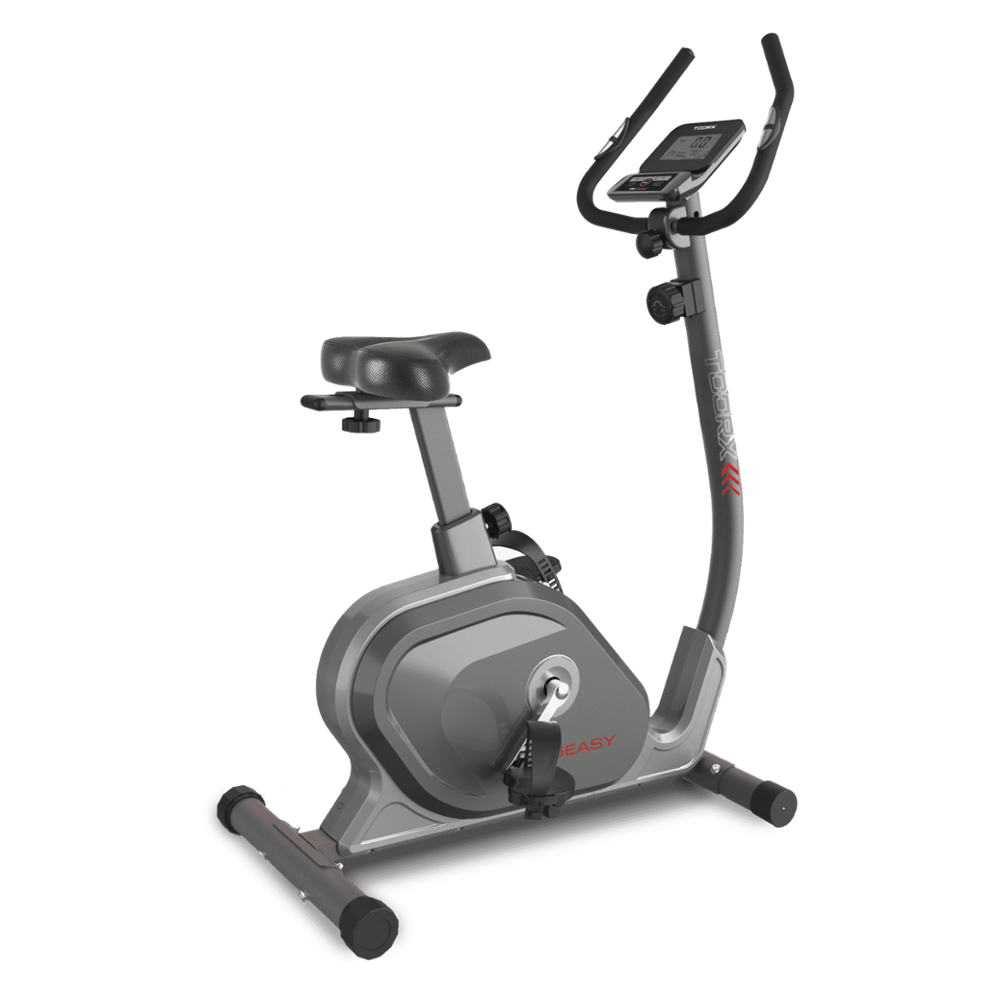 BRX-75 EASY
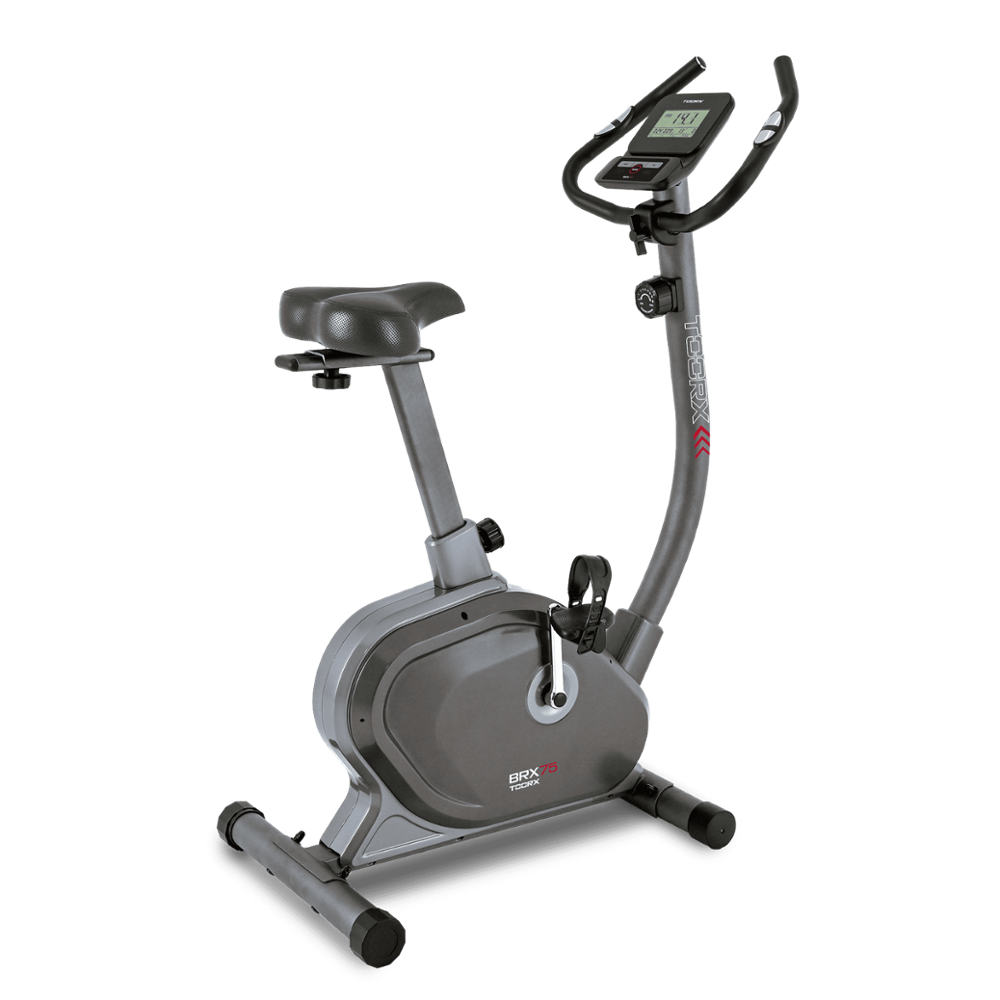 BRX-75
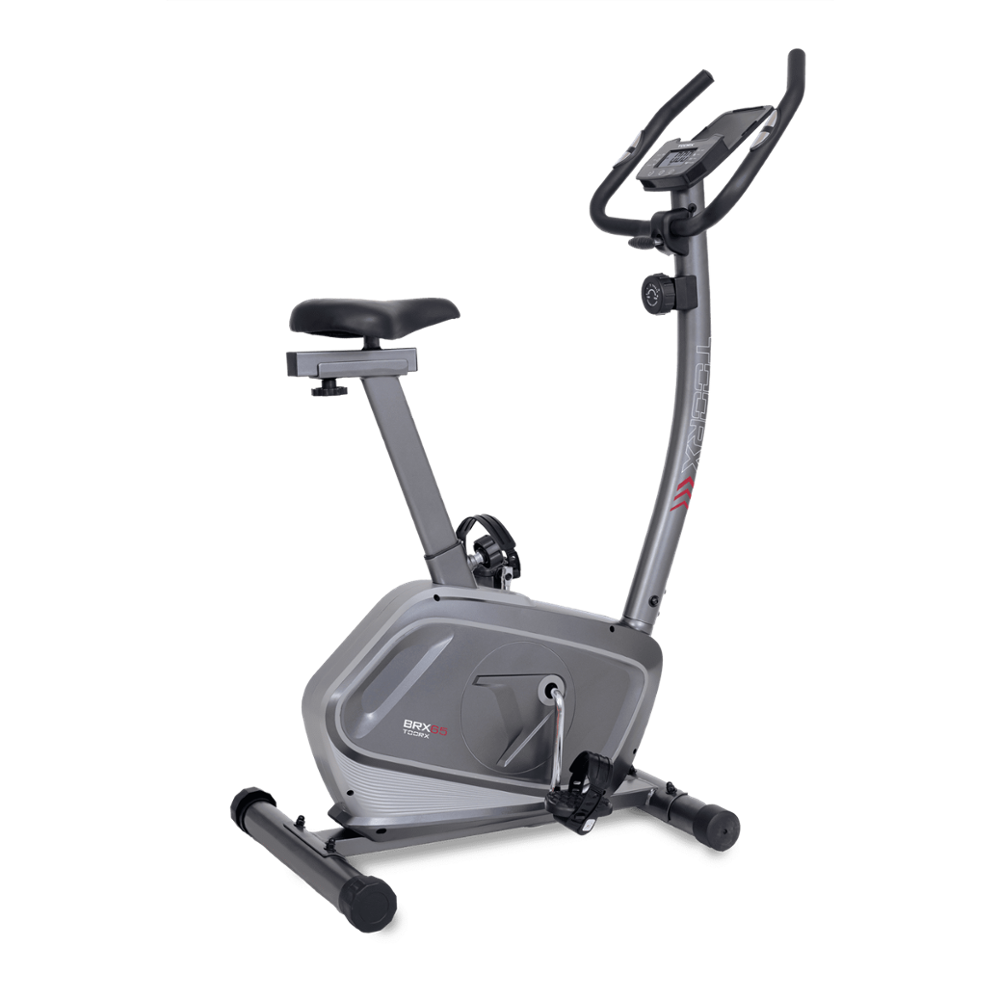 BRX-65
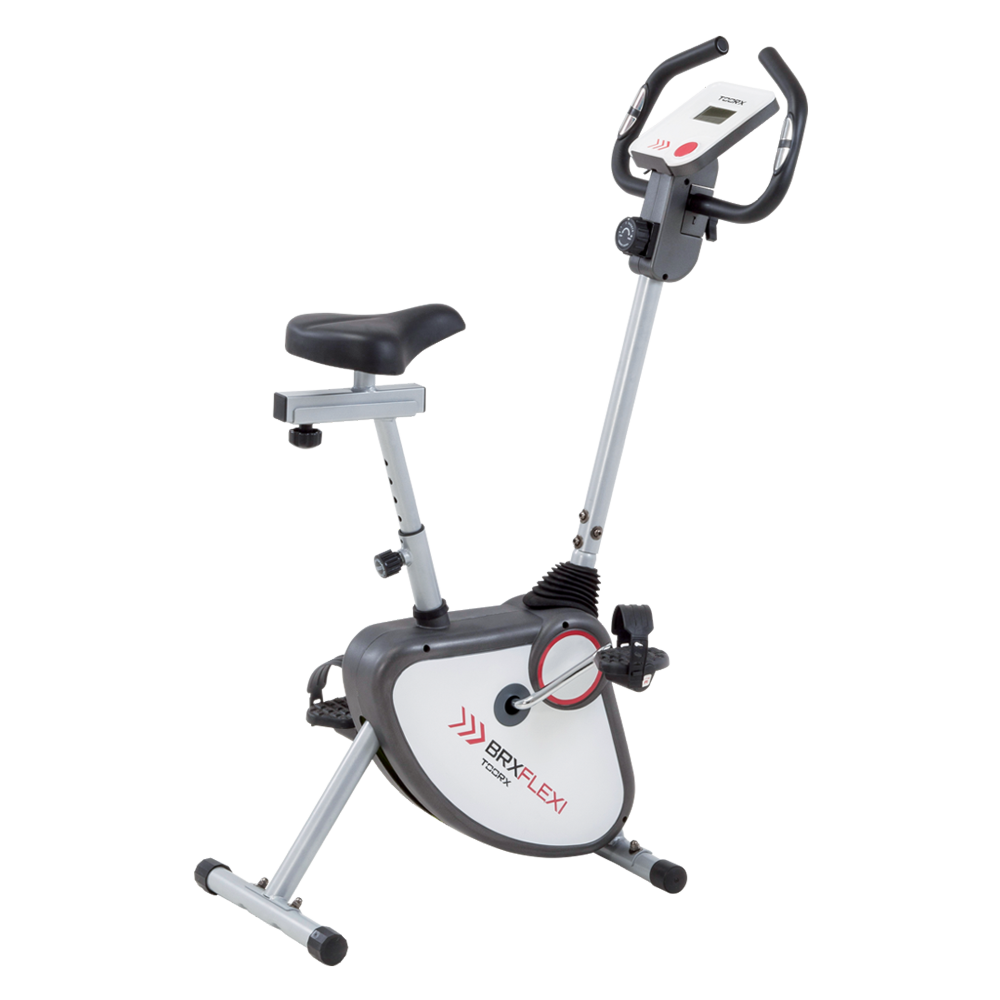 BRX FLEXI
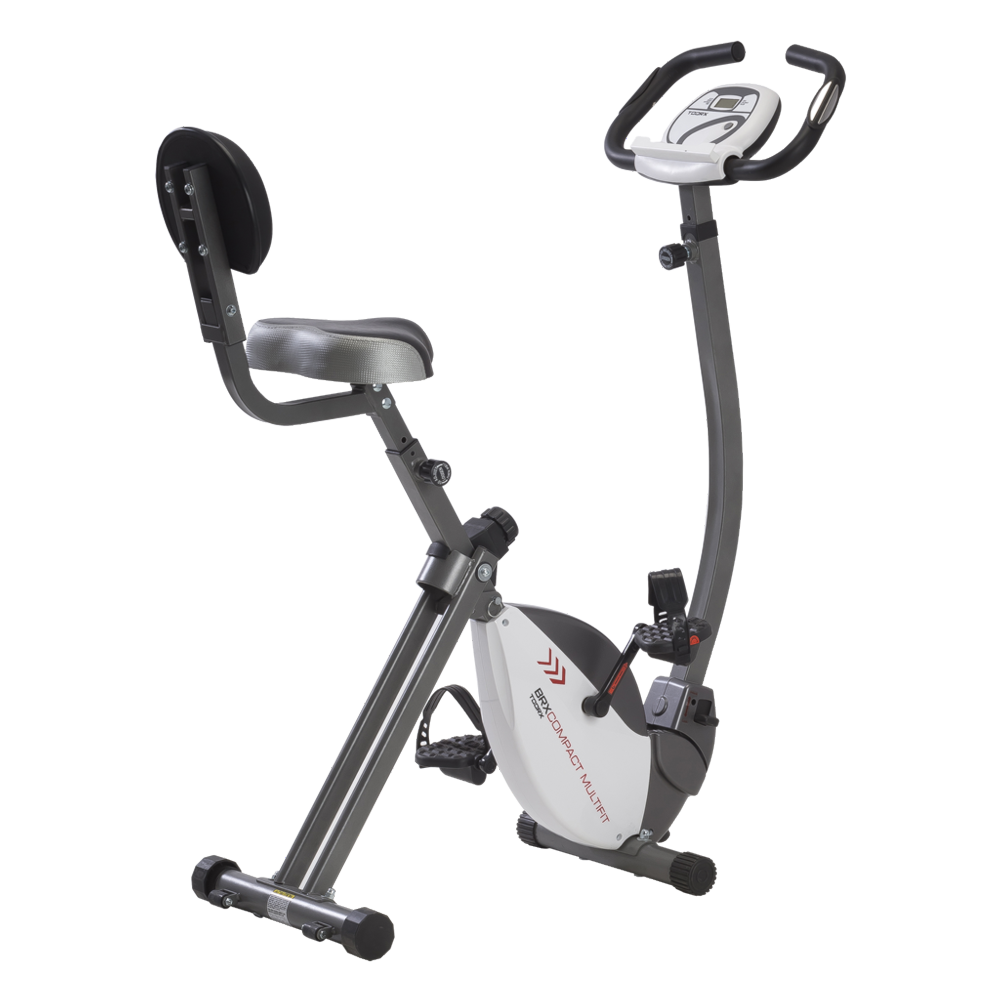 BRX COMPACT MULTIFIT
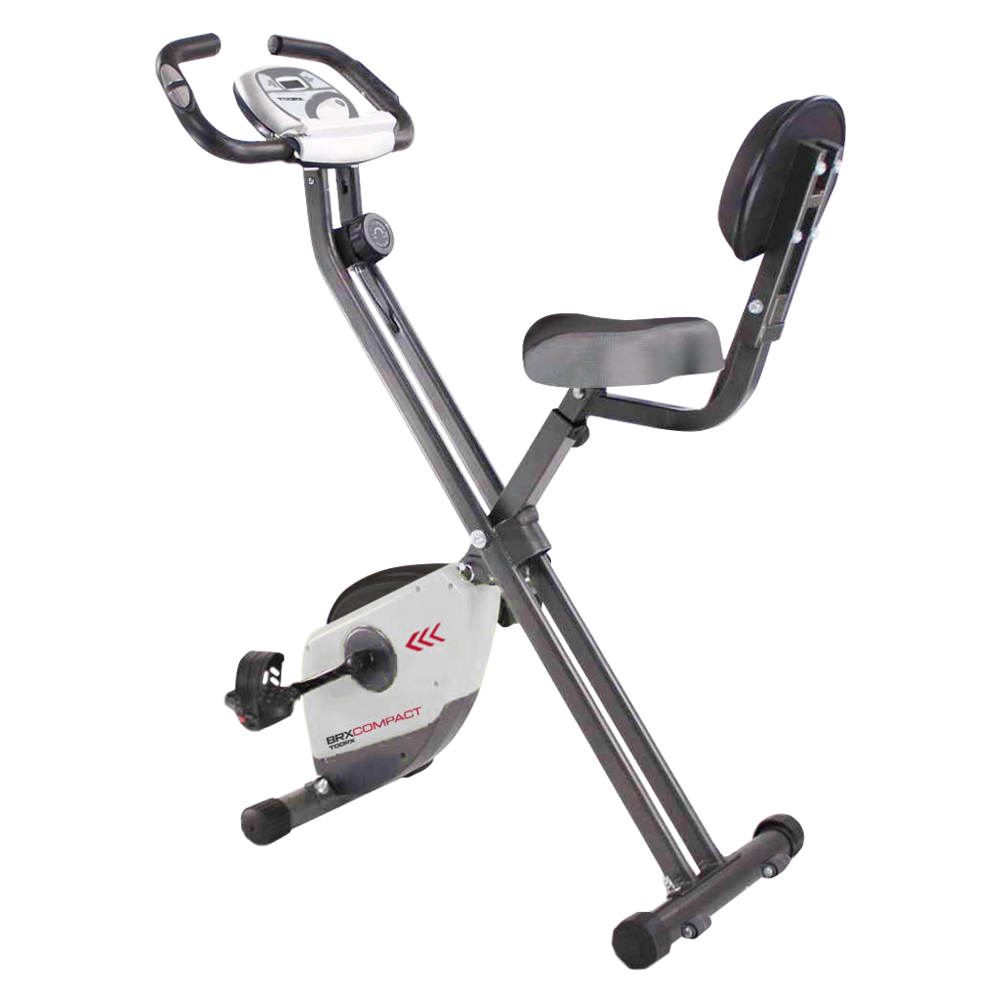 BRX COMPACT
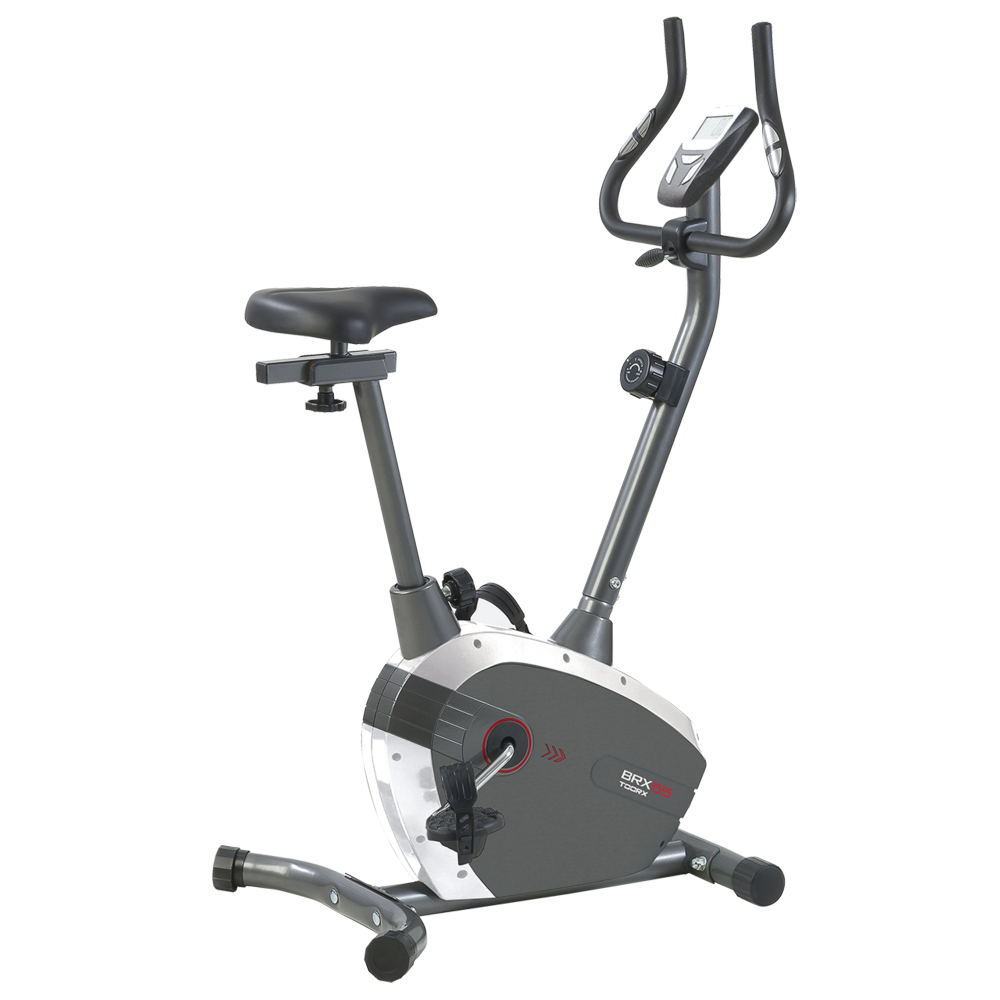 BRX-55
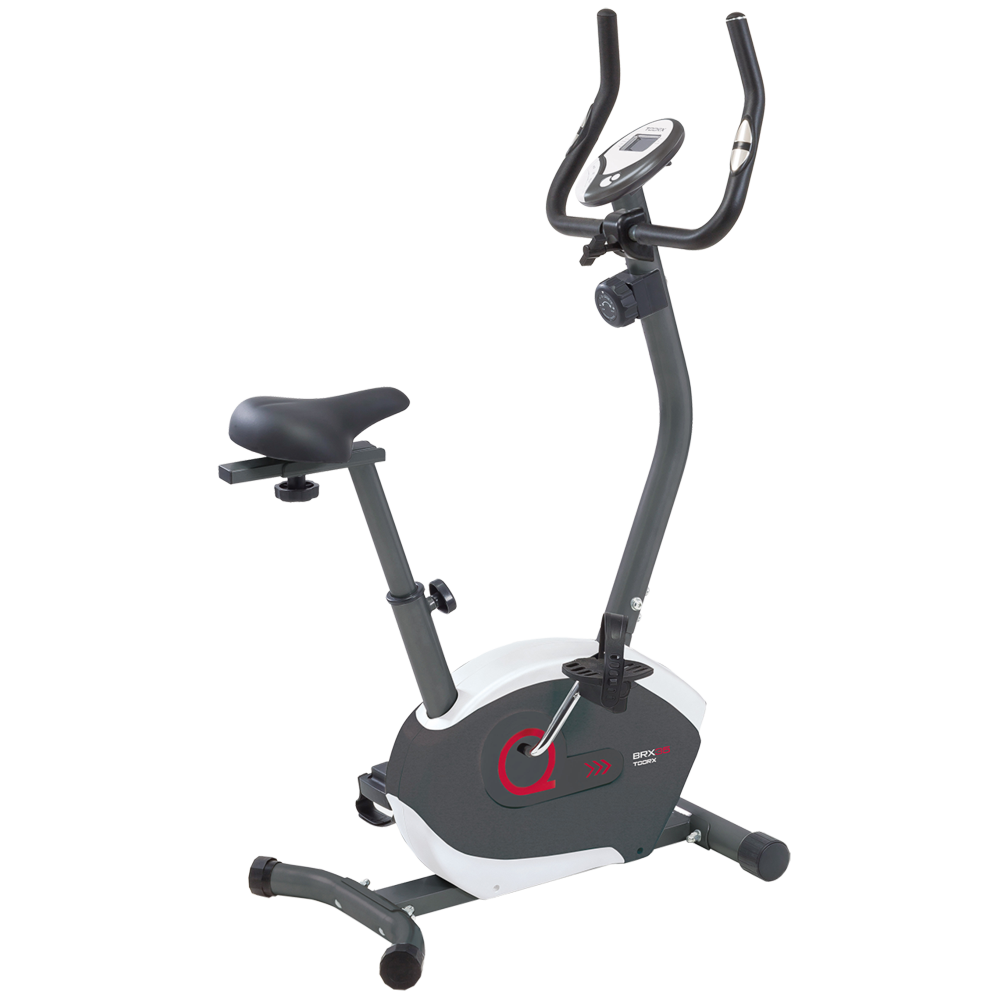 BRX-35
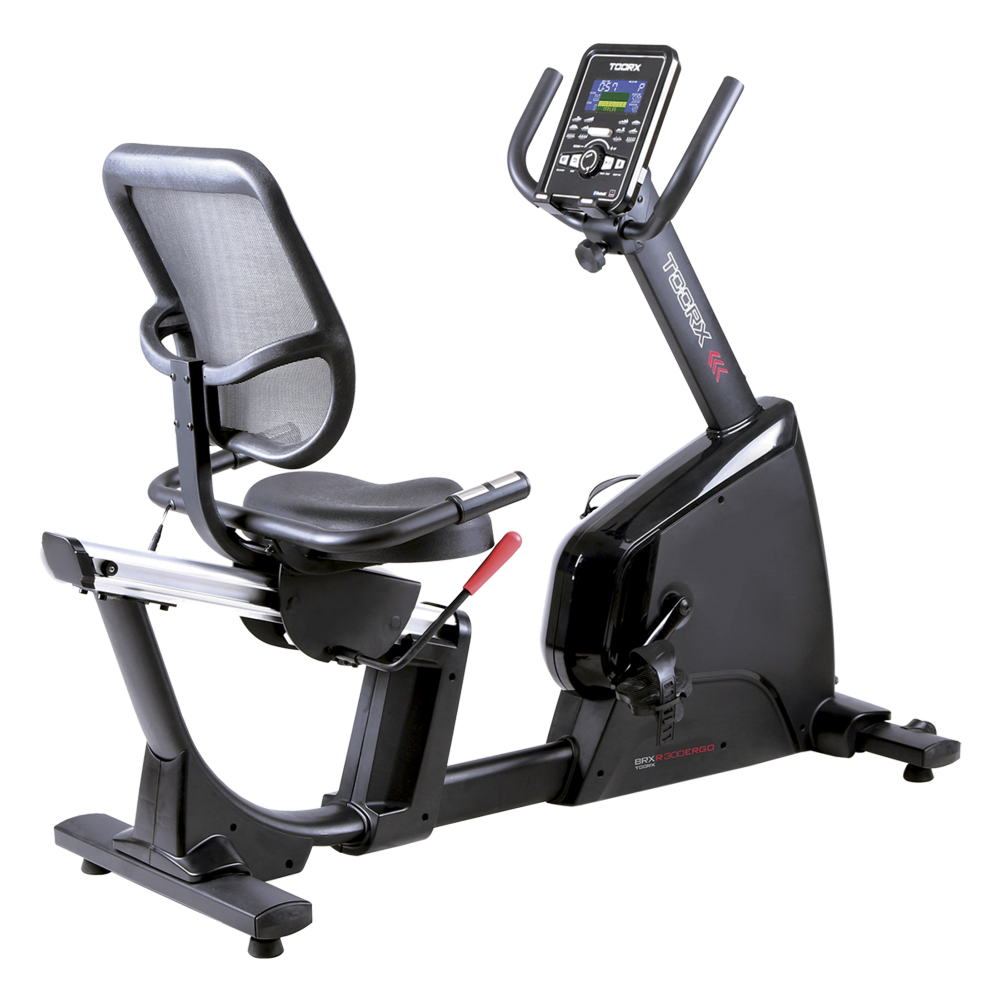 BRX RECUMBENT 300 ERGO
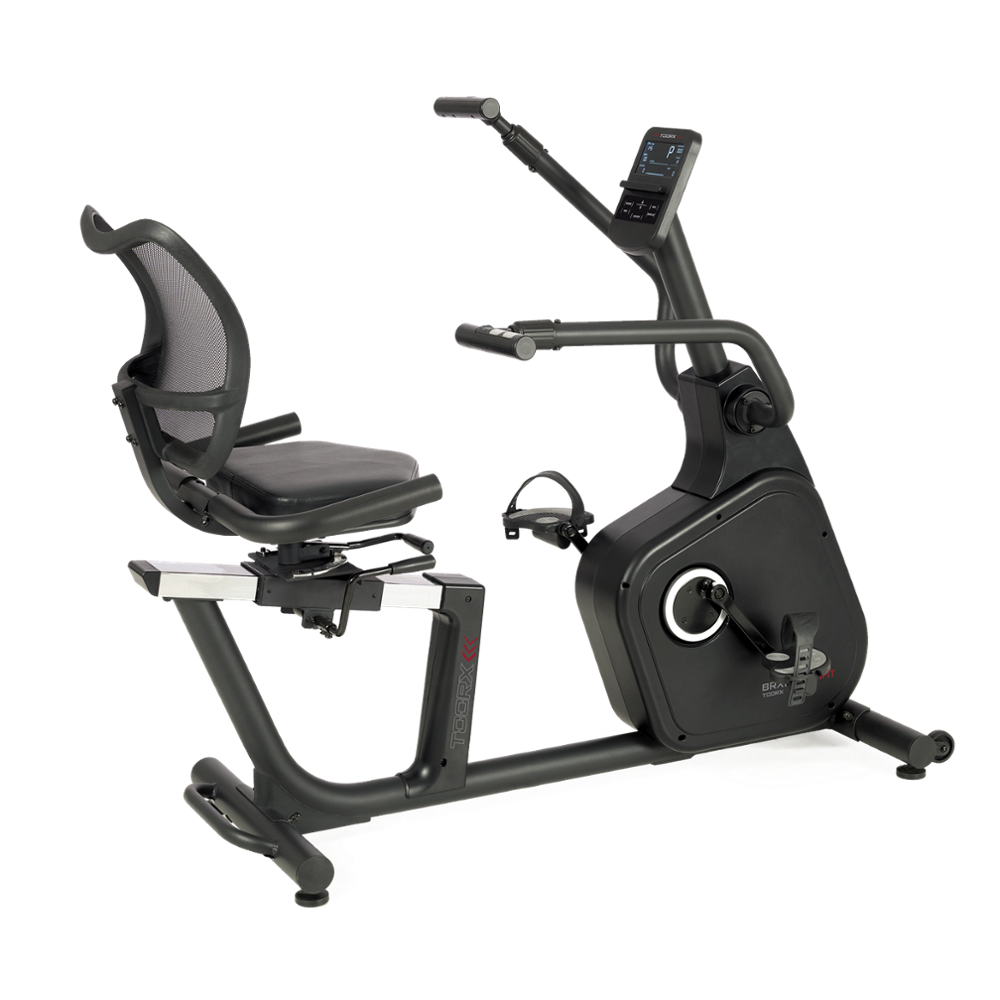 BRX RECUMBENT MULTIFIT
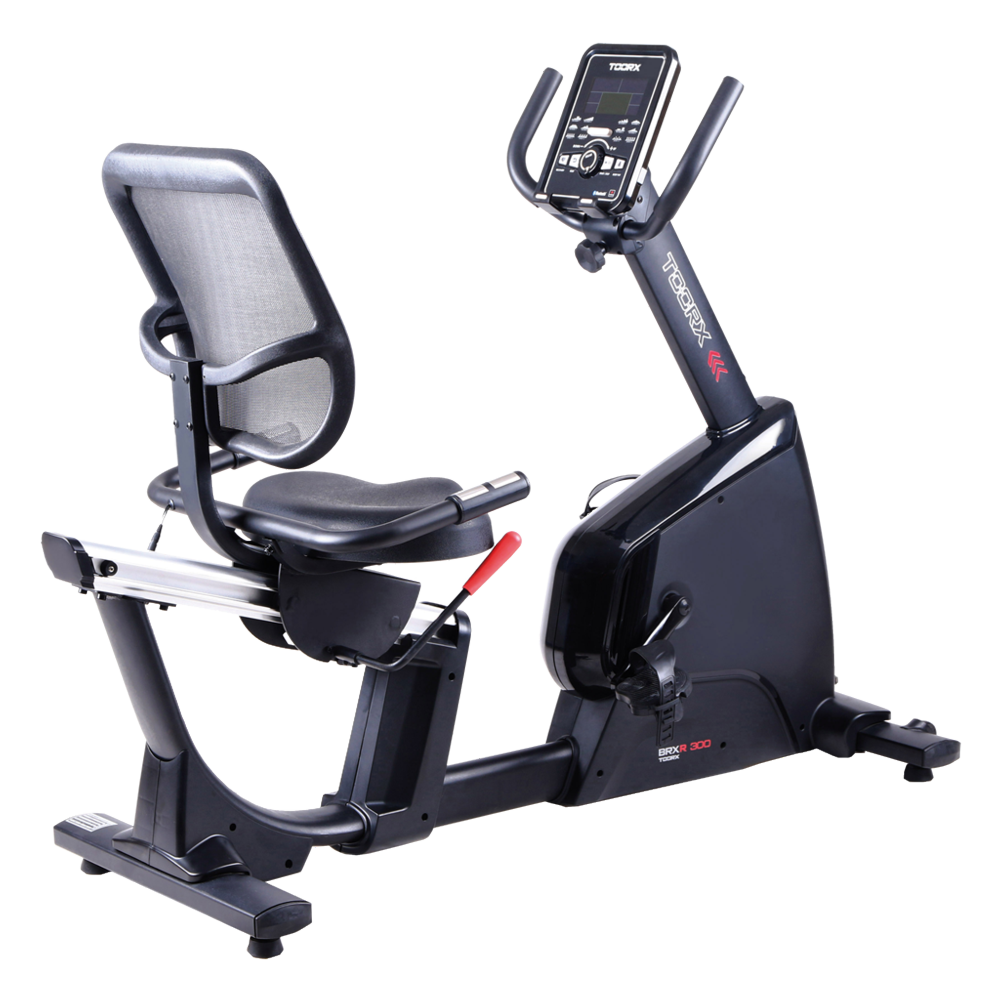 BRX RECUMBENT 300
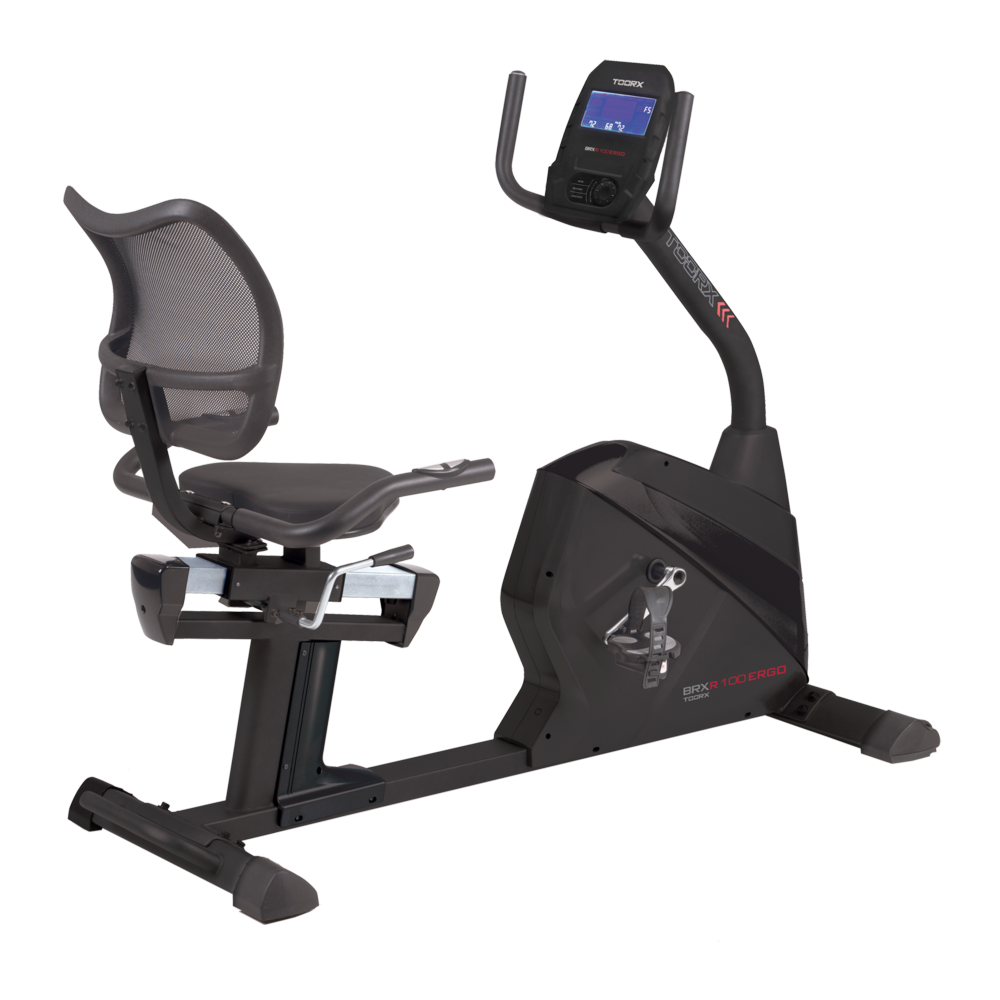 BRX RECUMBENT 100 ERGO
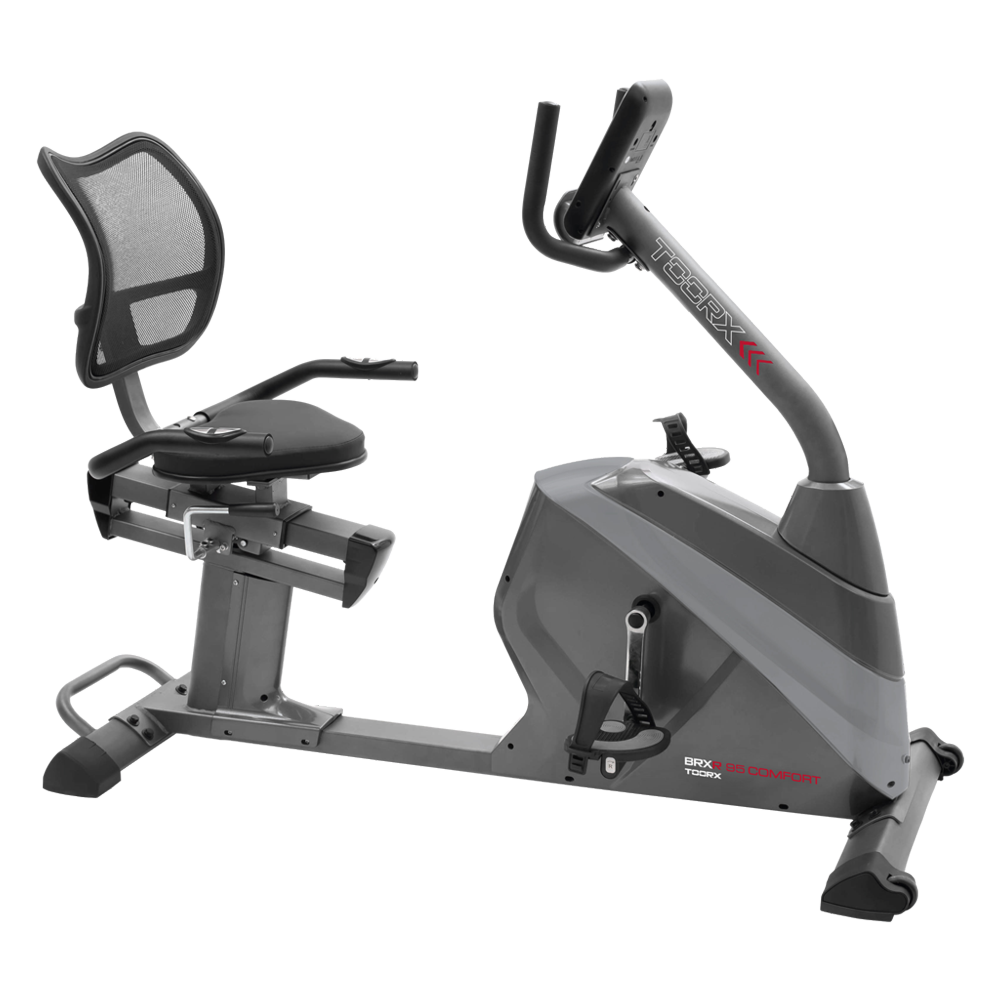 BRX RECUMBENT 95 COMFORT
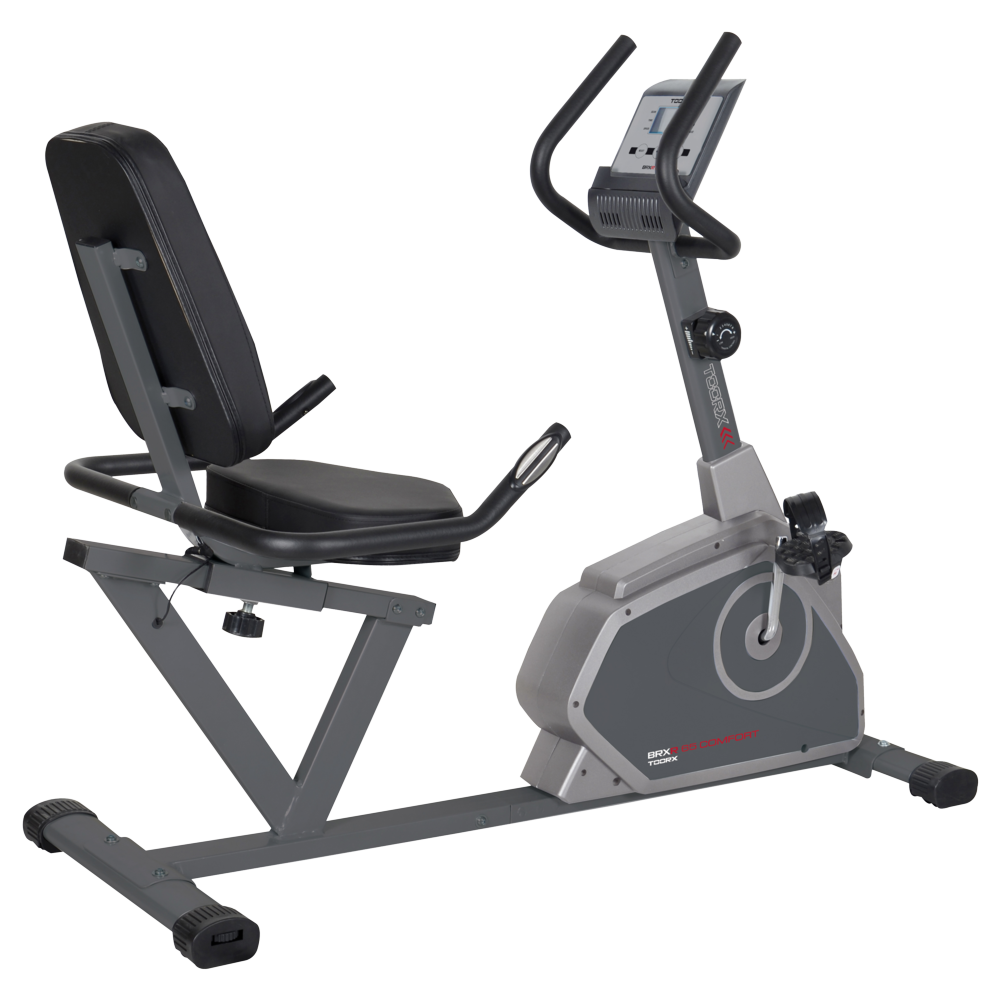 BRX RECUMBENT 65 COMFORT
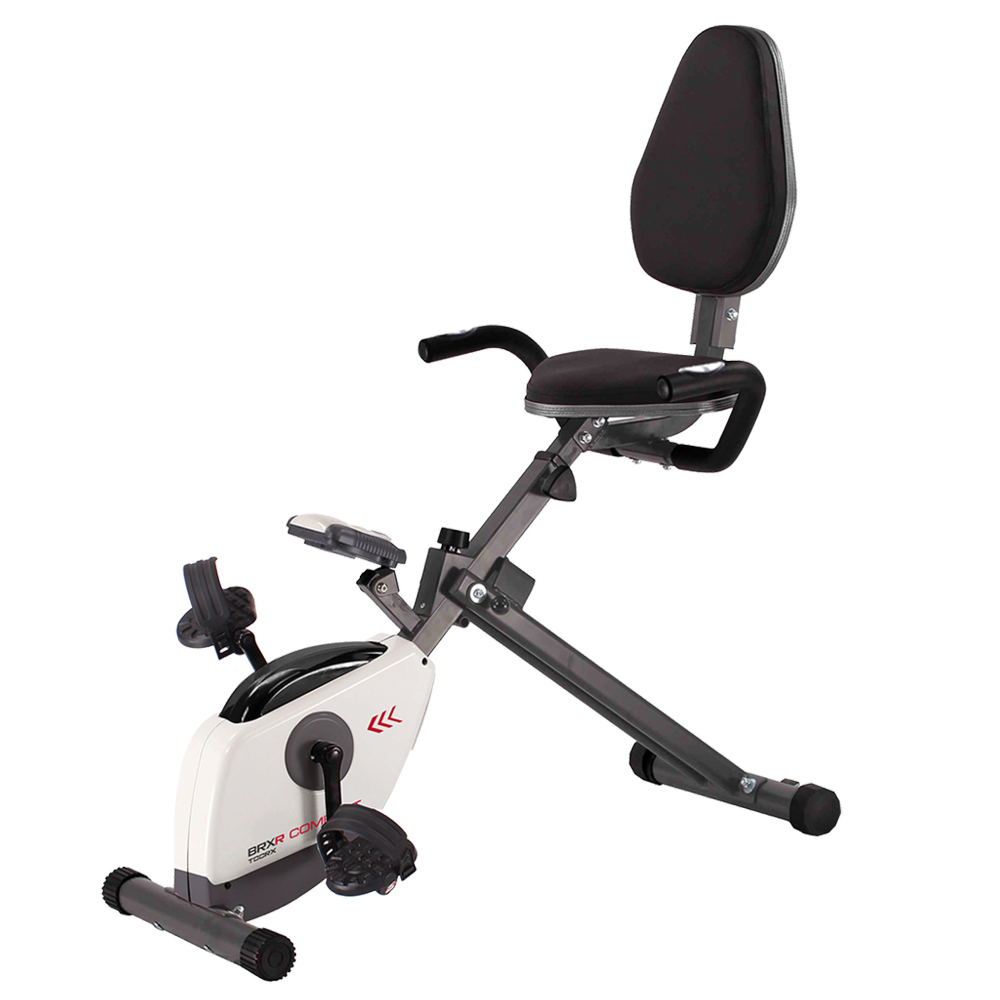 BRX RECUMBENT COMPACT
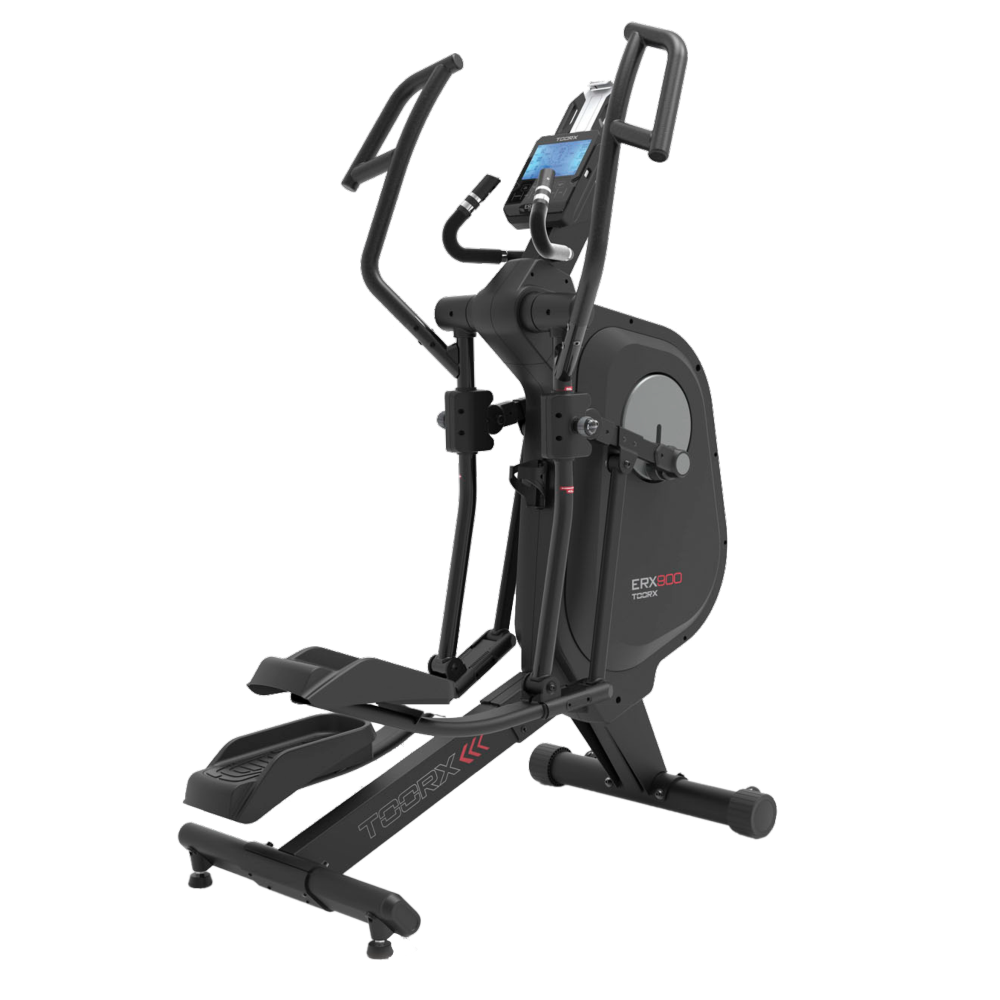 ERX-900
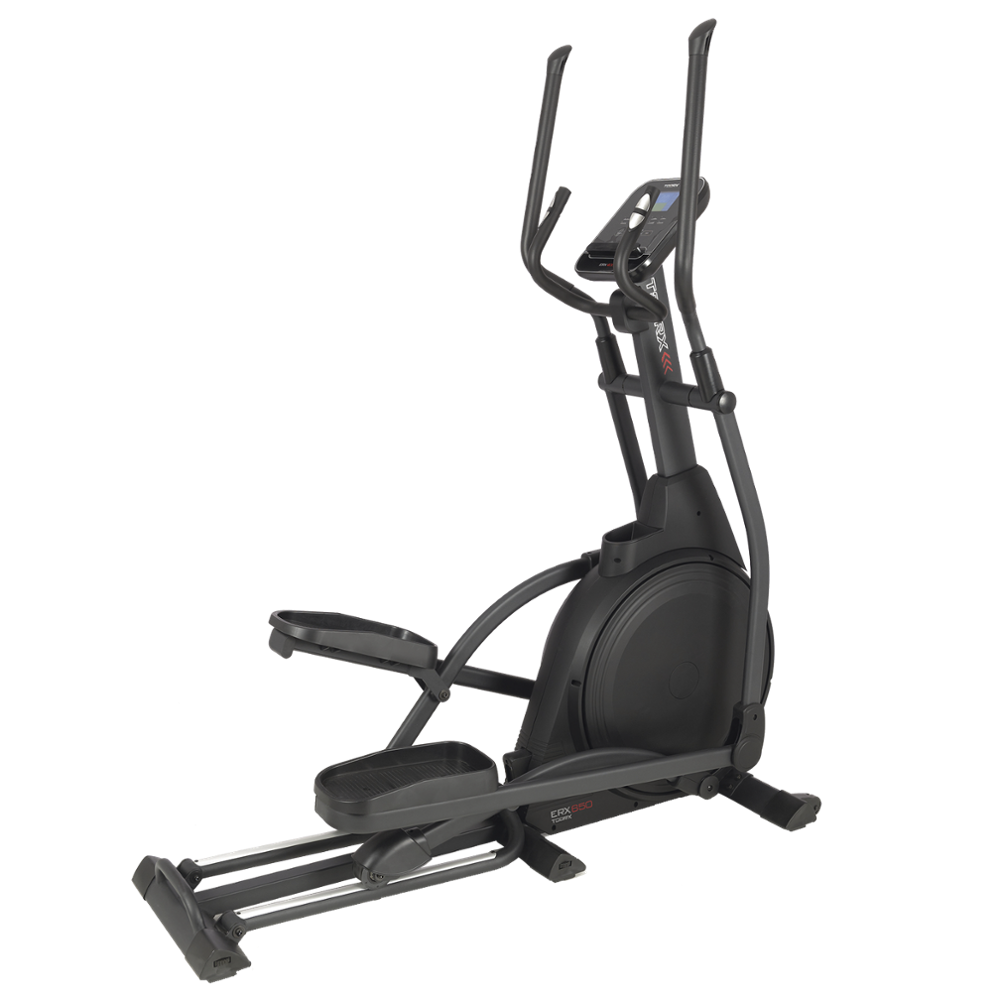 ERX-650
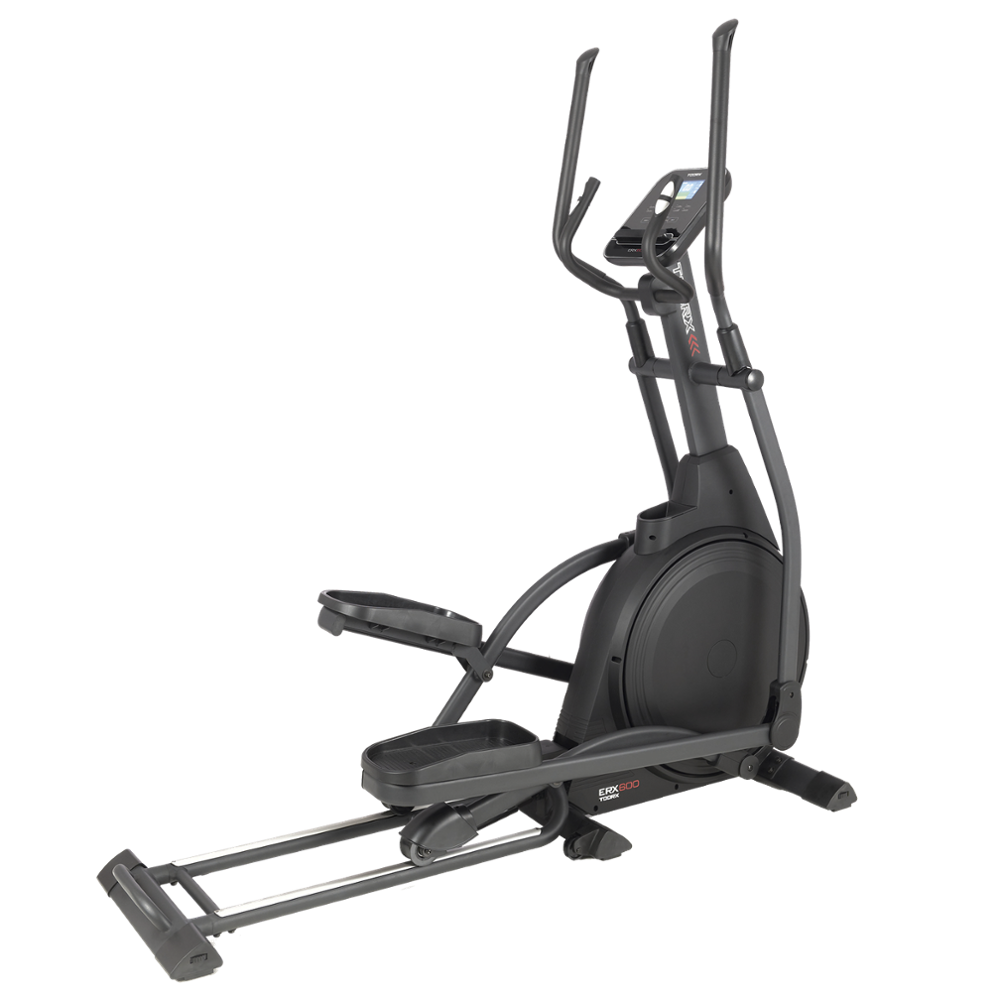 ERX-600
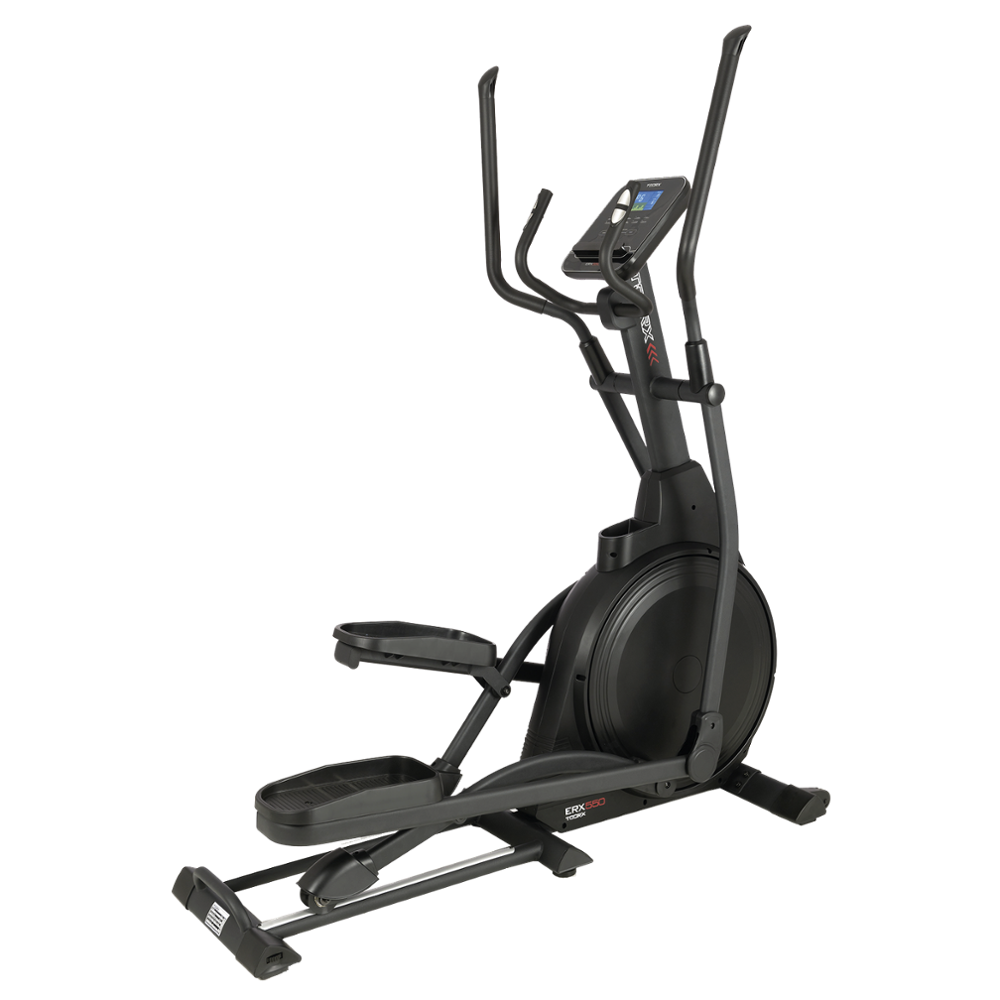 ERX-550
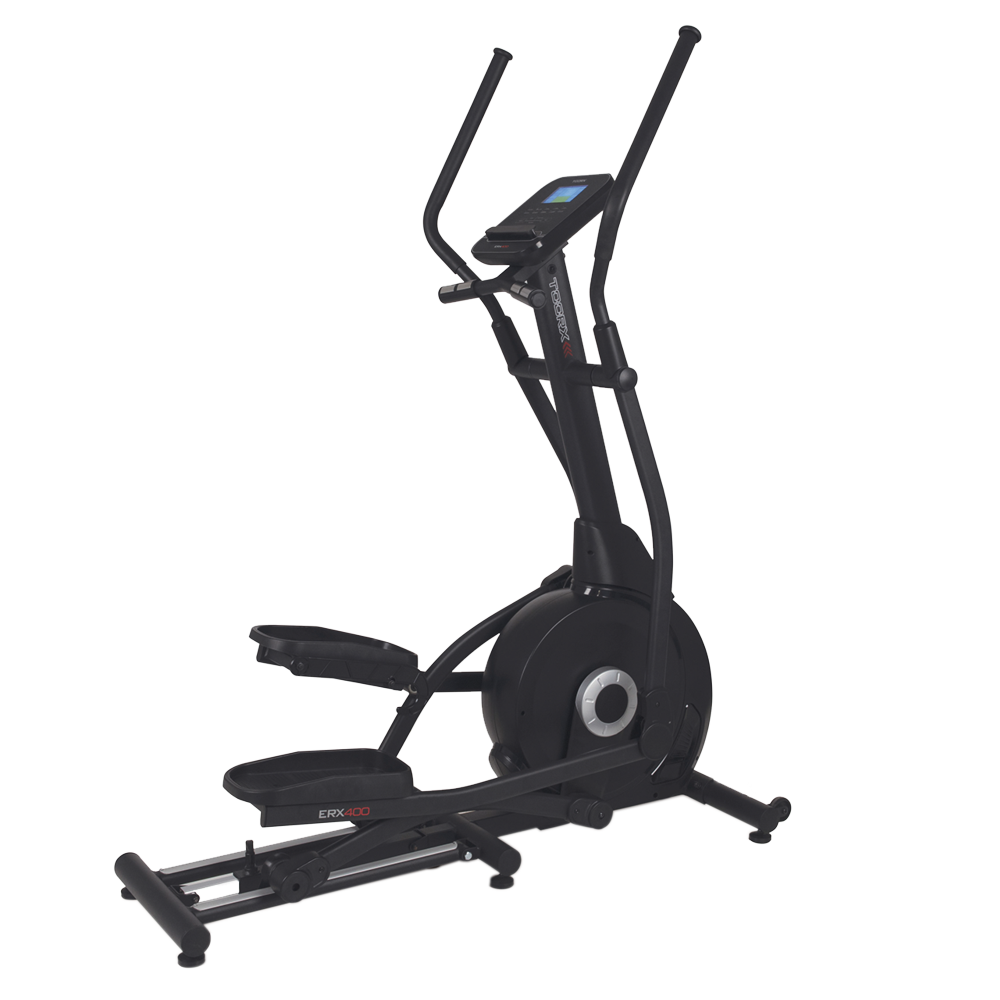 ERX-400
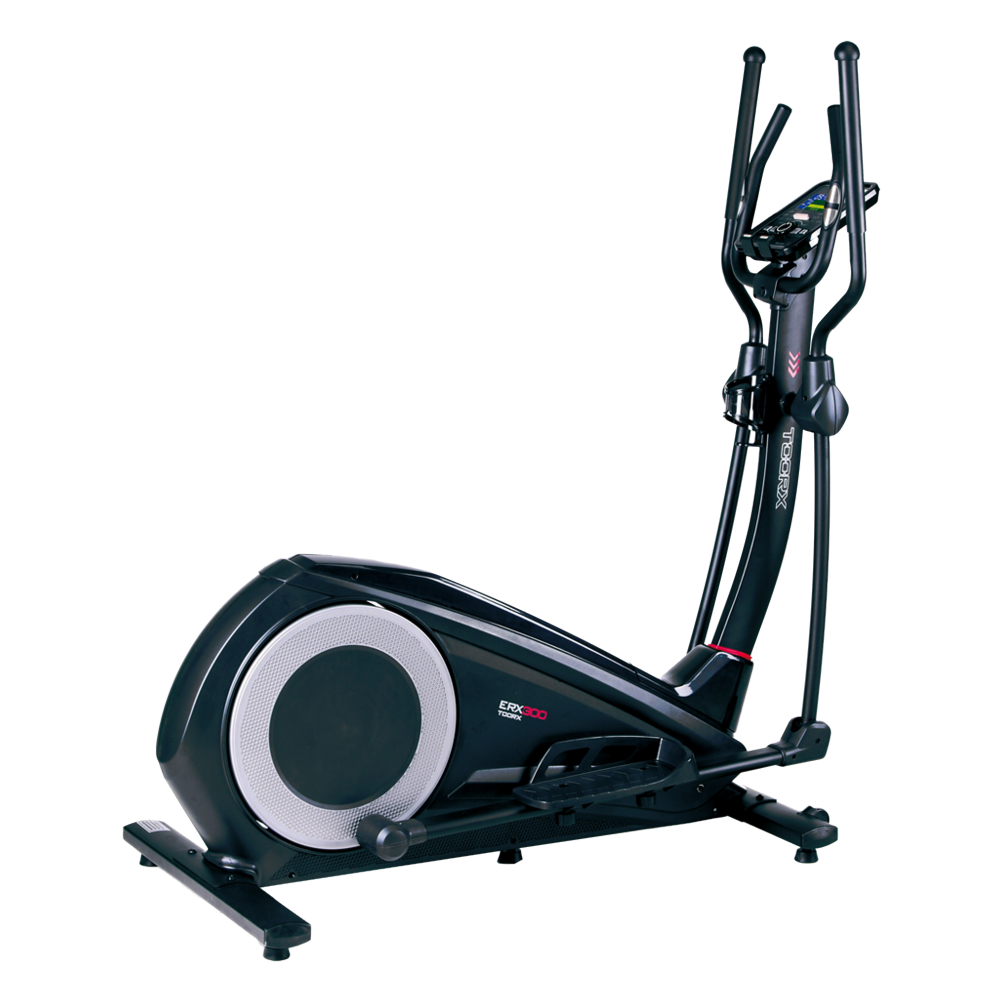 ERX-300
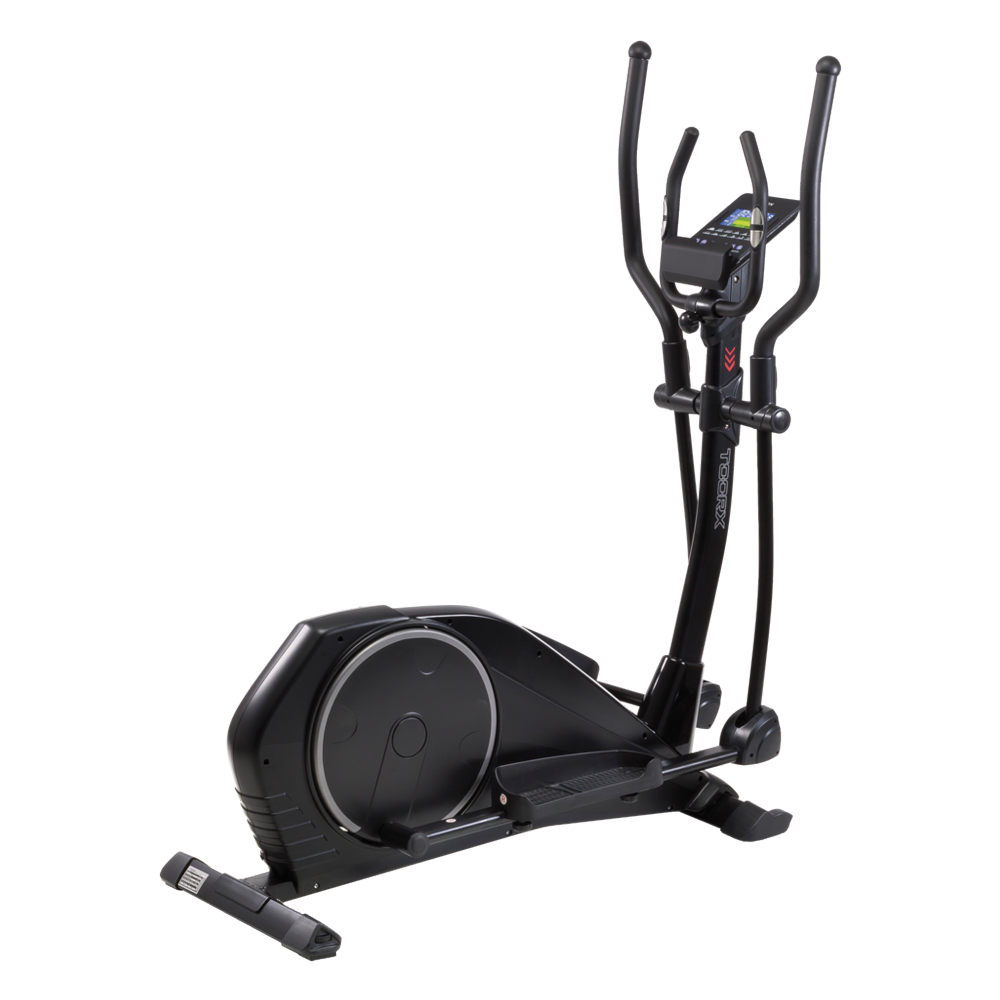 ERX-100
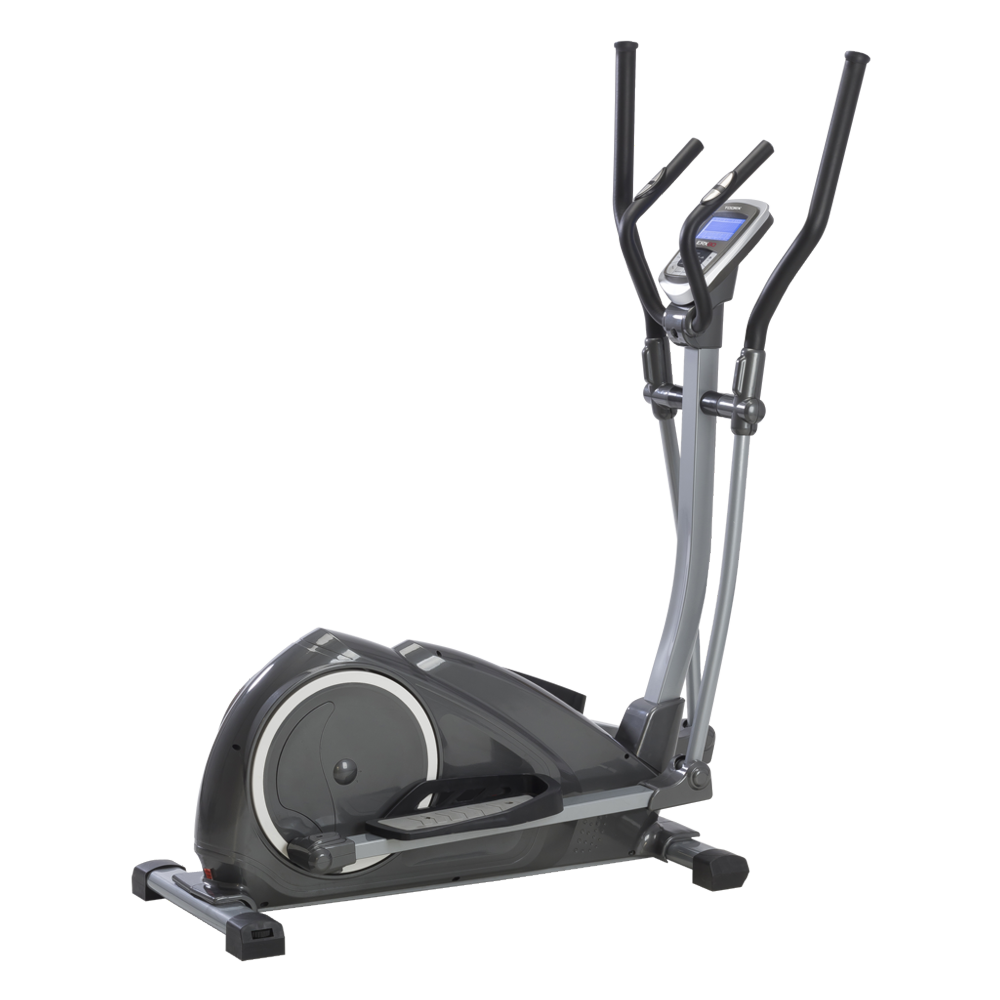 ERX-90
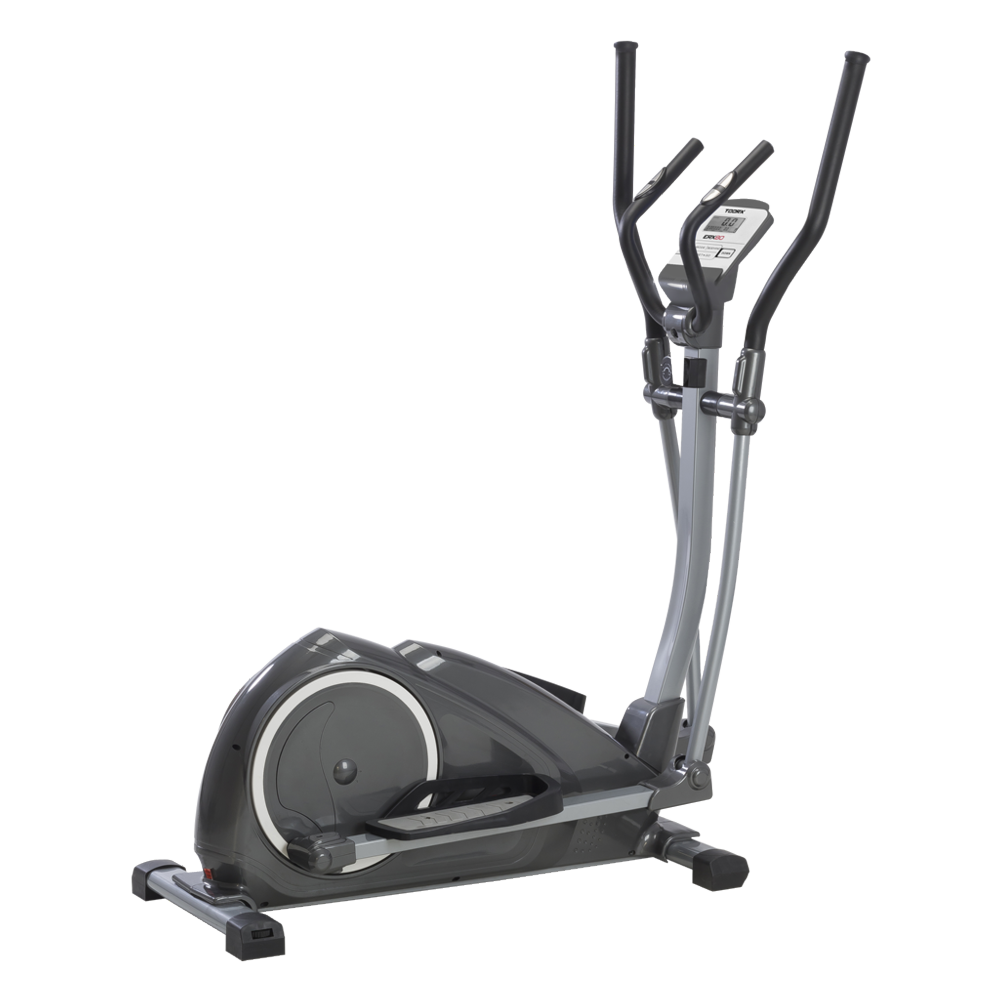 ERX-80
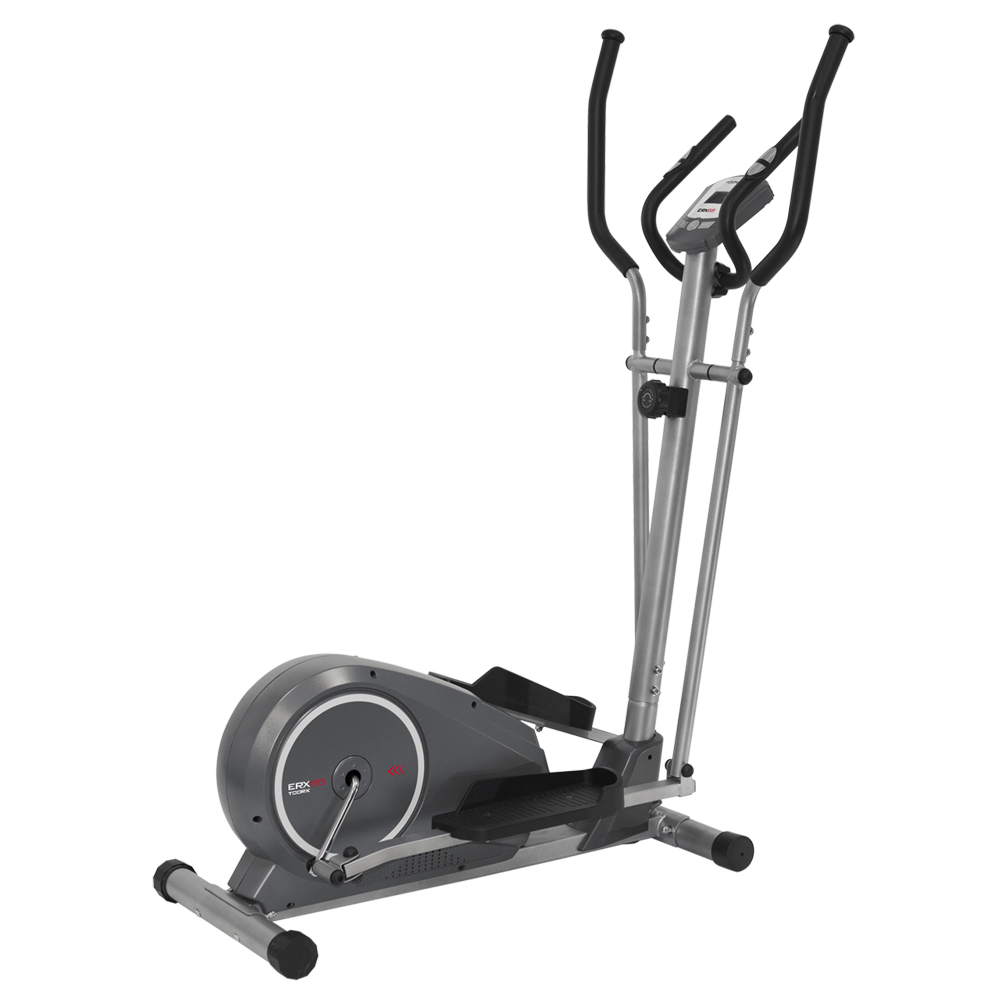 ERX-75
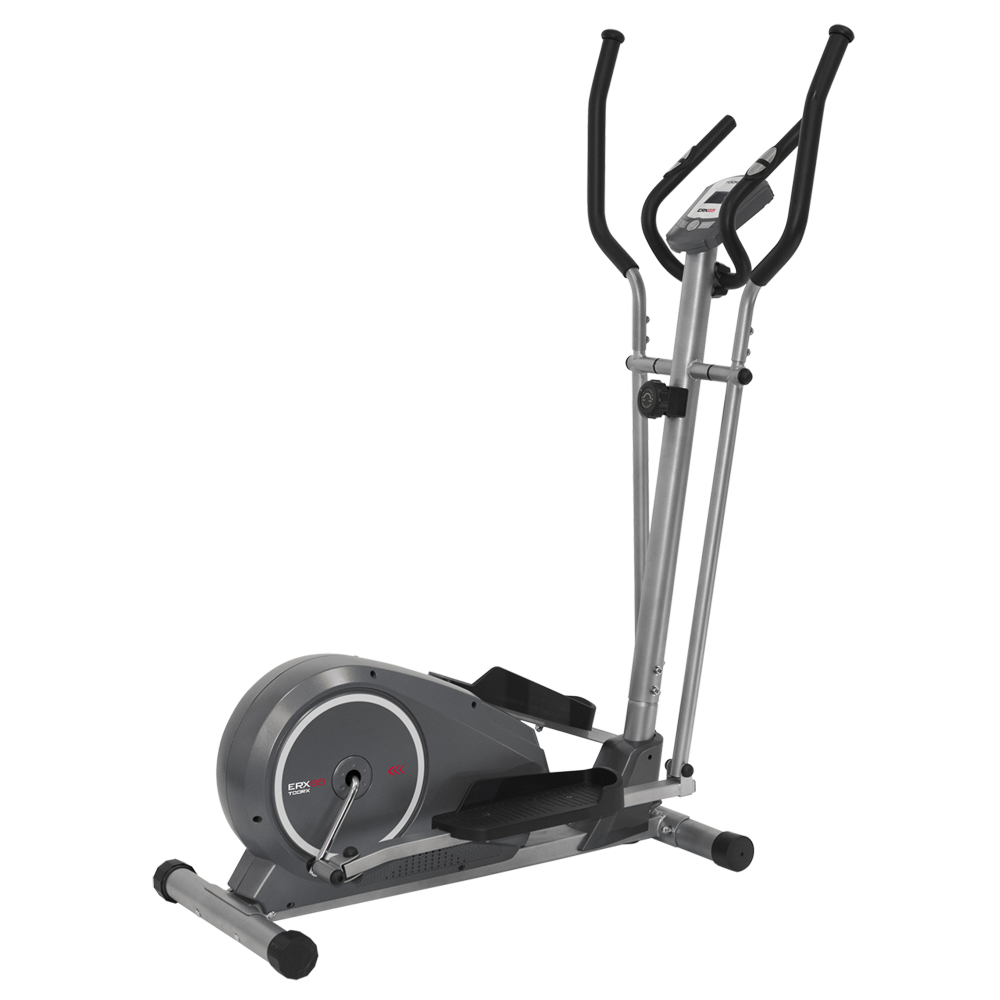 ERX-65

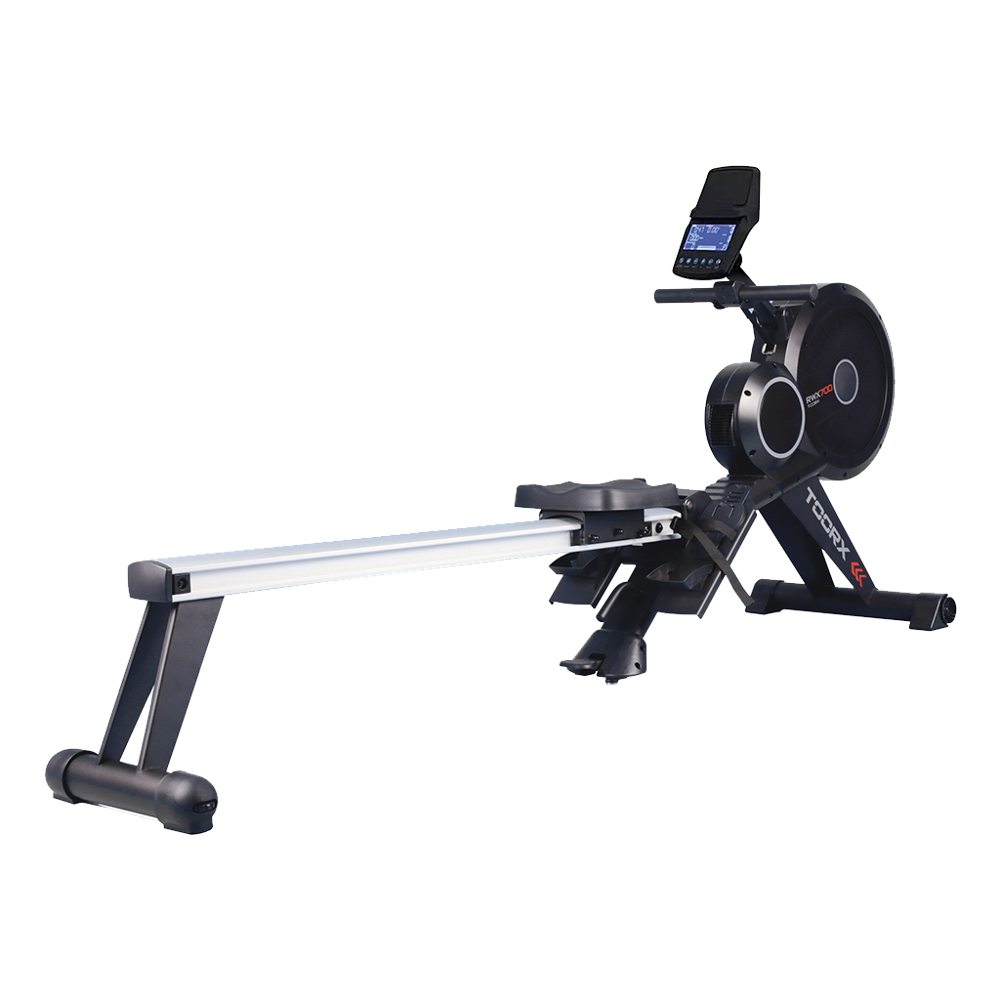 RWX 700
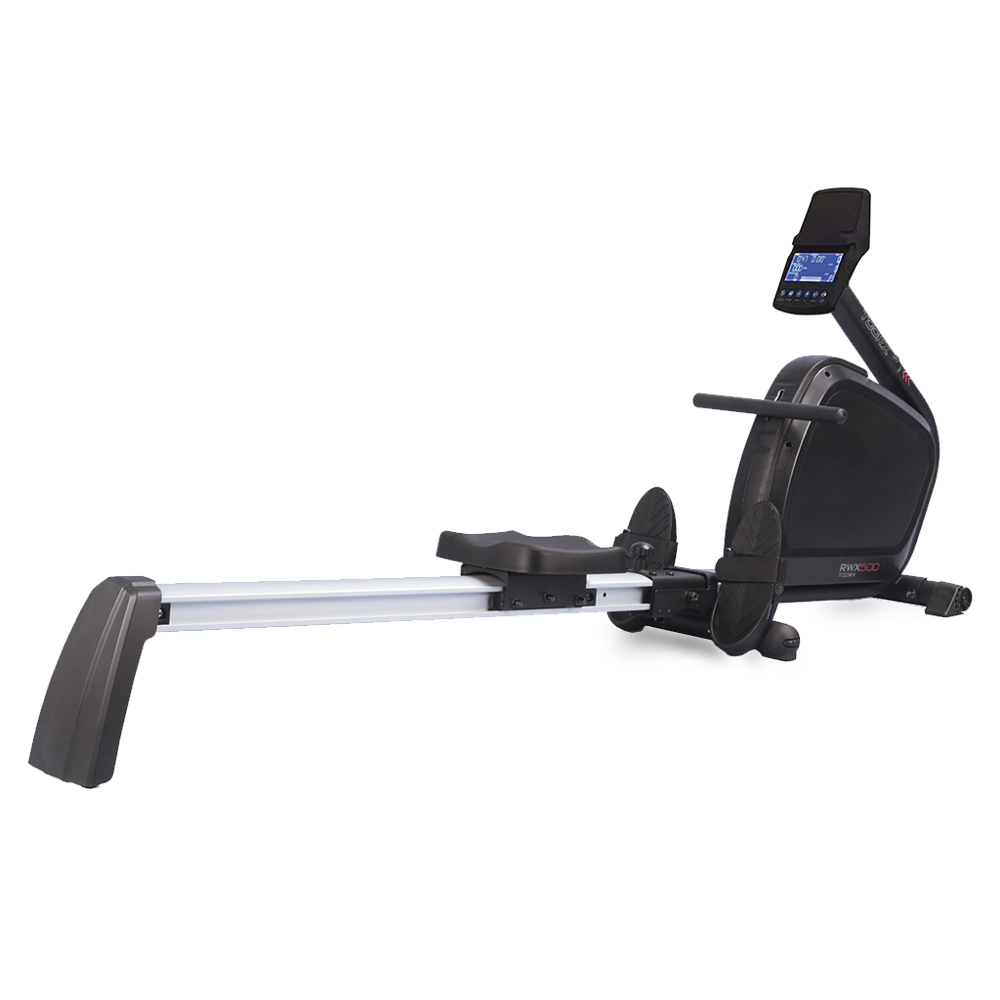 RWX 500
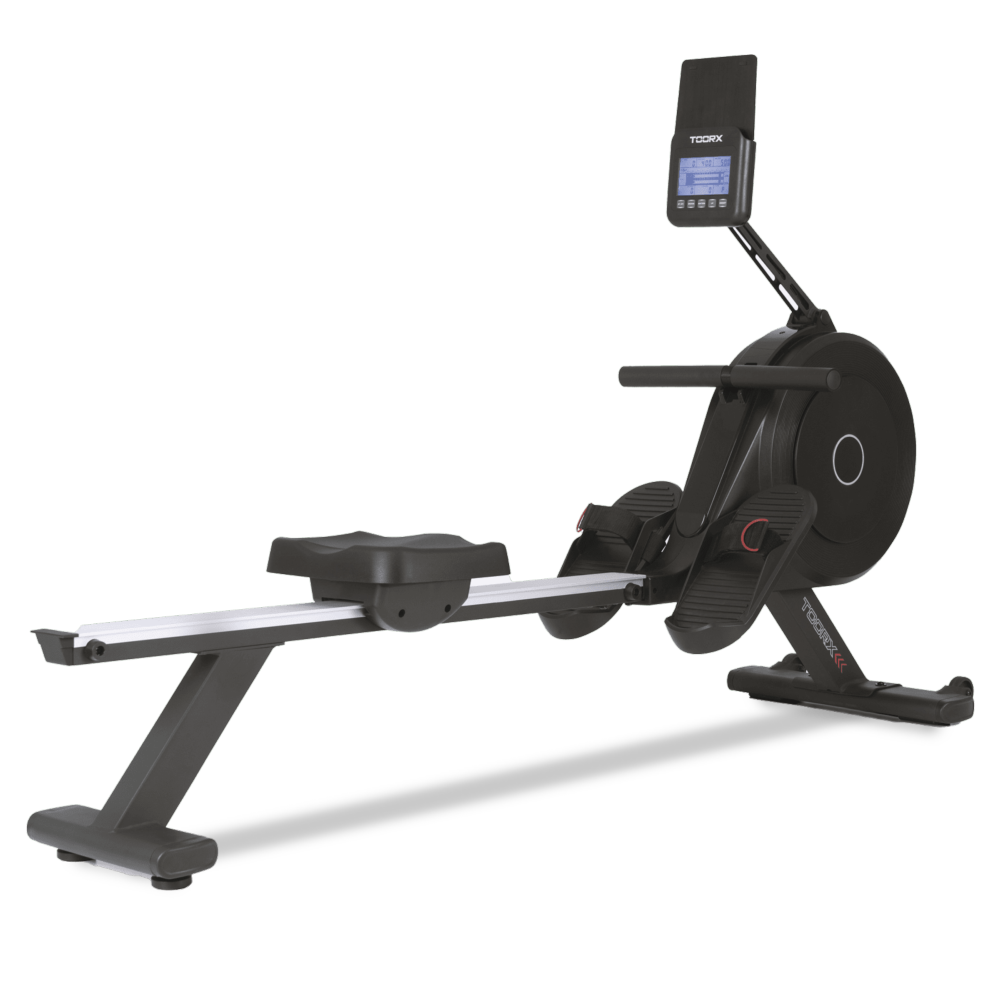 RWX 300
 RWX 200
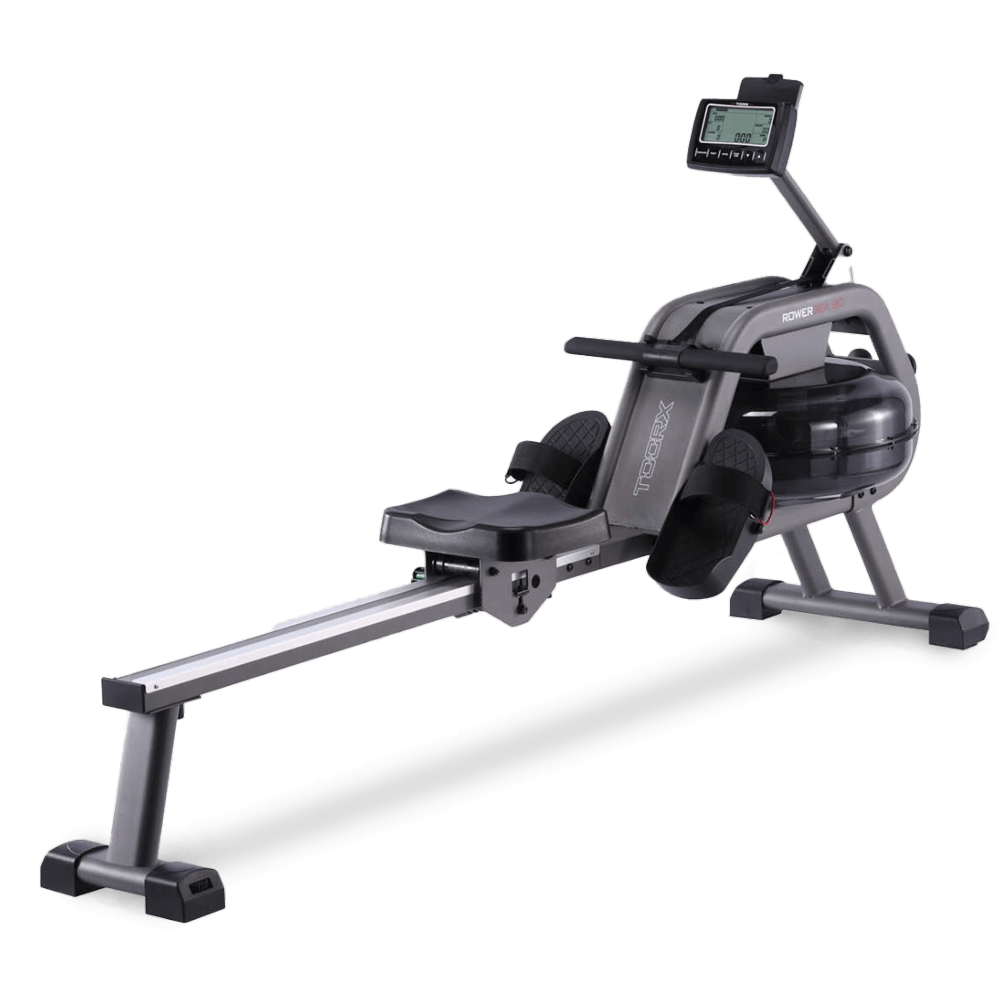 ROWER SEA 90
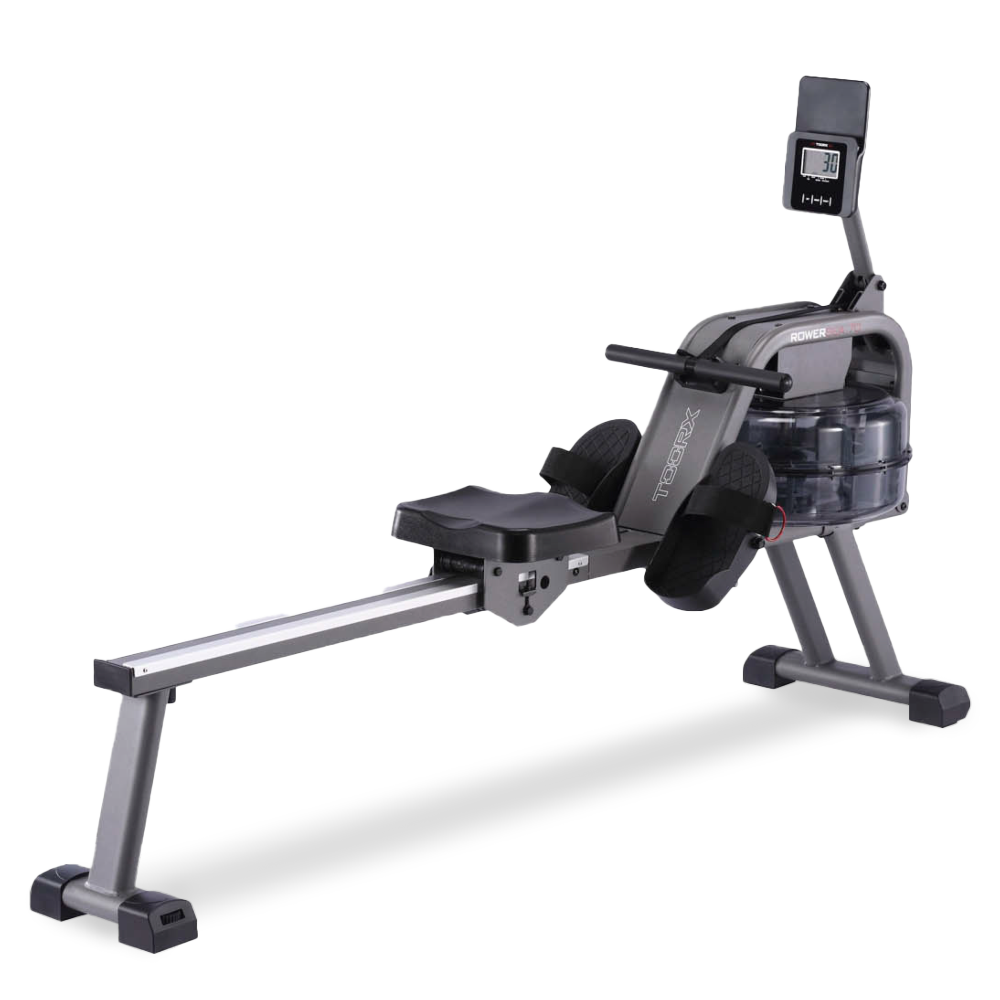 ROWER SEA 70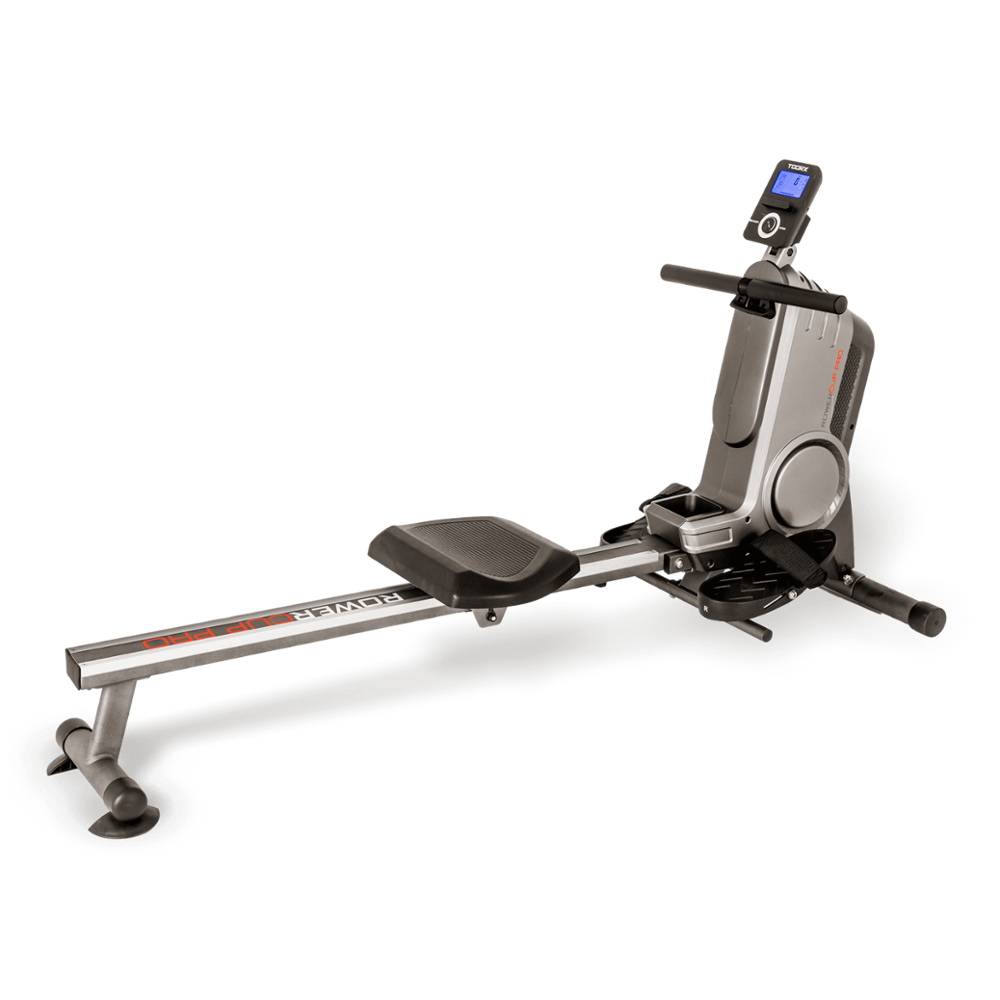
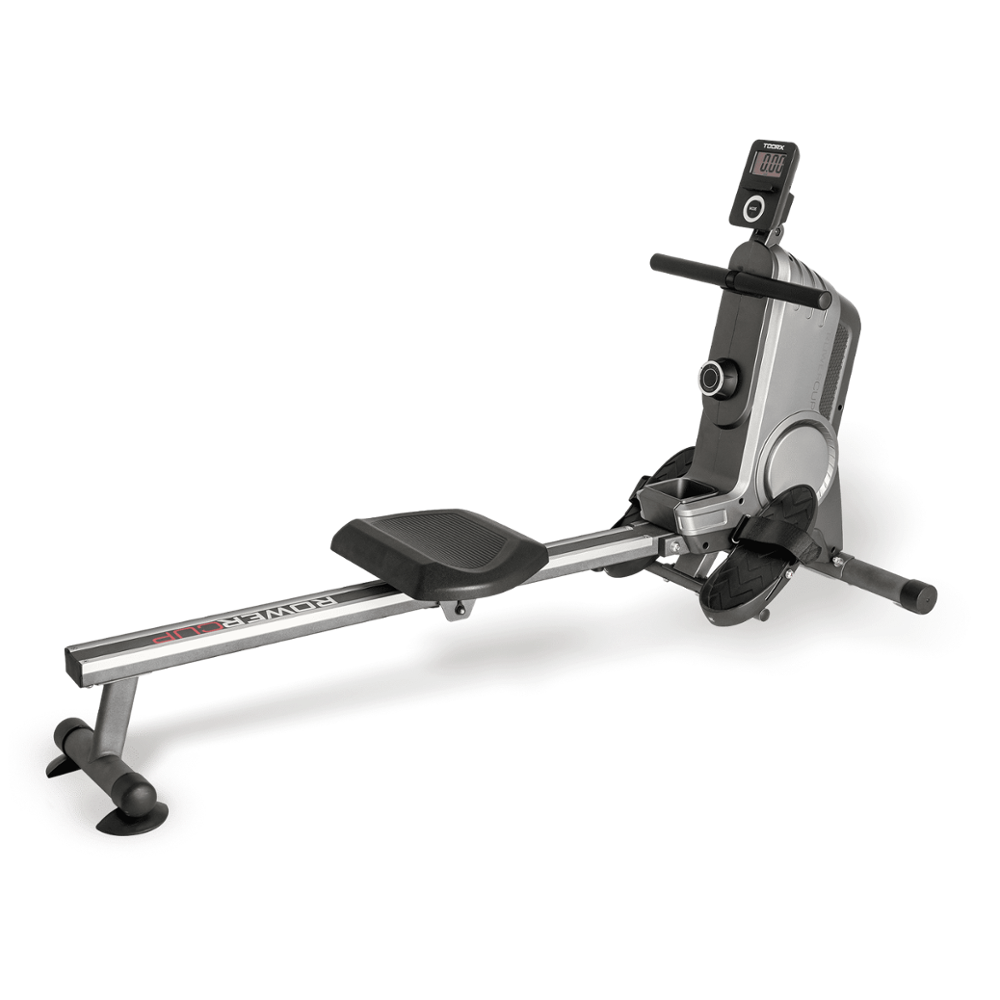
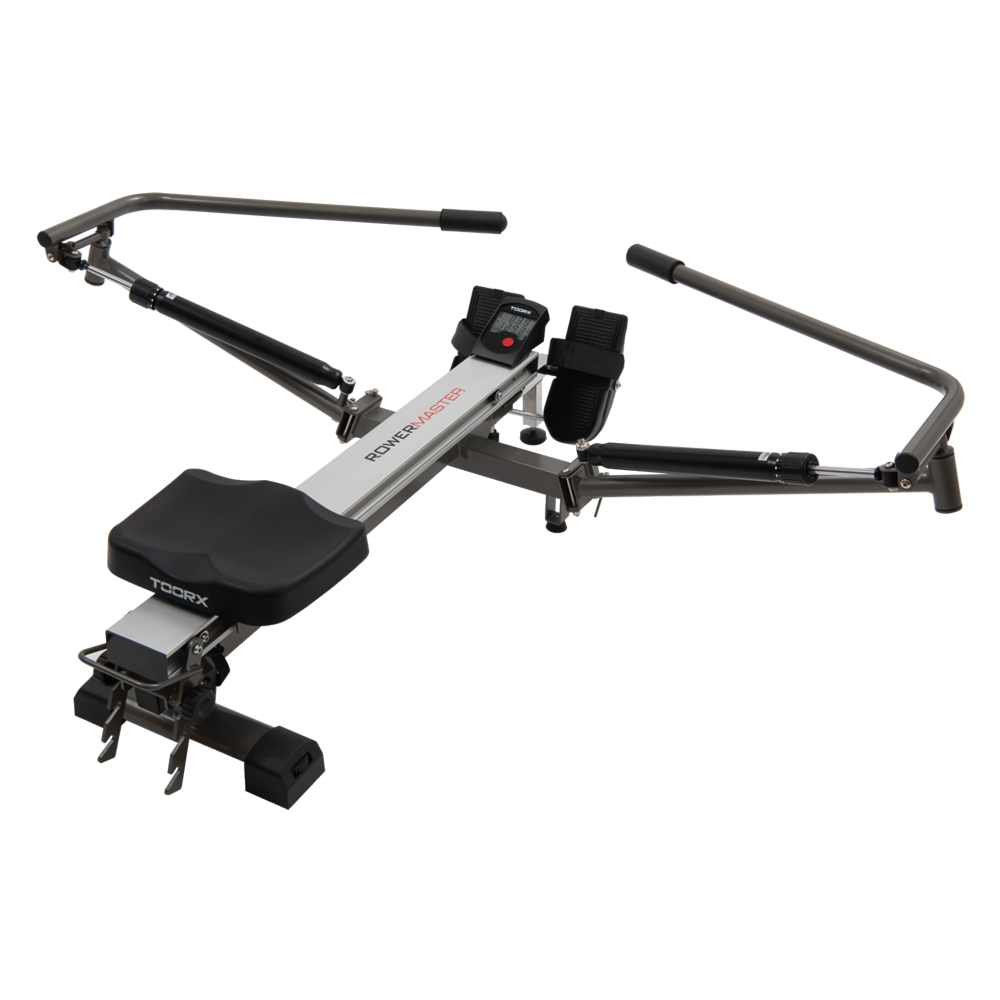 ROWER MASTER
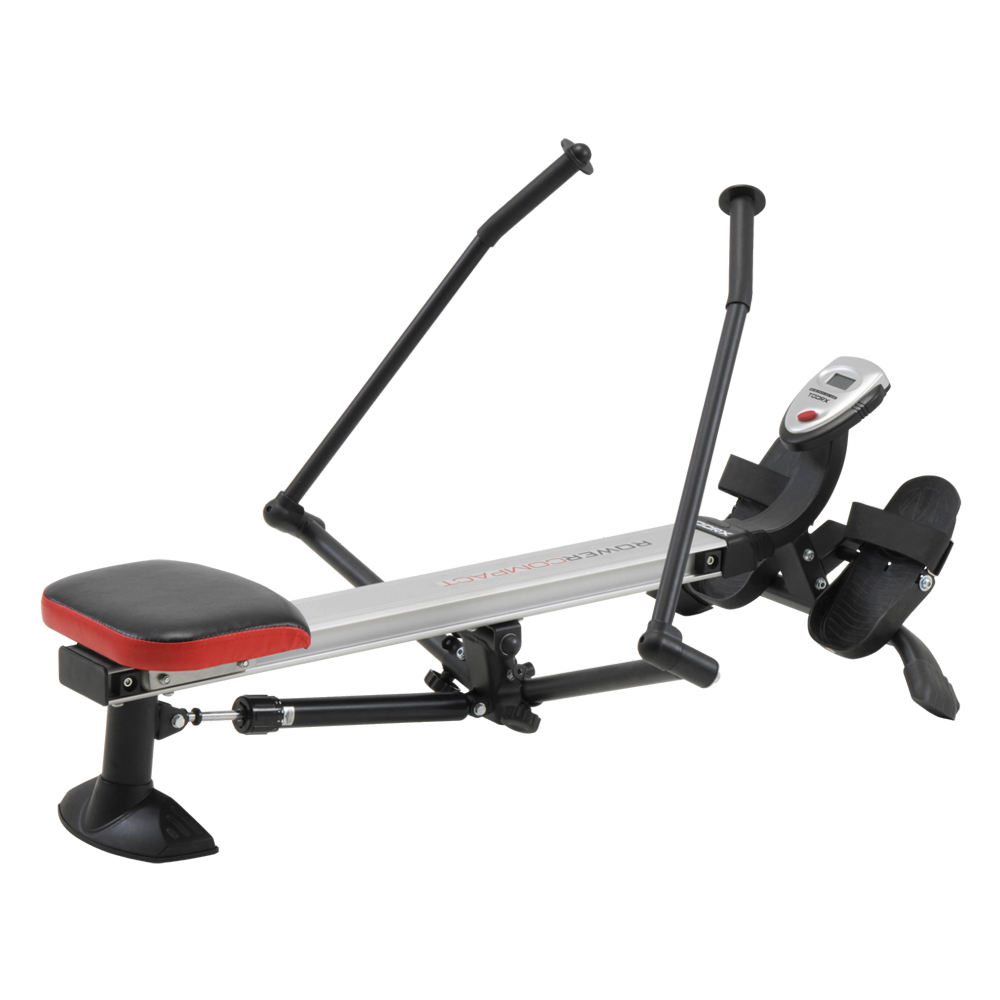 ROWER COMPACT

 WLX-90
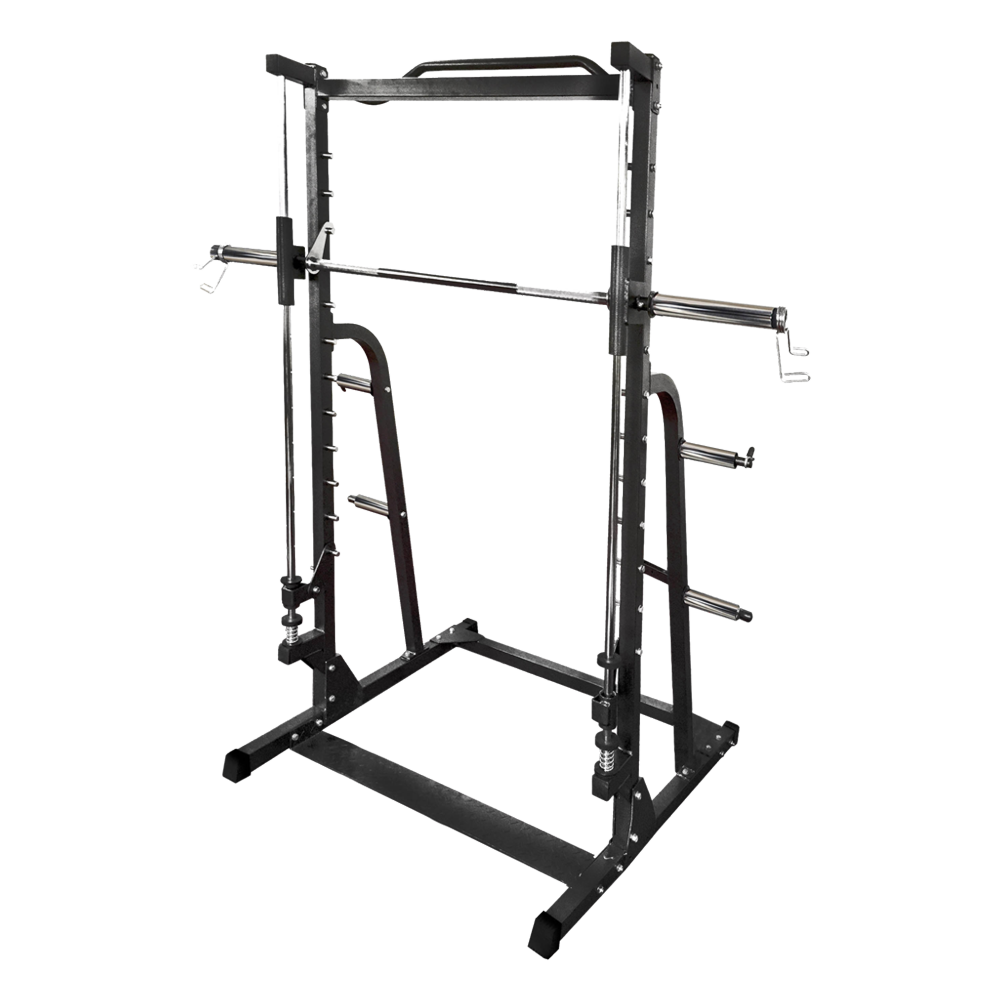 WLX-70
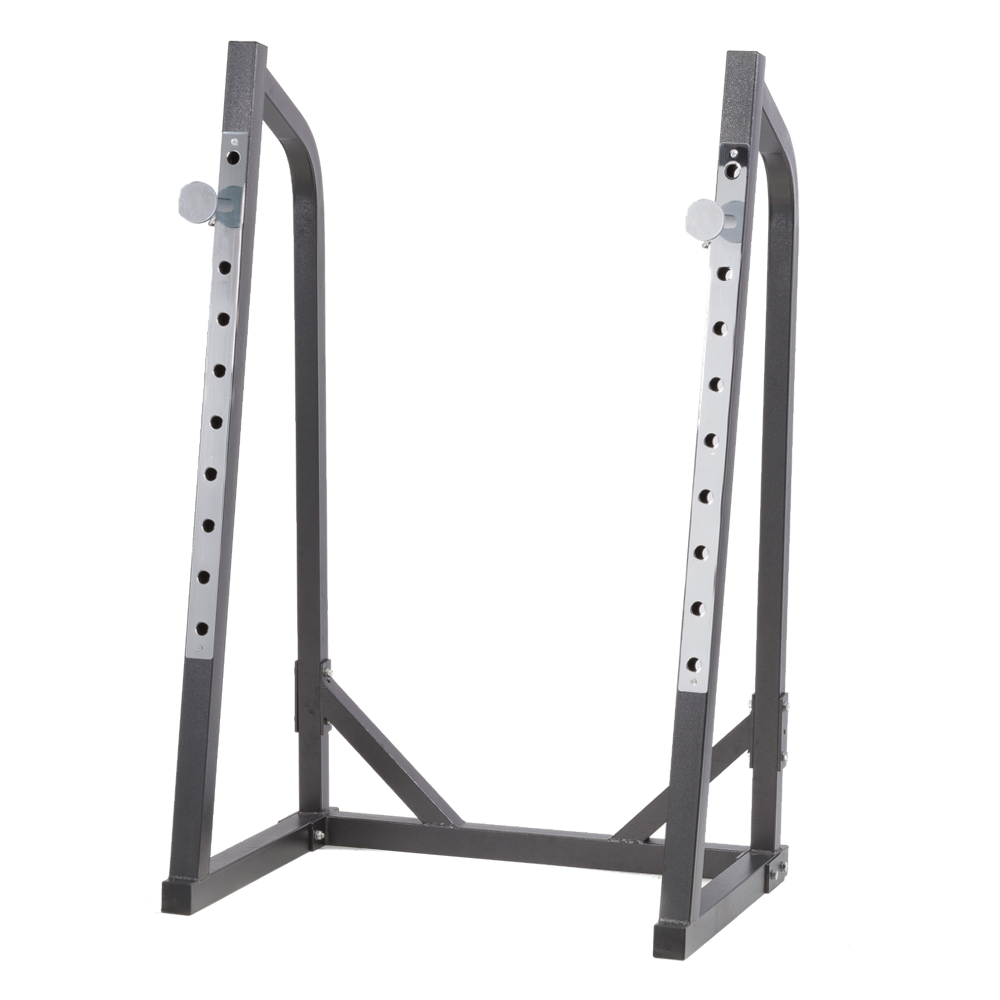 WLX-50
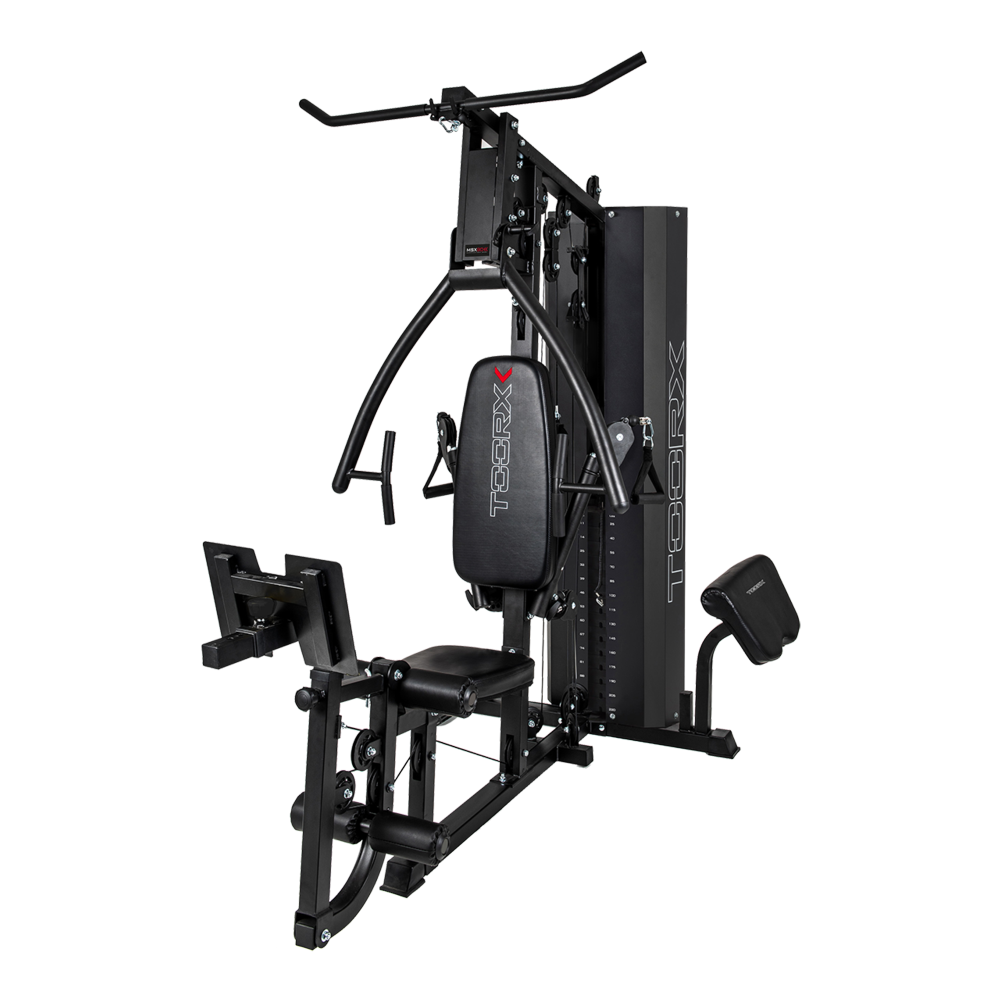 MSX-90
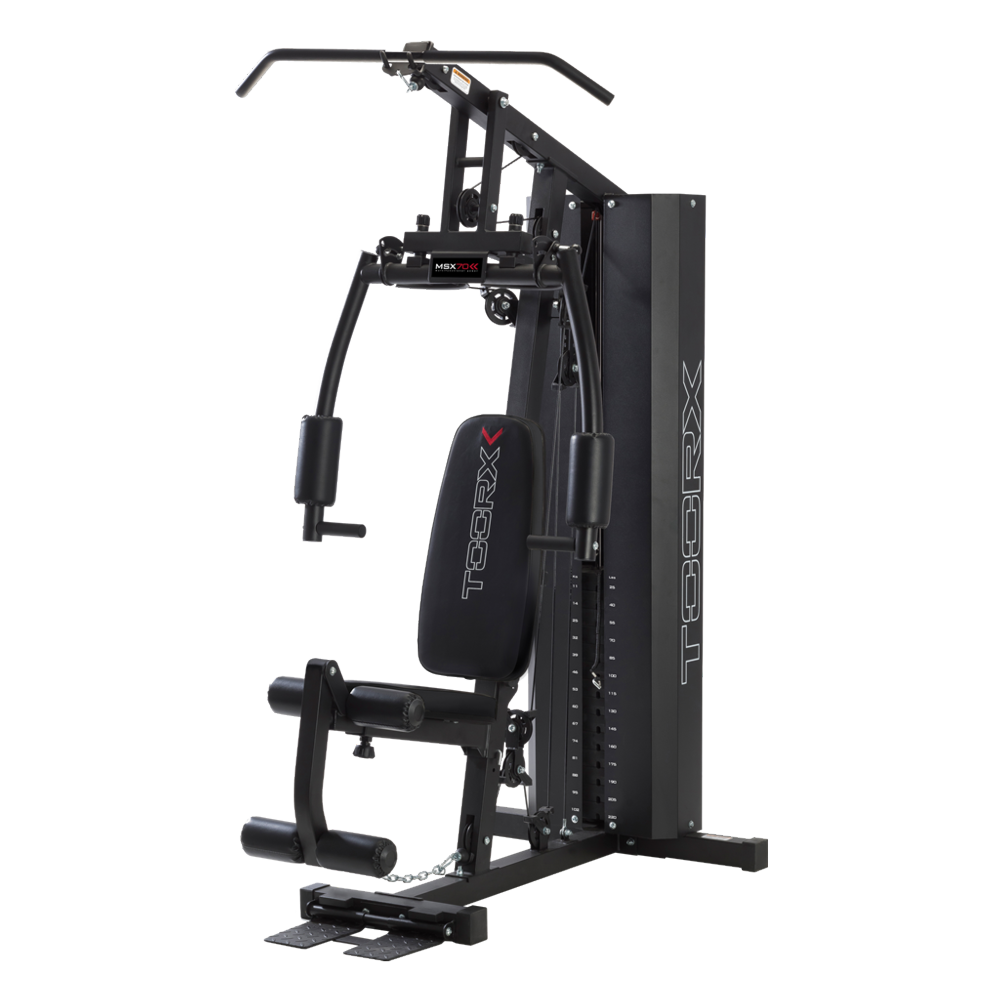 MSX-70
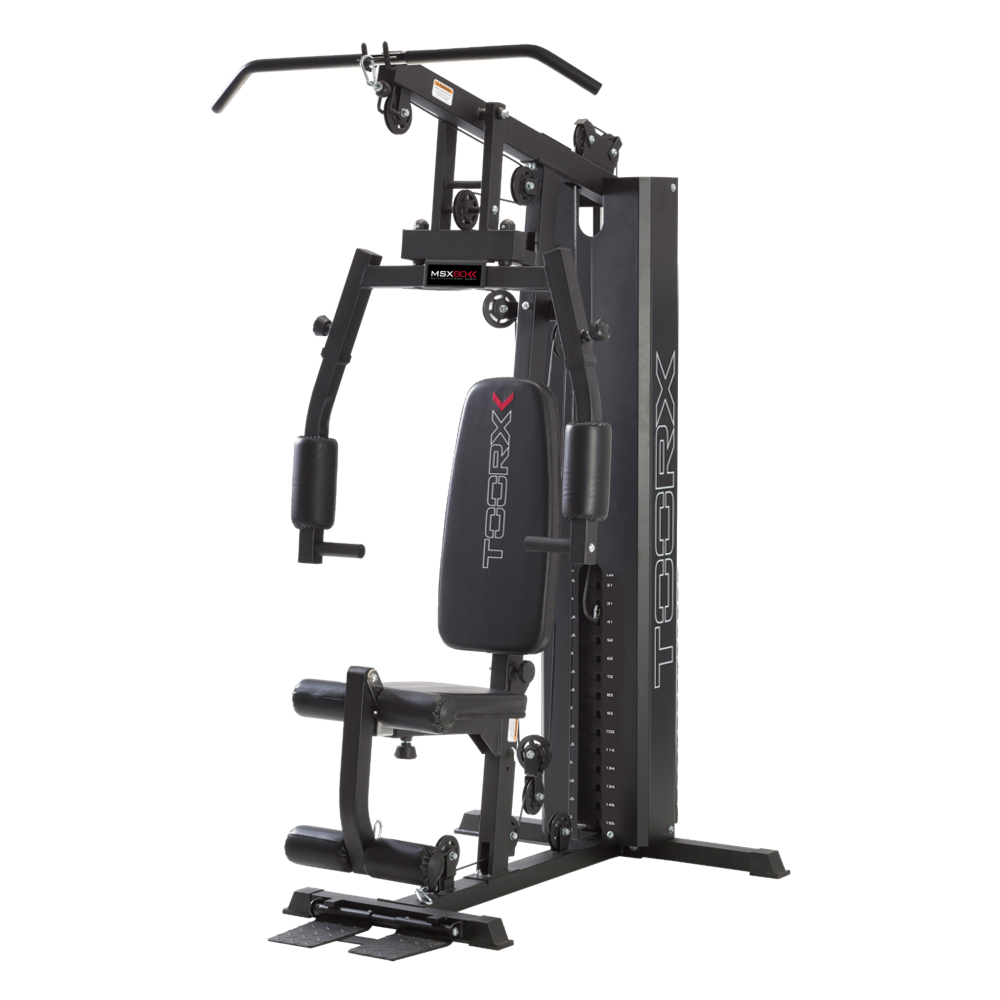 MSX-60
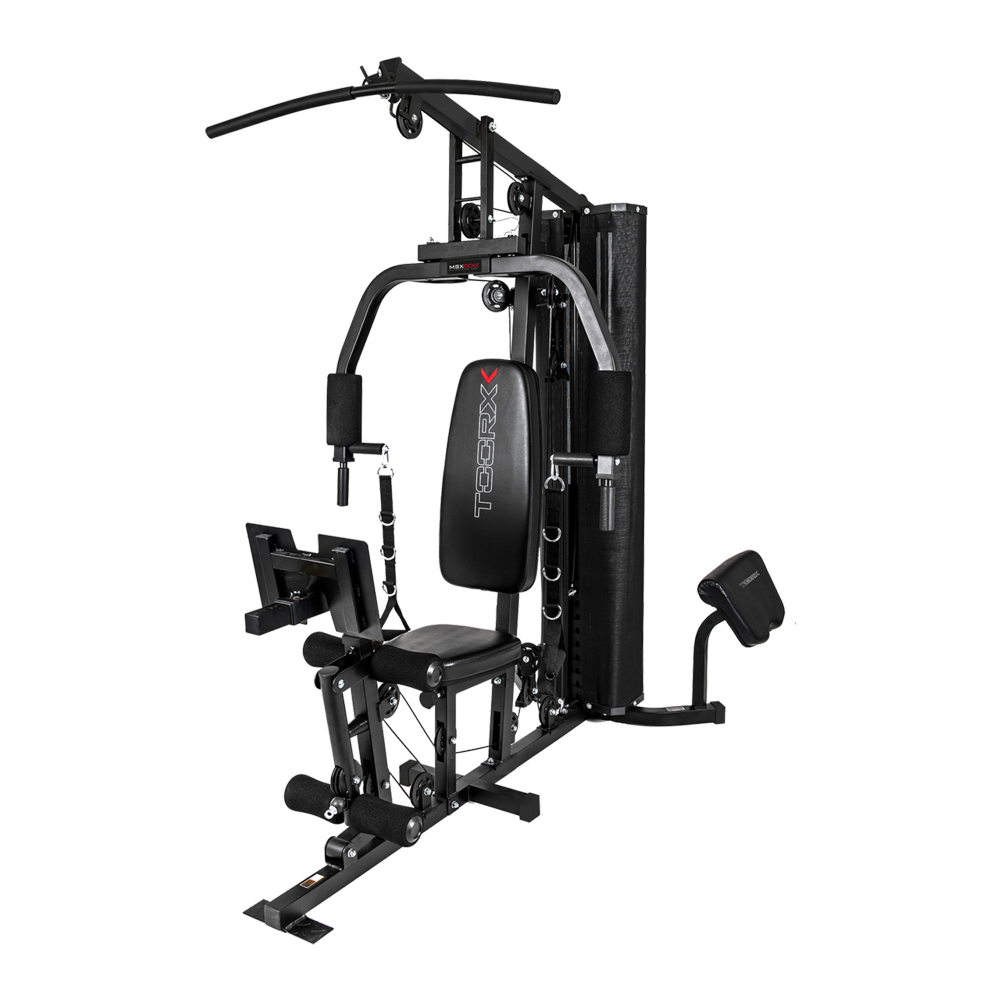 MSX-50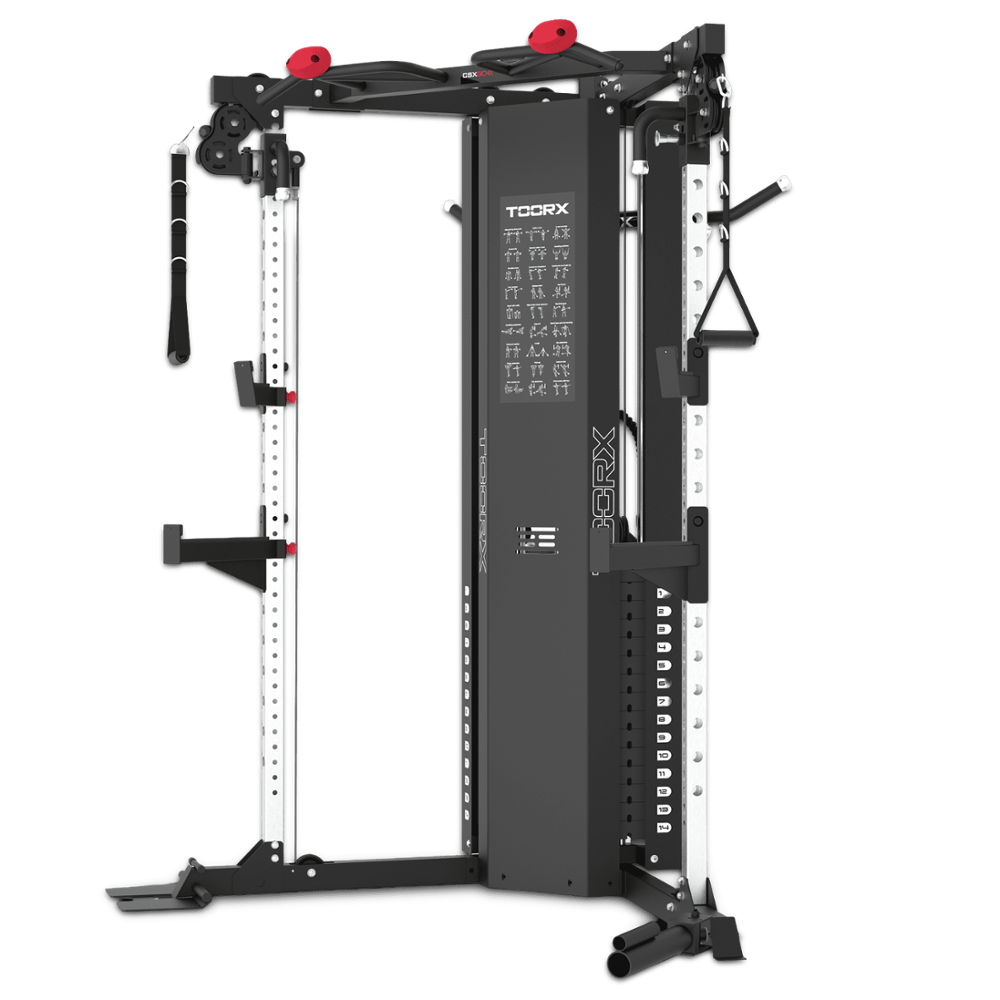
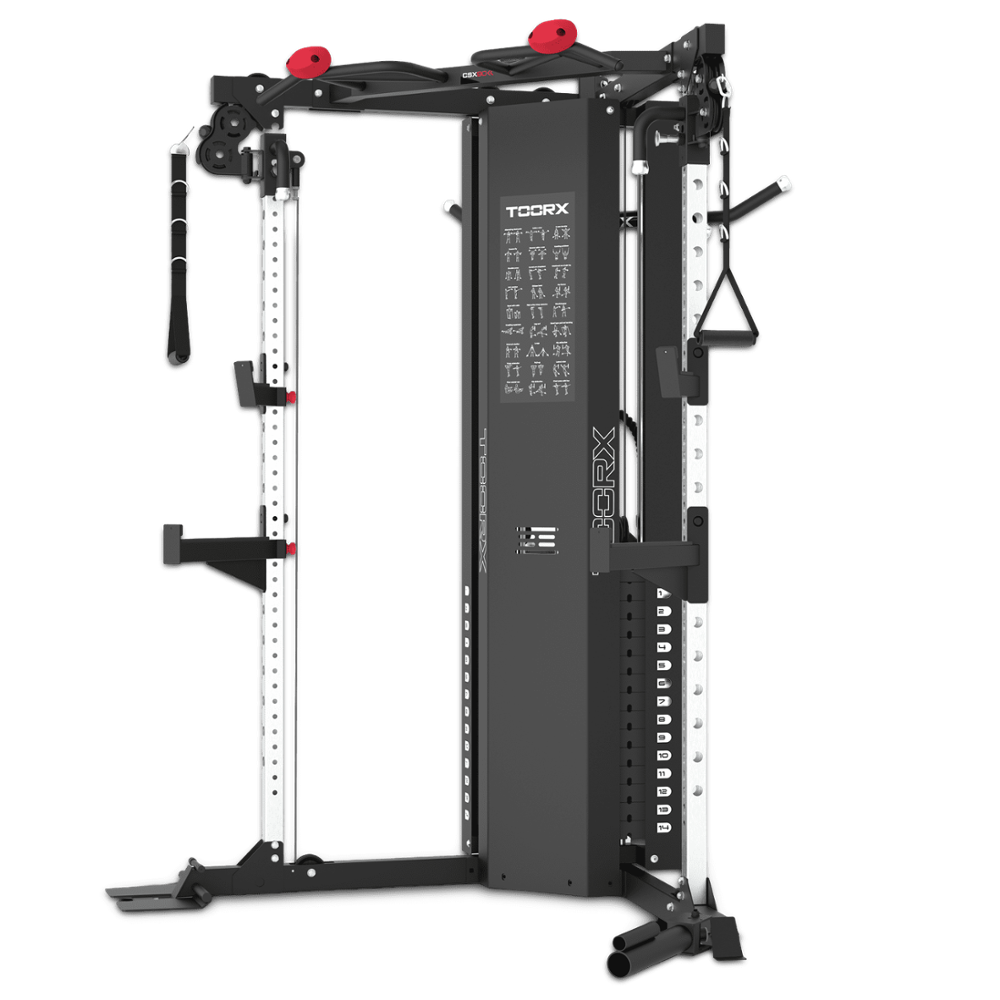
 CSX-70
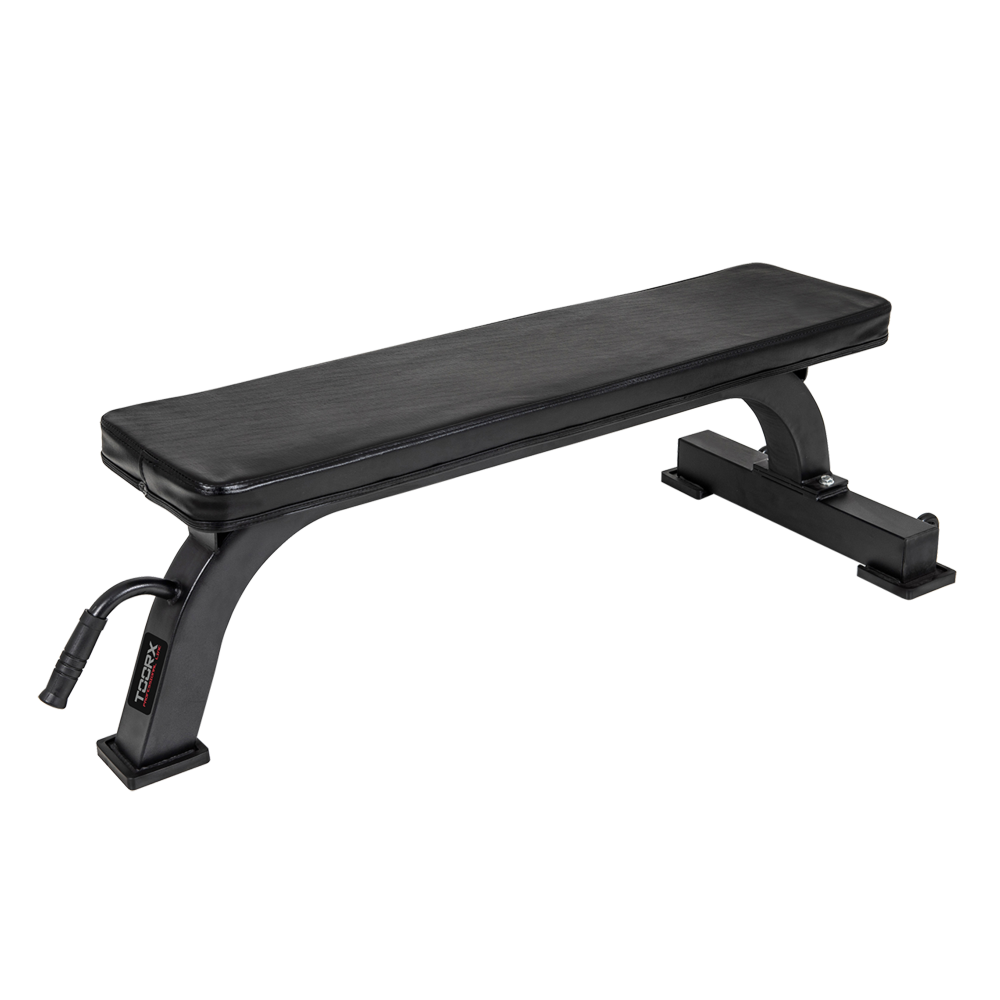 Flat benches
 WBX-100
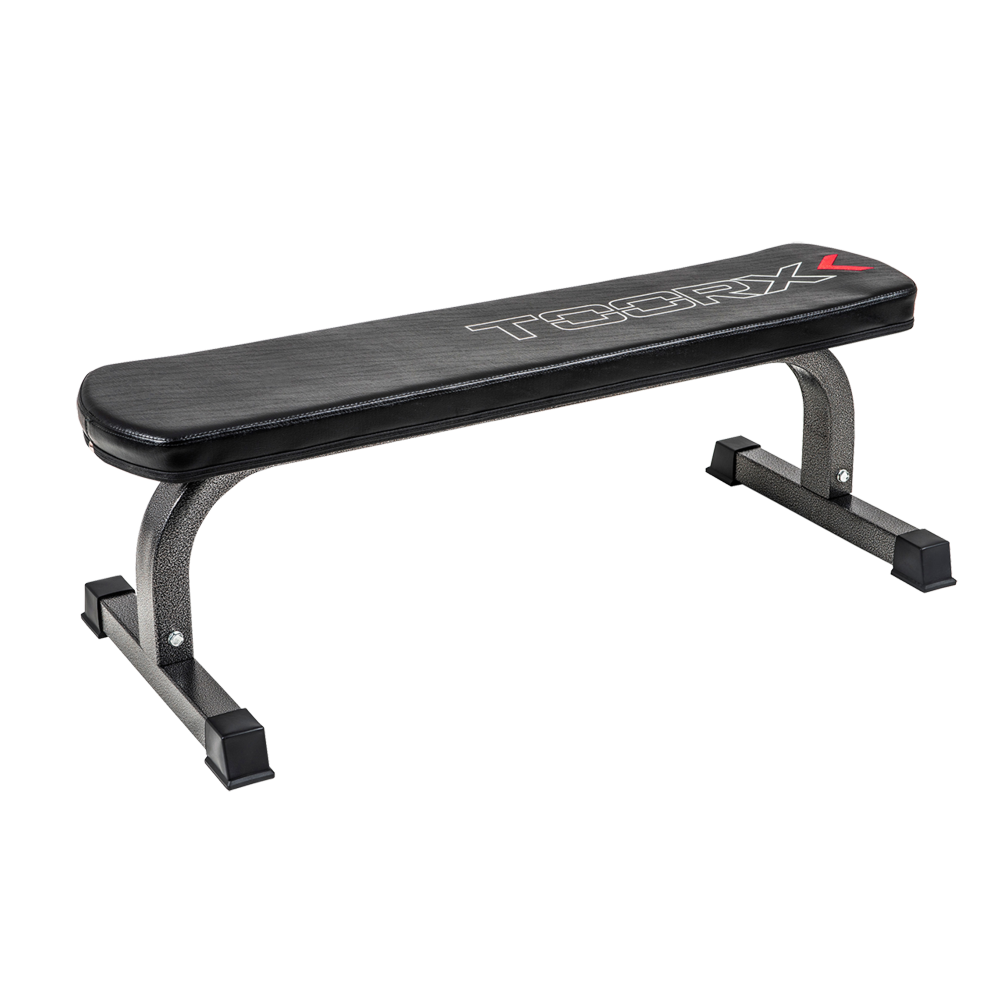 WBX-65
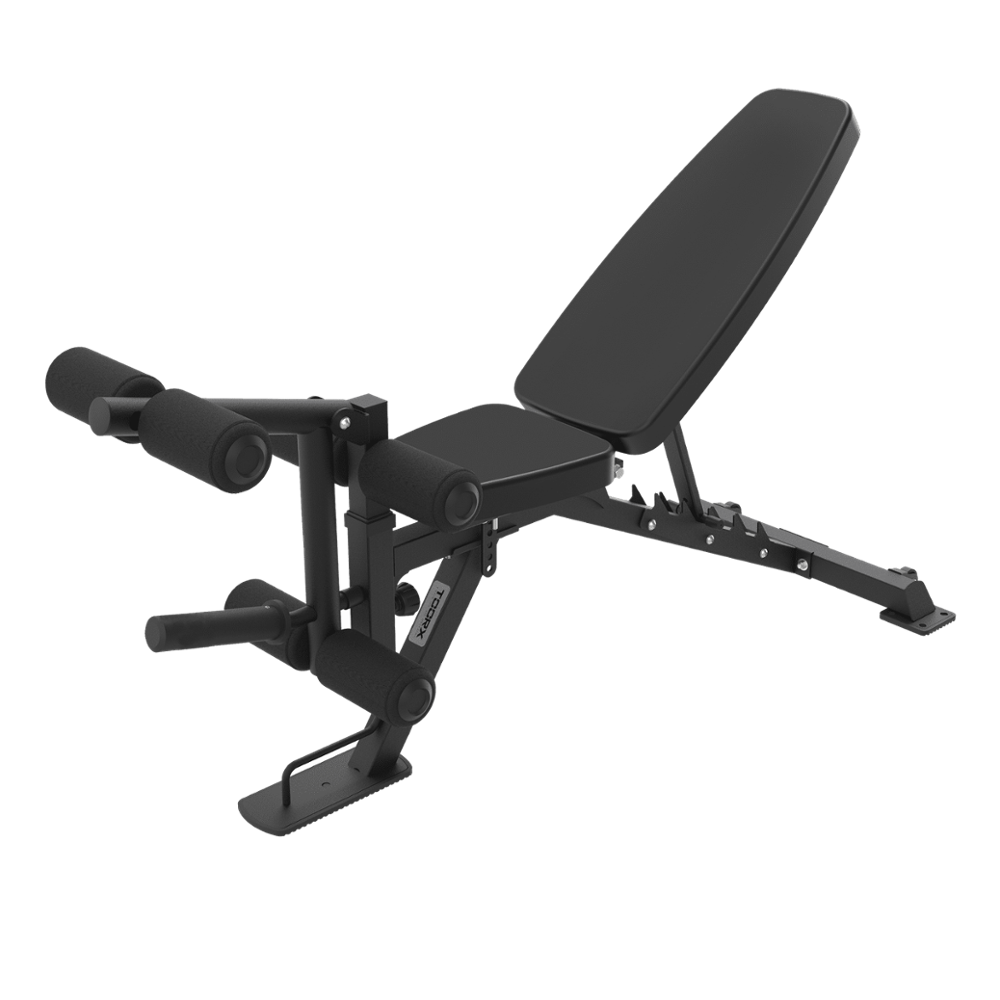 Multi-purpose benches
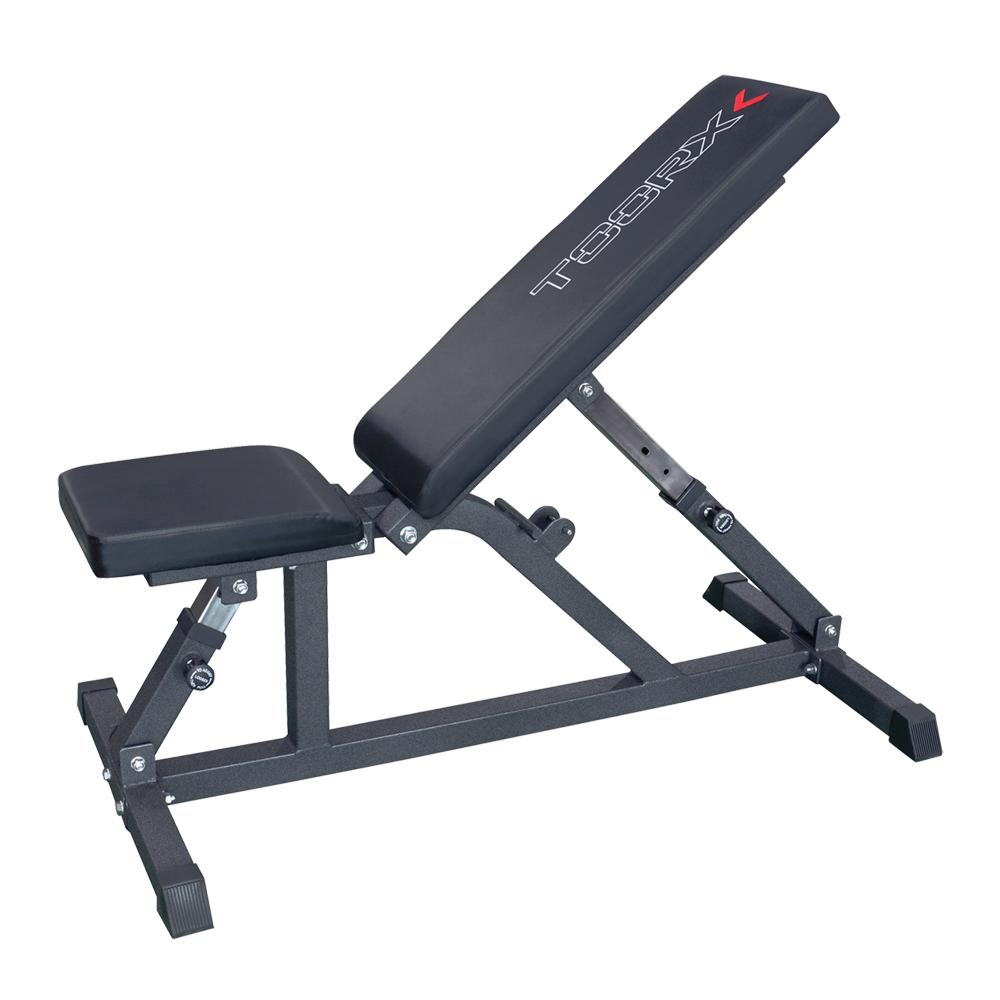 WBX-85
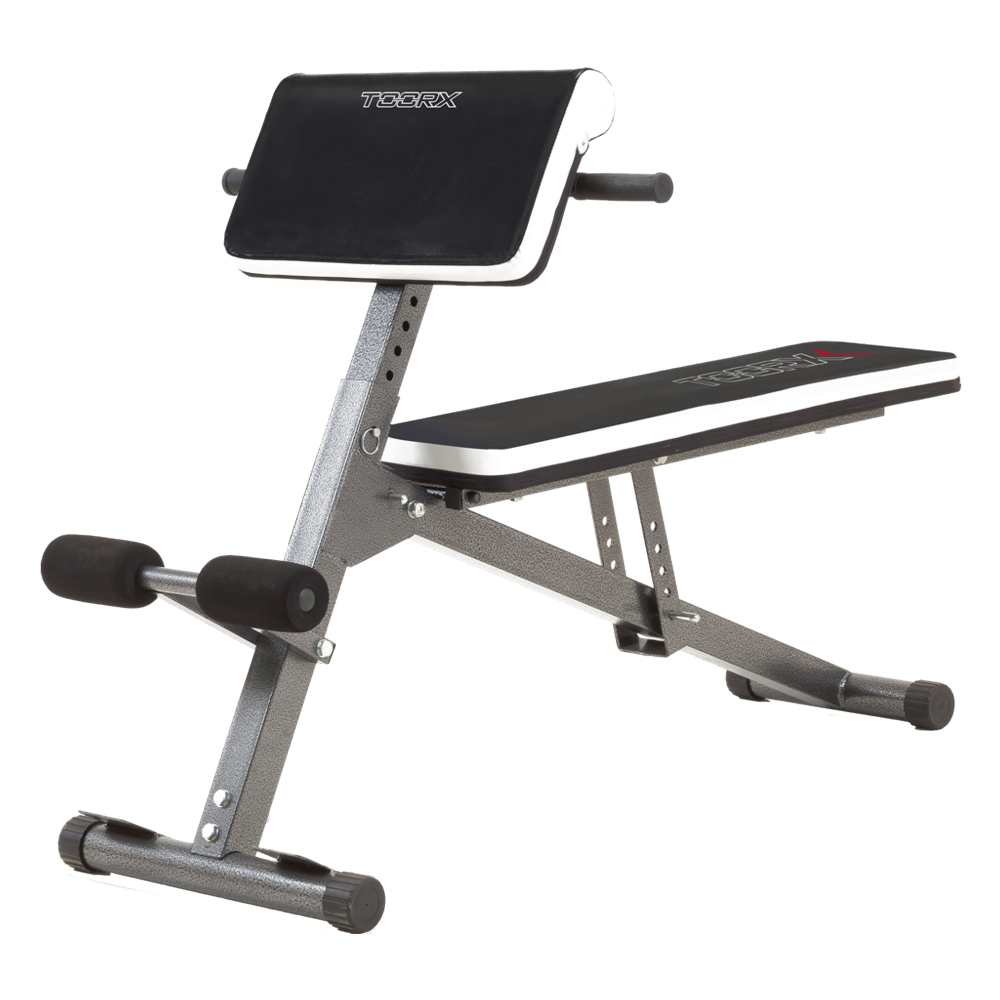 WBX-40 MULTI FIT
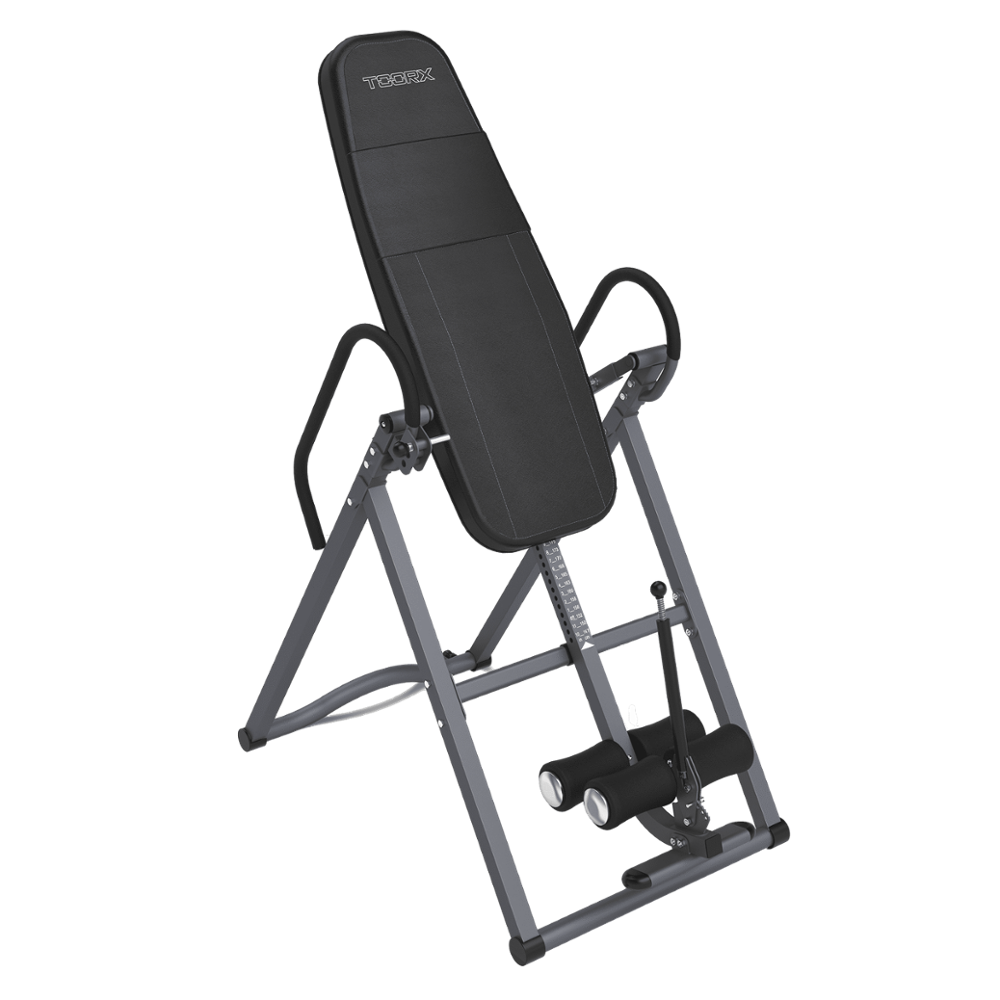 Inversion benches
 Benches with barbell support
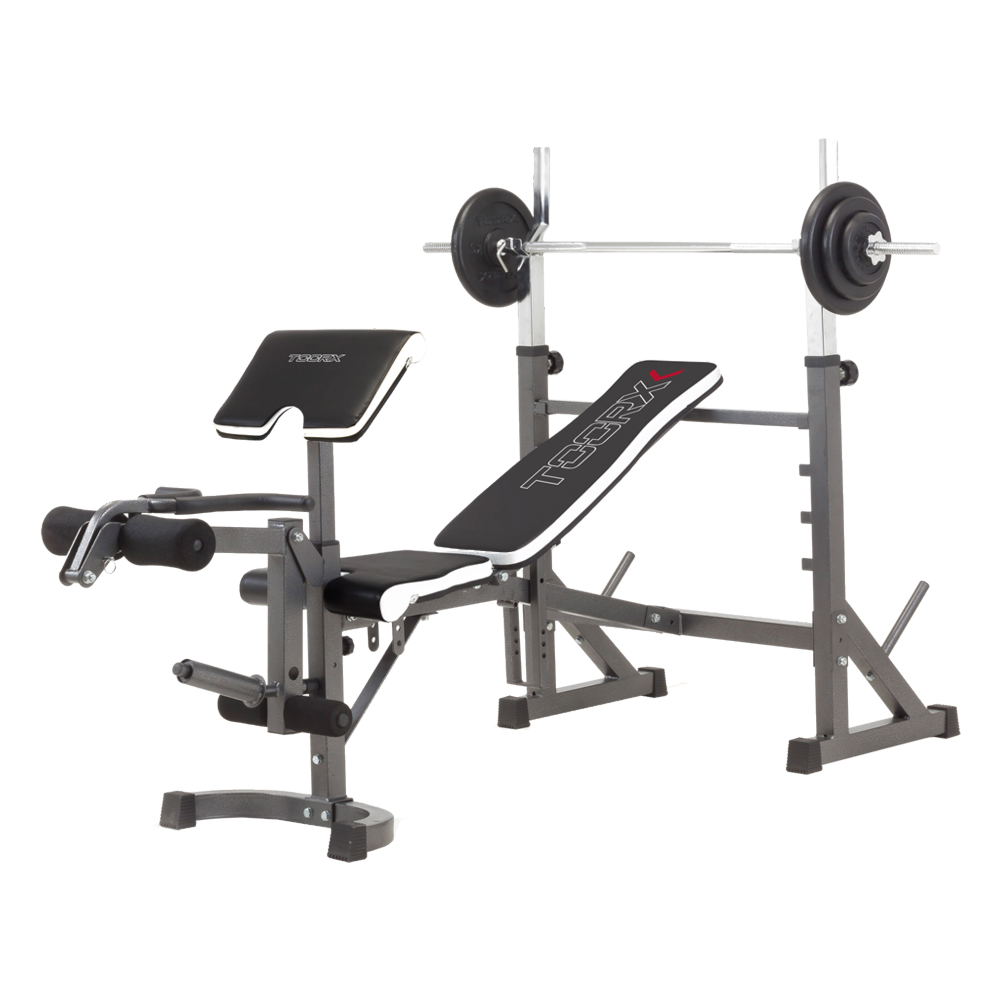 WBX-90
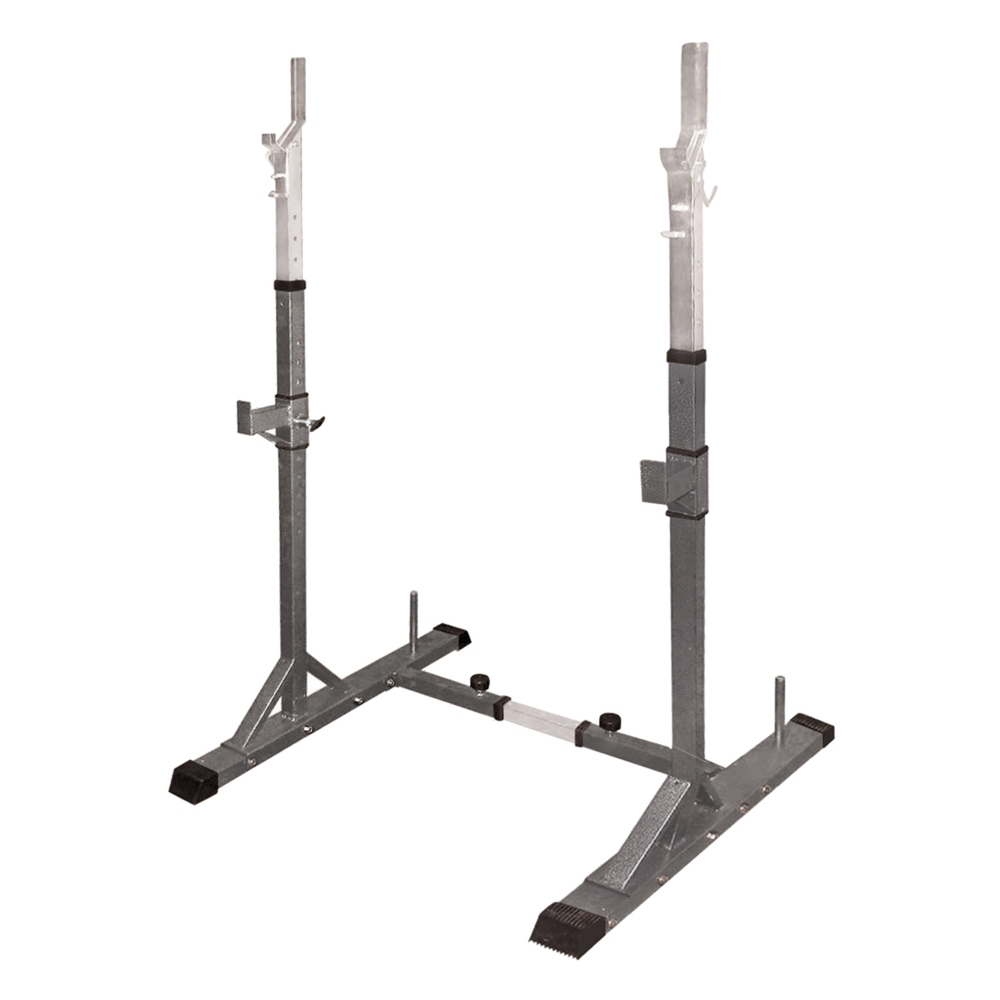 Barbell supports
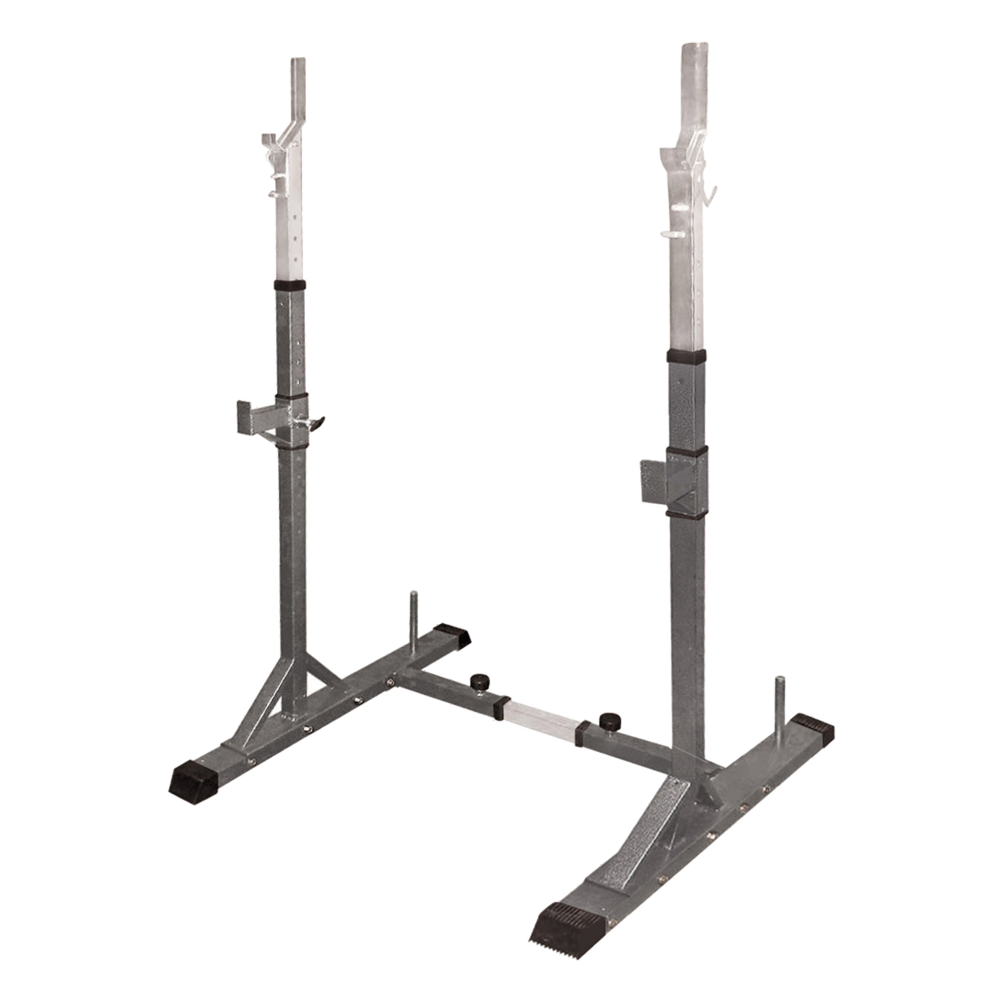 WBX-50
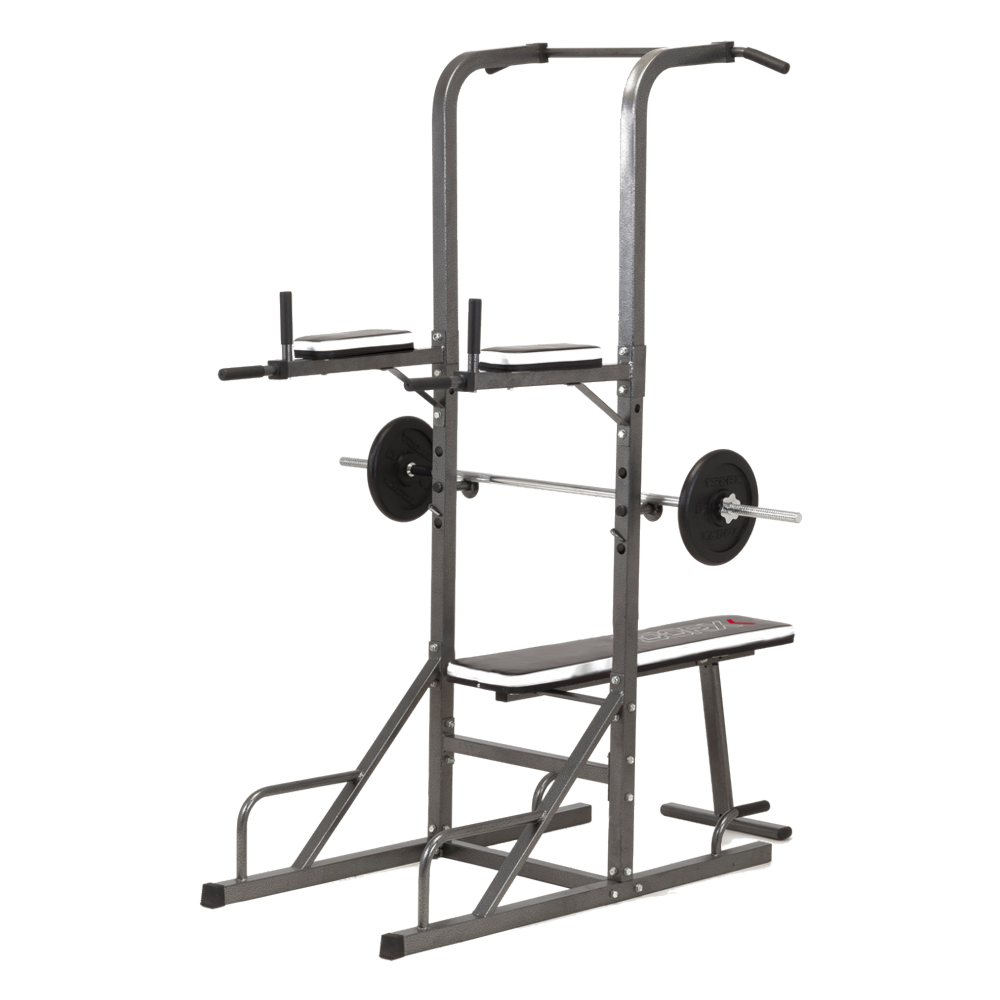 Power Tower
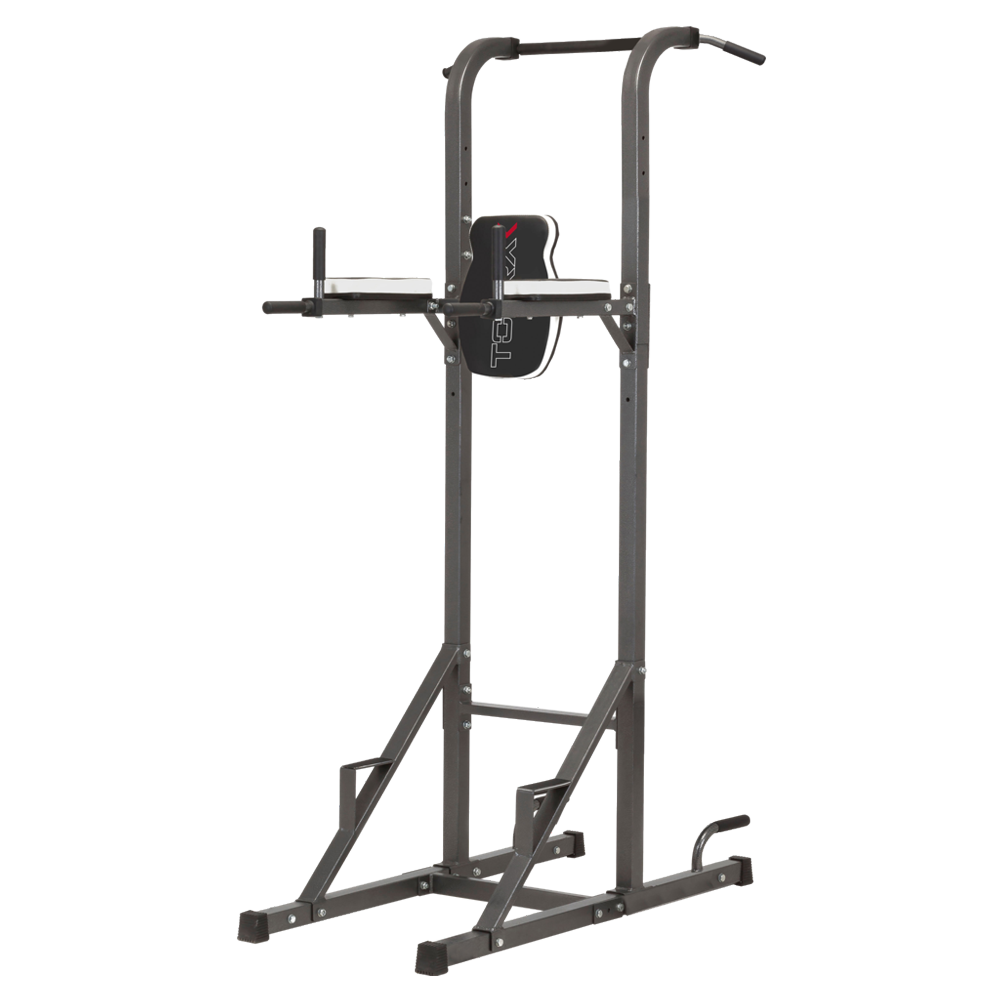 WBX-70
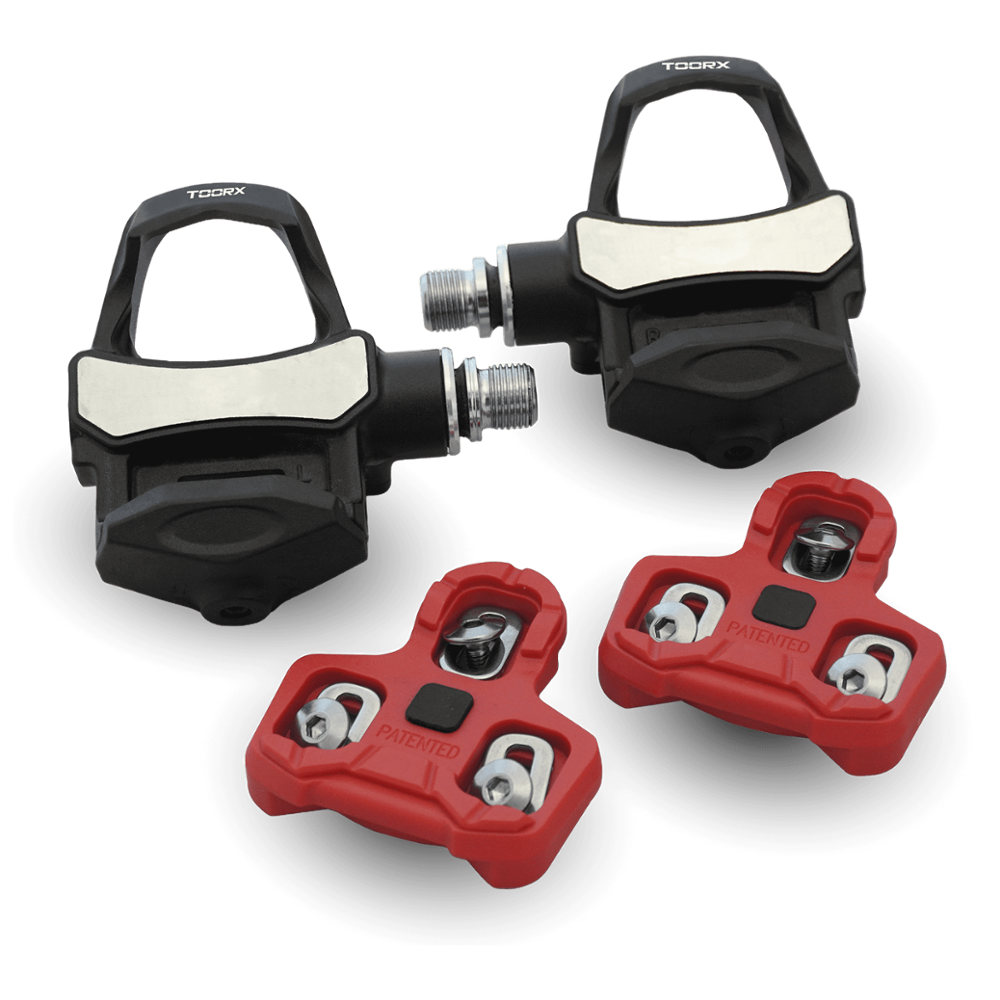 TX-POWER - POWER METER PEDALS KEO SYSTEM
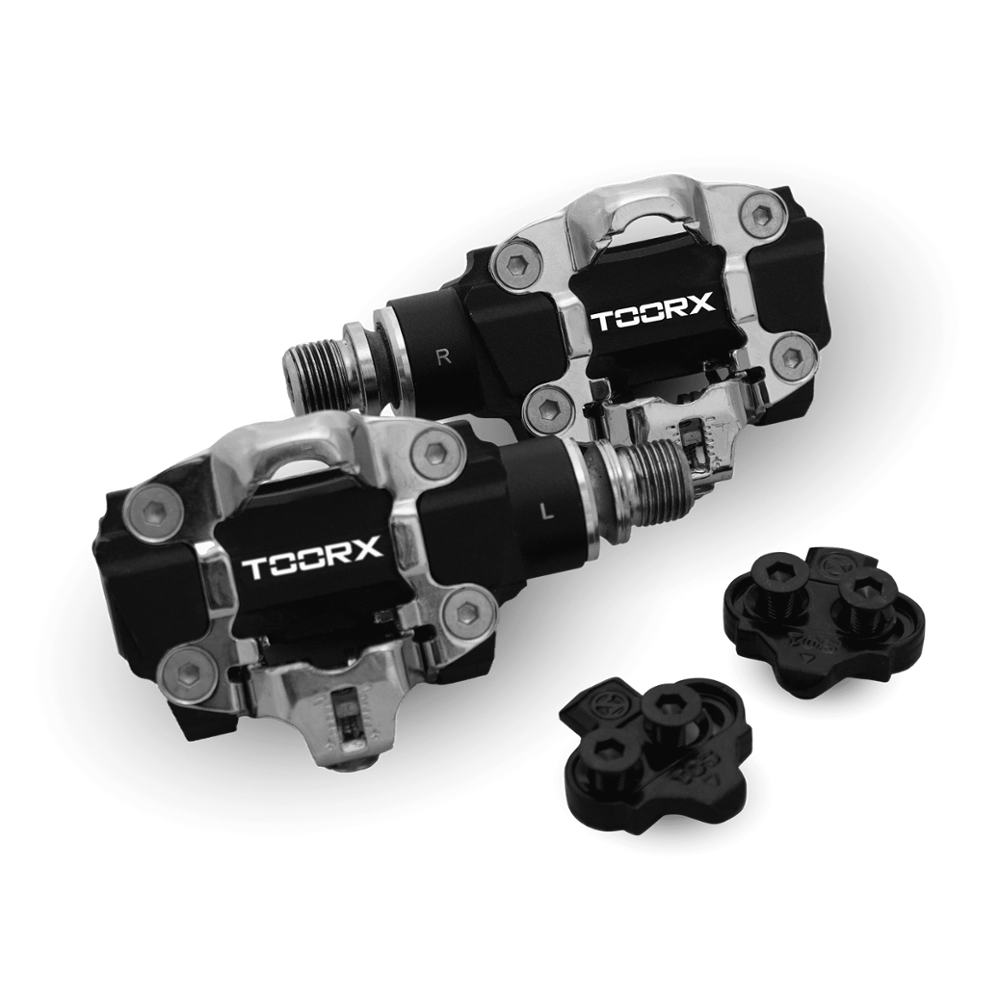 TX-POWER - POWER METER PEDALS SPD SYSTEM
 Sound-absorbing mat
 TRX APP GATE
 TOORX triple-transmission heart rate monitor
 TOORX heart rate monitor
 LUBETECH
 POLAR T34 HEART RATE MONITOR